Part Ⅰ: How to connect iOS(iPhone, iPad, Mac) with ERISAN ERGP70UP
We will first need to Install the AirPin app on the projector, its free of cost and can be downloaded
from the link below – Click here to Download AirPin app for Android from Google Play.
Now, In order to use AirPlay on ERGP70UP for reception purposes, Please Make Sure both your
projector and the iOS device (iPhone / iPod or Mac OS) should be on the same WiFi network.
Steps to Set-Up ERGP70UP as AirPlay & DLNA Receiver
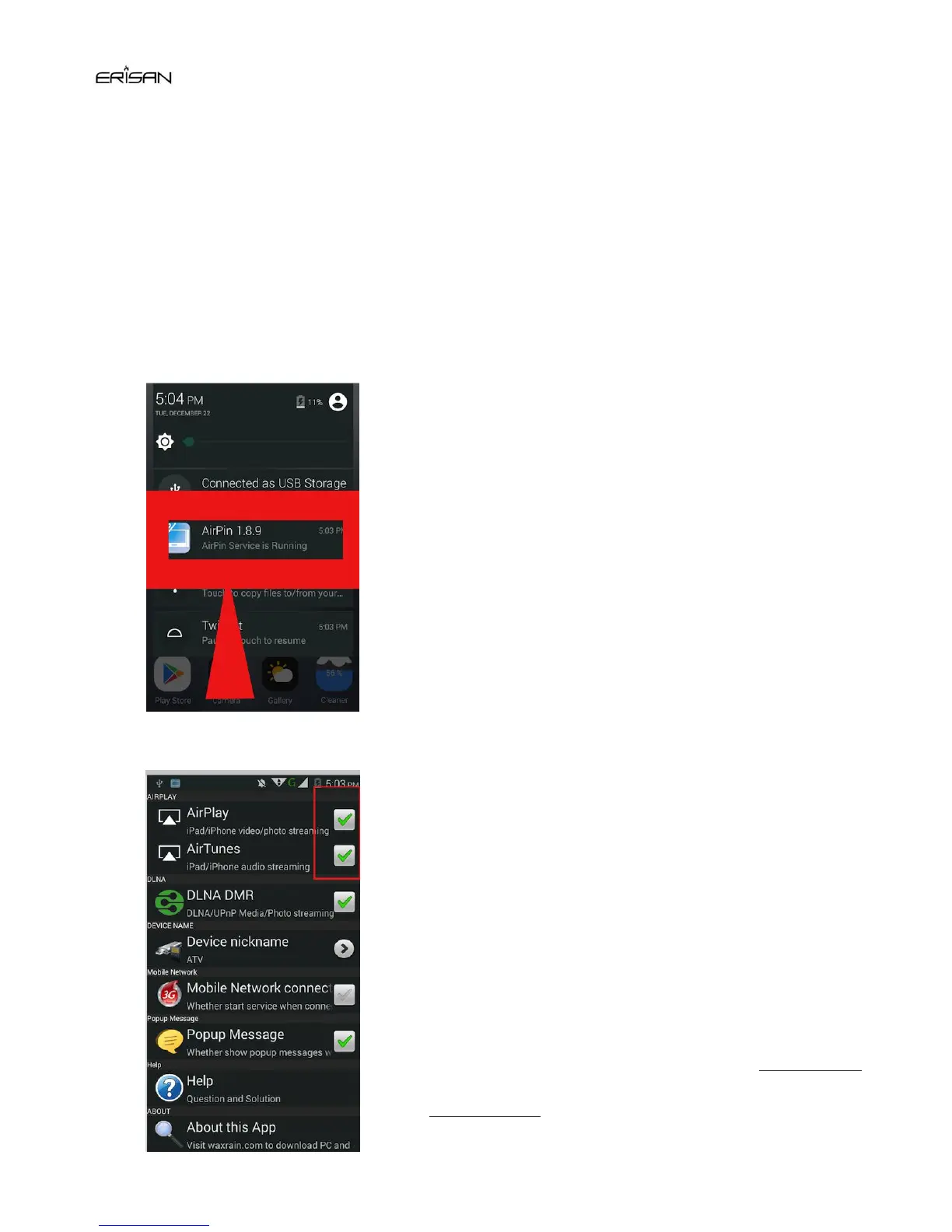
Now, pull down the Notification bar from the Top, and
check for the notification “AirPin service is running”as
shown in the image below
Once you have installed the AirPin lite app for Android,
launch the app (Download & copy the AirPin App in a
U-Disk, install it in the Projector).
Now, it will show you the list of streaming Services
available as shown in the alongside image.
Here make sure that the AirPlay, AirTunes and DLNA
DMR “Checkboxes are enabled or ticked” (
Enable Them
if not Enabled).



 To Next Page