If the AirPin Service is running!, Return to the menu.
Congratulations! You have now successfully set up your projector as an DLNA Receiver. Now
Simply Scan for devices to cast to in your Media Streamer and select the Nickname “ATP @ xx” to
directly stream media wireless to your projector.
Example – In order to Use Android Device as Apple TV or AirPlay Receiver
We connected both the projector and MacBook on the same WiFi Network.
Started the AirPin service with AirPlay services enabled.
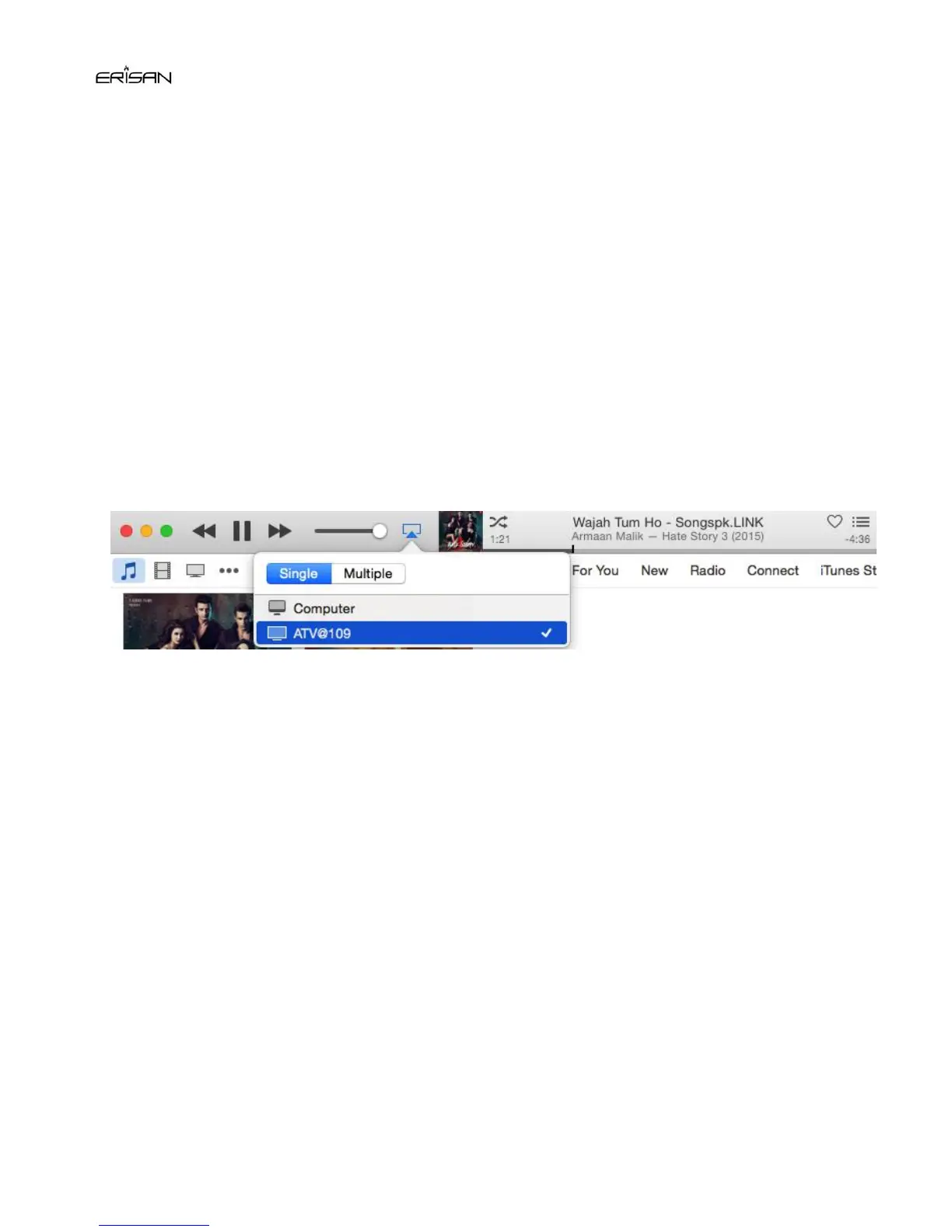
Now, An AirPlay icon was automatically shown on our Mac Task bar and also iTunes as shown
below
(Android Device inside AirPlay icon on iTunes)
We selected our Android Device name from the available AirPlay services list as shown above .
The Android projector started playing AirPlay Streams received from Mac as shown below (We went for
streaming music but you can even use it to Stream Videos and Movies to your Android Device)
–Since Netflix, Comcast have signed the DRM(Digital Rights Management, They do not allow Airplay &
Miracast Streaming–


 To Next Page
 Loading...