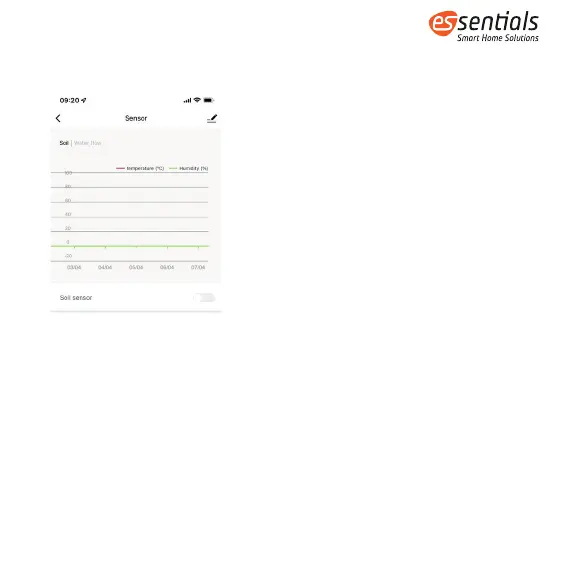
2. “Sensor” interface will show Soil sensor button and Rain sensor button. If the
switch button shows gray, it means the sensor haven’t connect yet.
3. Screw off the battery cover and install batteries. After installing batteries, the
GREEN LED light will turn on for few seconds.
4. After the GREEN LED light turn off, please press and hold the button at the back
of the sensor for five seconds until the RED LED light turn on, which means the
sensor is ready for connecting.
5. When the RED light turn on, please tap the soil sensor button at the App, it will
automatically search and connect the sensor which may take around 10
seconds. After connected, the soil sensor icon will turn to green and show the
battery power level on APP. Switch to “Parameter” interface, user will see the
soil data.
3



 To Next Page