ESI U168 XT
10
3. Control Panel
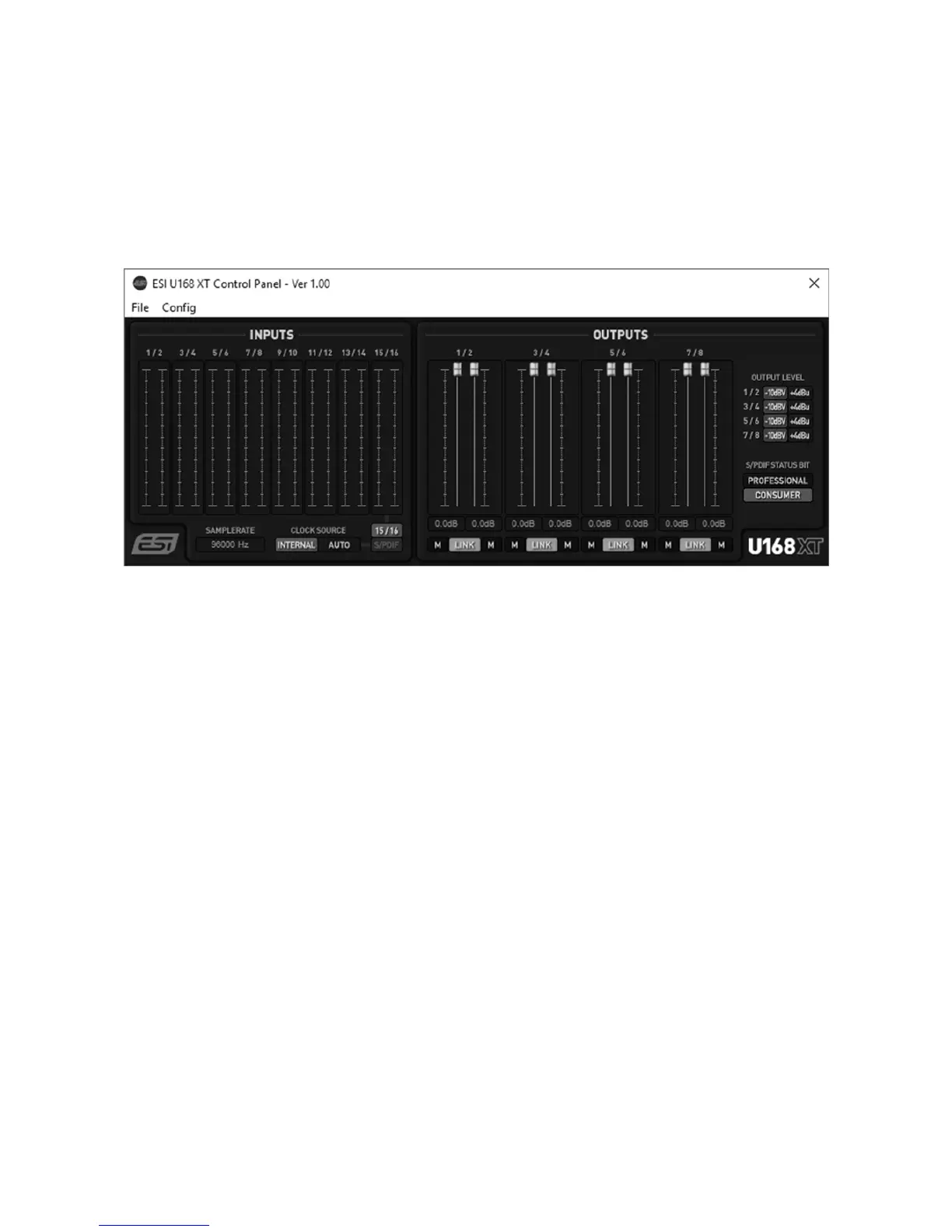
This chapter describes the U168 XT Control Panel and it's functions.
Under Windows, to open the control panel double click on the ESI icon in the task notification area.
Under Mac OS X, there is an icon in the Applications folder. The following dialog will appear:
The panel has the following functions and sections:
INPUTS
The main part of the INPUTS section contains signal level meters for every physical input channel.
Under it, the current SAMPLERATE is displayed.
Under CLOCK SOURCE you can select the clock source for the digital audio processing. By
default it is set to INTERNAL which means that U168 XT is generating the master clock and sample
rate. If set to AUTO, then U168 XT can either get it's master clock from the S/PDIF input (when
enabled and a signal is connected to it) or switch automatically back to generating its own master
clock.
Next to that you can choose the physical analog inputs 15/16 or the digital S/PDIF input as a signal
source for the input channels 15 / 16.
OUTPUTS
The main parts of the OUTPUTS section contains volume control sliders and signal level meters
for each playback channel. Under each channel is a button that allows you to mute playback for that
channel (M). With the LINK button you can choose if you want to control the left and right
playback channels simultaneously.
Under OUTPUT LEVEL you can switch between +4dBu to set the output level of each individual
line output pair optimized for balanced audio signals to +4dBu studio standard level or -10dBV to
set the output level optimized for unbalanced audio signals to -10dBV consumer/HiFi standard
level.



 To Next Page