EasyManua.ls Logo

Eton Sidekick - User Manual

Eton Sidekick
14 pages
Print Icon
To Next Page IconTo Next Page
Loading...
1
Owner’s Manual
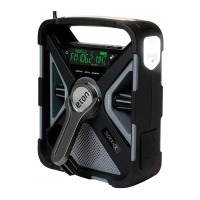
The Rugged, All-Purpose, Multi-Power, Smartphone
Charging Weather Alert Radio with S.A.M.E. Technology
and Bluetooth®
SIDEKICK
Question and Answer IconNeed help?

Do you have a question about the Eton Sidekick and is the answer not in the manual?

Summary

KEY OPERATIONS

POWER

Instructions for turning the device on and off.

Selecting Radio Band

How to switch between AM, FM, Bluetooth, and Weather Band stations.

SIDEKICK POWER OPTIONS

USB Charging

Instructions for charging the device using a USB cable and power adapter.

Solar Charging Method

Information on how the device charges using solar power.

Hand Crank Charging

Details on how to charge the device using the hand crank.

SETTING THE CLOCK AND ALARM

SET S.A.M.E. ALERT MODE

Set Location using Preloaded Options

How to configure S.A.M.E. alert locations using preset options.

USA;Canada Operation

Specific steps for setting S.A.M.E. alerts in the USA or Canada.

S.A.M.E. ALERT CONFIGURATION

Direct COUNTY;PROVINCE Code Entry

Method for setting S.A.M.E. locations by directly entering codes.

S.A.M.E. ALERT MANAGEMENT

ALERT AND MODE SETTINGS

DISPLAY AND TROUBLESHOOTING

Summary

KEY OPERATIONS

POWER

Instructions for turning the device on and off.

Selecting Radio Band

How to switch between AM, FM, Bluetooth, and Weather Band stations.

SIDEKICK POWER OPTIONS

USB Charging

Instructions for charging the device using a USB cable and power adapter.

Solar Charging Method

Information on how the device charges using solar power.

Hand Crank Charging

Details on how to charge the device using the hand crank.

SETTING THE CLOCK AND ALARM

SET S.A.M.E. ALERT MODE

Set Location using Preloaded Options

How to configure S.A.M.E. alert locations using preset options.

USA;Canada Operation

Specific steps for setting S.A.M.E. alerts in the USA or Canada.

S.A.M.E. ALERT CONFIGURATION

Direct COUNTY;PROVINCE Code Entry

Method for setting S.A.M.E. locations by directly entering codes.

S.A.M.E. ALERT MANAGEMENT

ALERT AND MODE SETTINGS

DISPLAY AND TROUBLESHOOTING

Overview

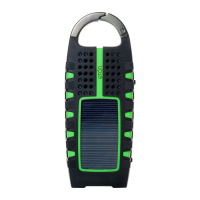
The device is called "SIDEKICK" and is described as a rugged, all-purpose, multi-power, smartphone charging weather alert radio with S.A.M.E. Technology and Bluetooth®.

Function Description

The SIDEKICK serves multiple functions:

  • Radio: It operates as an AM/FM radio and a Weather Band (WB) radio with S.A.M.E. (Specific Area Message Encoding) technology for weather alerts.
  • Weather Alert: It provides weather alerts with S.A.M.E. technology, allowing users to receive warnings, watches, and advisories for specific locations. It features status level lights (Red for Warning, Orange for Watch, Yellow for Advisory) and can display text alerts on the screen with an audible siren.
  • Smartphone Charging: It can charge smartphones and tablets via a USB out port.
  • Lighting: It includes an LED flashlight and an emergency beacon, as well as an ambient light.
  • Bluetooth Speaker: It can connect to Bluetooth devices for streaming music.
  • Power Source: It offers multiple power options: USB charging, solar charging, and hand-crank charging.

Important Technical Specifications

  • Battery: 2600mAh lithium battery.
  • USB Charging Output: Minimum constant 500mA power output required for full charge via USB.
  • Solar Charging Time: Fully charges the battery in 14-16 hours under sunlight.
  • Crank Charging Output: 4 minutes of cranking provides 1 minute of talk time on most smartphones or 10-15 minutes of radio time.
  • Operating Temperature Range: 0 °C to 40 °C.
  • Memory Locations: 8 memory locations for FM/AM radio stations. 25 memory slots for S.A.M.E. locations.

Usage Features

Power and Radio Operation:

  • Power On/Off: Press the Power Button.
  • Band Selection: Press the AM/FM/Bluetooth button to switch between AM/FM/Bluetooth, or press the WB button to listen to the Weather Band.
  • Tuning: Rotate the Tuning Knob to find stations.
  • Memory Storage: Press and hold the MENU button to store the current frequency into memory. Rotate the TUNING knob to select a memory location (1-8) and press MENU to save.
  • Recalling Memory Stations: Press the MEMORY/TUNE button to cycle through stored stations.
  • Weather Alert Setting:
    • Turn on the radio and press the WB button.
    • Rotate the tuning knob to find the WB station for your location.
    • Press the WB ALERT button; "WB" will be displayed. Audio will shut off in WB ALERT mode.
    • Press WB or AM/FM to exit WB Alert mode.
  • S.A.M.E. Alert Mode (Preloaded Locations):
    • With the radio OFF, press MENU.
    • Rotate TUNING dial up three steps to display "COUNTY – MUL," "COUNTY –SIN," or "COUNTY -ALL."
    • Press WB.
    • "MULTIPLE," "SINGLE," or "ALL" will flash. Rotate TUNING dial to select and press WB.
    • For MULTIPLE or SINGLE, memory slot (01-25) displays. Rotate tuning dial to select channel and press WB.
    • Select USA, CANADA, or USER SET using TUNING dial and press WB.
    • For USA/CANADA, select STATE/Province and then COUNTY/AREA using TUNING dial and press WB.
    • Entered location will scroll. Rotate TUNING dial for new location or press MENU to exit.
  • S.A.M.E. Alert Mode (Direct Code Entry):
    • With the radio OFF, memory slot (01-25) displays. Rotate tuning dial to select channel and press WB.
    • Use TUNING dial to select each of the 6 digits for your location code, pressing WB after each digit.
    • Press MENU to enter.
    • For ALL locations, press MENU, rotate TUNING dial up three steps to display "COUNTY – MUL," "COUNTY –SIN," or "COUNTY -ALL." Press WB. Rotate TUNING knob until "ALL" flashes. Press MENU to select. "COUNTY-ALL" will be displayed.
  • Voice or Siren Setting for Alerts:
    • With the radio OFF, press MENU.
    • Rotate TUNING dial up four steps to display "ALERT – VOI" or "ALERT - SIR."
    • Press WB. "SIREN" will flash. Rotate TUNING dial to select SIREN or VOICE.
    • Press MENU to enter.
  • Enable/Disable S.A.M.E. Alert:
    • With the radio OFF, press MENU.
    • Rotate TUNING dial five steps to display "ALERT ON" or "ALERT OFF."
    • Press WB. ALERT icon will flash. Rotate TUNING dial to select ON or OFF.
    • Press MENU to enter and exit. If ALERT OFF, text alerts will scroll without audio.
  • Defeat Mode (Disable Specific S.A.M.E. Notifications):
    • With the radio OFF, press MENU.
    • Rotate TUNING dial four steps to display "DEFEAT – SIR."
    • Press WB. S.A.M.E. notifications will scroll. Rotate TUNING dial to select desired notification to ENABLE or DISABLE.
    • Press WB. "DISABLE" or "ENABLE" will show. Rotate TUNING dial for next notification.
    • Press MENU to enter and exit.
  • Weatherband Alert (Passive Monitoring):
    • Tune to WB for your location and press the button. "Alert" will appear, and audio will turn off. The radio monitors the WB station and activates audio if an alert is issued. Press any button to turn off the Alert.

Bluetooth and Music:

  • Bluetooth Activation: Press AM/FM/Bluetooth to turn on Bluetooth. Enable Bluetooth on your device and connect to "SIDEKICK."
  • Play/Pause: Press the Play/Pause button on the front to control streaming music.

Lighting:

  • Ambient Light/Flashlight: Press the Light button to turn on ambient light or flashlight (alternates). Press again to turn off.
  • Brightness Adjustment: When light is on, press and hold the Light button.
  • Emergency Light: Press the Light button twice quickly to turn on the red emergency light. Press twice again to turn off.

Charging Features:

  • Smartphone/Tablet Charging: Plug your device's USB cable into the SIDEKICK's USB out port. Press the CELL phone charger button to start charging; "CELL" flashes. Press again to stop.
  • Charging via USB: Insert the provided micro USB cable into the Micro USB Charging Port and connect to a standard USB charging block/wall outlet. The battery charging icon indicates charging.
  • Solar Charging: Place the unit in sunlight; it will automatically start charging. The battery charging icon will show charging.
  • Crank Charging: Use the Hand Crank to generate power.

Time and Alarm:

  • Set Time:
    • With the radio OFF, press MENU. "SET TIME" displays.
    • Press WB. HOURS digits flash. Rotate TUNING dial to set (AM/PM changes past 12).
    • Press WB to enter. MINUTES digits flash. Rotate TUNING dial to set.
    • Press WB to enter.
  • Set Alarm:
    • With the radio OFF, press MENU.
    • Rotate TUNING dial up one step to display "SET ALARM."
    • Press WB. HOURS digits flash. Rotate TUNING dial to set (AM/PM changes past 12).
    • Press WB to enter. MINUTES digits flash. Rotate TUNING dial to set.
    • Press WB to enter.
    • Press the Alarm ON/OFF button to turn on the alarm (bell icon appears). Press again to turn off.

Display Settings:

  • Backlight LED Sleep Mode:
    • With the radio OFF, press MENU.
    • Rotate TUNING dial six steps to display "SET BKLED."
    • Press WB. "NORMAL" or "ON" flashes. Rotate TUNING knob to select.
    • Press MENU to exit. "NORMAL" dims backlight after 30 seconds; "ON" keeps it illuminated (shortens battery life).

Maintenance Features

  • Troubleshooting: If the unit becomes unresponsive, press the RESET button (located on the right side, accessible with a paper clip).
  • Cleaning: Clean only with a dry cloth. Do not use detergents or chemical solvents.
  • Environmental Protection:
    • Do not submerge or expose to water for extended periods.
    • Protect from high humidity and rain.
    • Unplug immediately if liquid is spilled or an object falls into the apparatus.
    • Unplug and disconnect external antennas during lightning storms.
    • Do not remove the cover.
    • Refer servicing to qualified service personnel.
  • Disposal: Dispose of electrical/electronic products and batteries according to local rules and regulations. Do not dispose with normal household waste.
  • Warranty Registration: Register the product at https://etoncorp.com/pages/contact-us for full warranty coverage and updates.
  • Service: Contact Etón service representatives for problem determination and troubleshooting. If service is required, they will instruct on how to proceed based on warranty status. Do not ship the radio back without obtaining a return authorization number.

Eton Sidekick Specifications

General IconGeneral
BrandEton
ModelSidekick
CategoryRadio
LanguageEnglish

Related product manuals