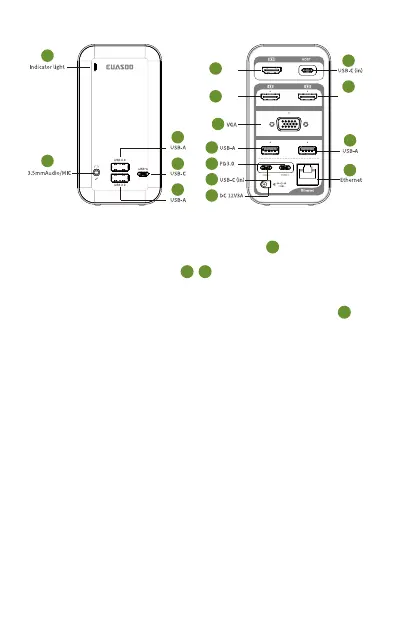
1. Connect the DC power adapter to DC port ( ) on the back of
the dock.
2. Connect HOST 1 / HOST 2 ( 7 /13 ) to your host system with the
supplied USB C-USB C cable.
3. If you need to charge your laptop through the docking station,
connect the laptop's power adapter to power input port (14 ) on
the back of the docking. Note: If your laptop's usb-c port
support power delivery, but your laptop's power adapter doesn't
work with usb-c port, you can charge your laptop directly with
the laptop's charger while using docking, it would be more
stabler and faster to charge your laptop.
USB-C Quad Display Docking Station Quick Start:
Overview
VGA
1
USB 3.0 USB 3.0
1
2
3
4
5
6
15
8
10
11
14
13
15
16
12
7
9
HDMI 1
HDMI 2 HDMI 3
Note:
HDMI 1 video output is only from HOST 1 system, and HDMI 2 /
HDMI 3 / VGA video output is only from HOST 2 system.
Read Before Use
Please update your system to the newest
To confirm compatibility, please check whether the port you
plugged into supports Thunderbolt 3(supports displayport alt
mode and Power delivery). If not, there is no video signal output
from the port of your computer that you plug USB C hubs/dock-
ing stations into. So all hubs couldn't help. Often, many confuse
USB C ports as Thunderbolt 3 ports since they are the same shape
and size. Please see the computer’s ports specific description
that what functions are supported on computer manual first or
contact your computer manufacturer's customer support to
. 02 .


 To Next Page
 Loading...