Need help?
Do you have a question about the EUFY Smart Lock and is the answer not in the manual?
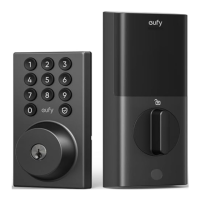
Details of the front view of the eufy Smart Lock, including the LED indicator and numeric buttons.
Details of the rear view of the eufy Smart Lock, including the battery cover and setup button.
Instructions for downloading the eufy Security app from the App Store or Google Play and setting up an account.
Criteria and measurements required for the door and frame to ensure proper installation of the Smart Lock.
Detailed steps for measuring the backset and installing the deadbolt into the doorframe.
Instructions for aligning and securing the strike plate and optionally installing the strike reinforcer.
Steps for measuring cross bore dimension and installing the exterior assembly onto the doorframe.
Instructions for routing the cable and fixing the mounting plate onto the interior doorframe.
Steps to connect the wire, align the tailpiece, and secure the interior assembly.
Guidance on inserting AA batteries into the battery compartment, matching polarity.
Steps to pair your phone with the Smart Lock via Bluetooth and understand LED indicator status.
Instructions to calibrate the door lock by ensuring the door is closed and following app prompts.
Process for naming the Smart Lock and setting a primary access code (4-8 characters).
How to set a scramble passcode to enhance security by masking the main access code.
Overview of customizable features available through the eufy Security app, such as user management and sound settings.
Methods to unlock the door: using access code, eufy Security app, or the provided key.
Options to lock the door: using access code, eufy Security app, automatic lock, or one-touch lock.
Procedure to unlock the door using a micro USB and portable battery when the main battery is low.
Steps to delete an access code by re-pairing the phone with the Smart Lock via the eufy Security app.
Guide to adjusting the Smart Lock's ringtone volume through the eufy Security app.
Common reasons for rapid battery drain, including installation issues, water exposure, and battery type.
Information regarding FCC compliance, including operation conditions and potential interference.
Details on the limited warranty period for the Smart Lock, its mechanical parts, and electrical components.
Provides phone numbers, email address, and physical address for customer support and inquiries.
Links to eufy's official social media channels for updates and engagement.
This document is a user manual for the eufy Smart Lock (Model: T8500), a security device designed to provide smart access control for doors. The manual outlines the installation process, setup procedures, basic operations, troubleshooting tips, and important safety instructions.
The eufy Smart Lock is a smart access control device that allows users to lock and unlock doors using multiple methods: a keypad with an access code, the eufy Security app via Bluetooth, or a physical key. It features an encryption chip to secure Bluetooth data and user information, ensuring privacy. The lock is designed for residential use and offers various customizable settings through the accompanying mobile application.
The Smart Lock offers a range of features to enhance convenience and security:
Multiple Unlocking Methods:
Multiple Locking Methods:
Scramble Passcode: This feature allows users to input a series of random numbers before or after their actual access code (up to 12 digits total) to prevent others from guessing the code by observing finger movements. This is particularly useful in public or semi-public environments.
User Management: The Smart Lock supports adding up to 100 users, each potentially with their own access codes. The initial user who pairs the phone with the lock becomes the administrator and can authorize other users.
Customizable Settings (via eufy Security App):
Low Battery Alarm: The lock is designed to alert users when the battery runs low, prompting a replacement.
Emergency Power: In case of a completely drained battery, the Smart Lock can be temporarily powered using a micro USB cable connected to a portable battery, allowing users to unlock the door with an access code.
The manual provides guidance for maintaining the Smart Lock's functionality and security:
The eufy Smart Lock is designed for ease of installation and use, providing a secure and convenient way to manage door access.
 General
| Model | EUFY Smart Lock |
|---|---|
| Connectivity | Bluetooth, Wi-Fi |
| Battery Life | Up to 12 months |
| Unlock Methods | Fingerprint, Keypad, App, Key |
| Weather Resistance | Yes |
| Power Source | AA Batteries |
| Features | Auto-Lock, Tamper Alerts |
| Voice Assistant Support | Amazon Alexa, Google Assistant |
| Lock Type | Deadbolt |
| Installation | DIY Installation |
| Material | Zinc alloy, Stainless Steel, Aluminum Alloy (depending on the model) |
| Compatibility | Standard door prep |

 To Next Page