8e6b5250-532e-4fc8-bc8f-0be2f7ec7200 / DP1.0 / 2013-06-19 6 / 12 Eurolyser Diagnostica GmbH
Viewing and processing test results
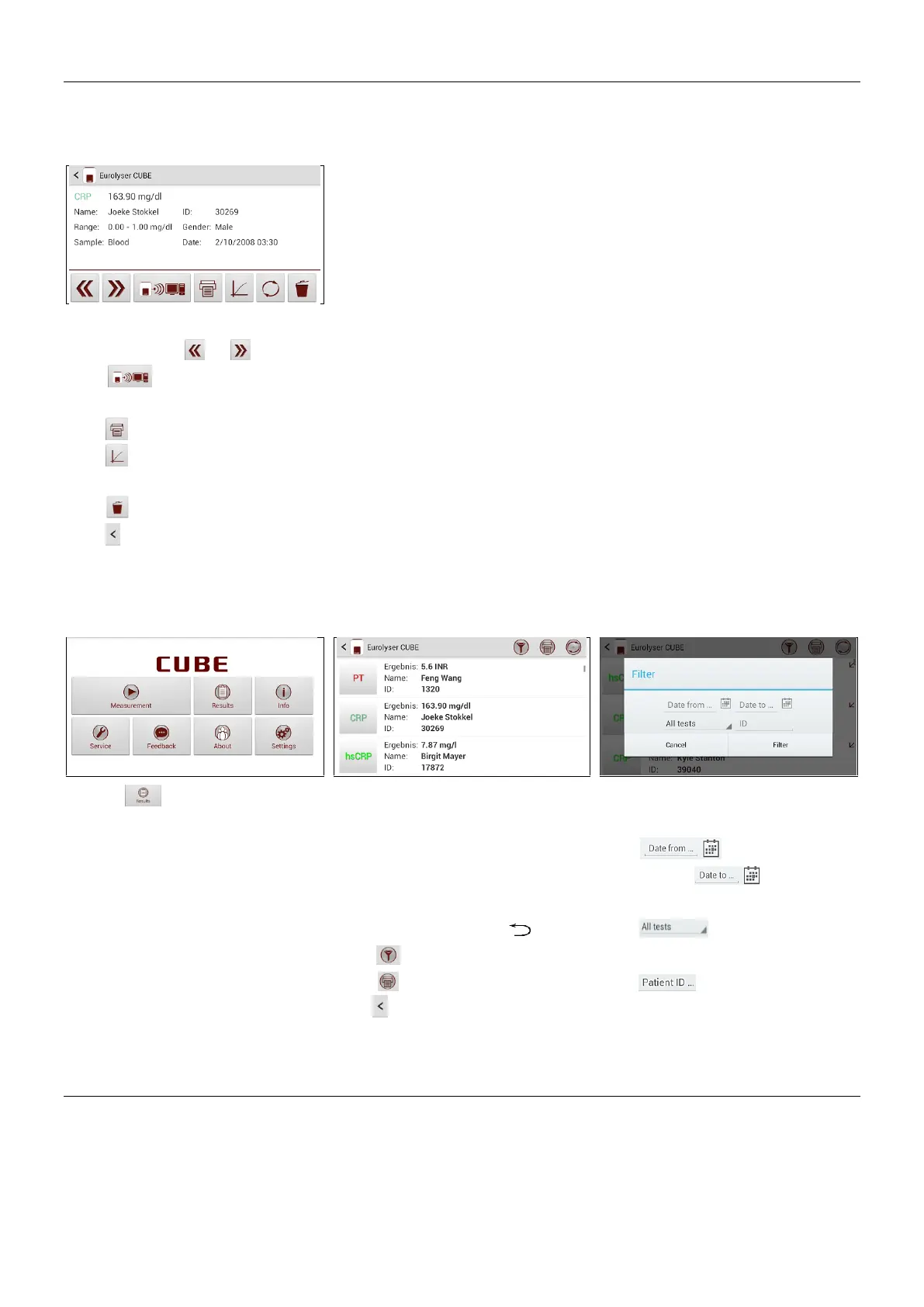
After processing a test, the result screen appears on the Tablet PC:
The test result is displayed on the
Tablet PC, use or to scroll.
Tap to export to a HIS/LIS
or PC or send it as an Email.
Tap to print the result.
Tap to view measurement data
and the photometric data curve.
Tap to delete the result.
Tap to exit to the main menu.
All test results are stored on the Tablet PC. They can be accessed as follows:
Touch in the main menu to
open the Result List.
The stored results can be browsed
by swiping up and down.
Tap a result to open the result
screen (see above), to return to
the result list from a result screen
press the Return Arrow
Tap to open the filter options
Tap to print, mail or export.
Tap to return to the main menu.
Results can be filtered by date,
test type and Patient ID.
Tap to set the desired
start date, to set the
desired end date.
Tap to select a test type
in the drop down menu (e.g. PT).
Tap to filter by patient ID.
How to wake CUBE up or completely switch it OFF
When the Tablet PC displays the main menu, the “power safe” function dims the screen. Pressing the
Lock Switch will re-illuminate the display to its customary level of brightness.
It is not necessary to switch the Instrument off every day. Switching the Instrument off completely can
only be done by disconnecting it from the power supply.


 To Next Page