25
3.7 LAYOUT
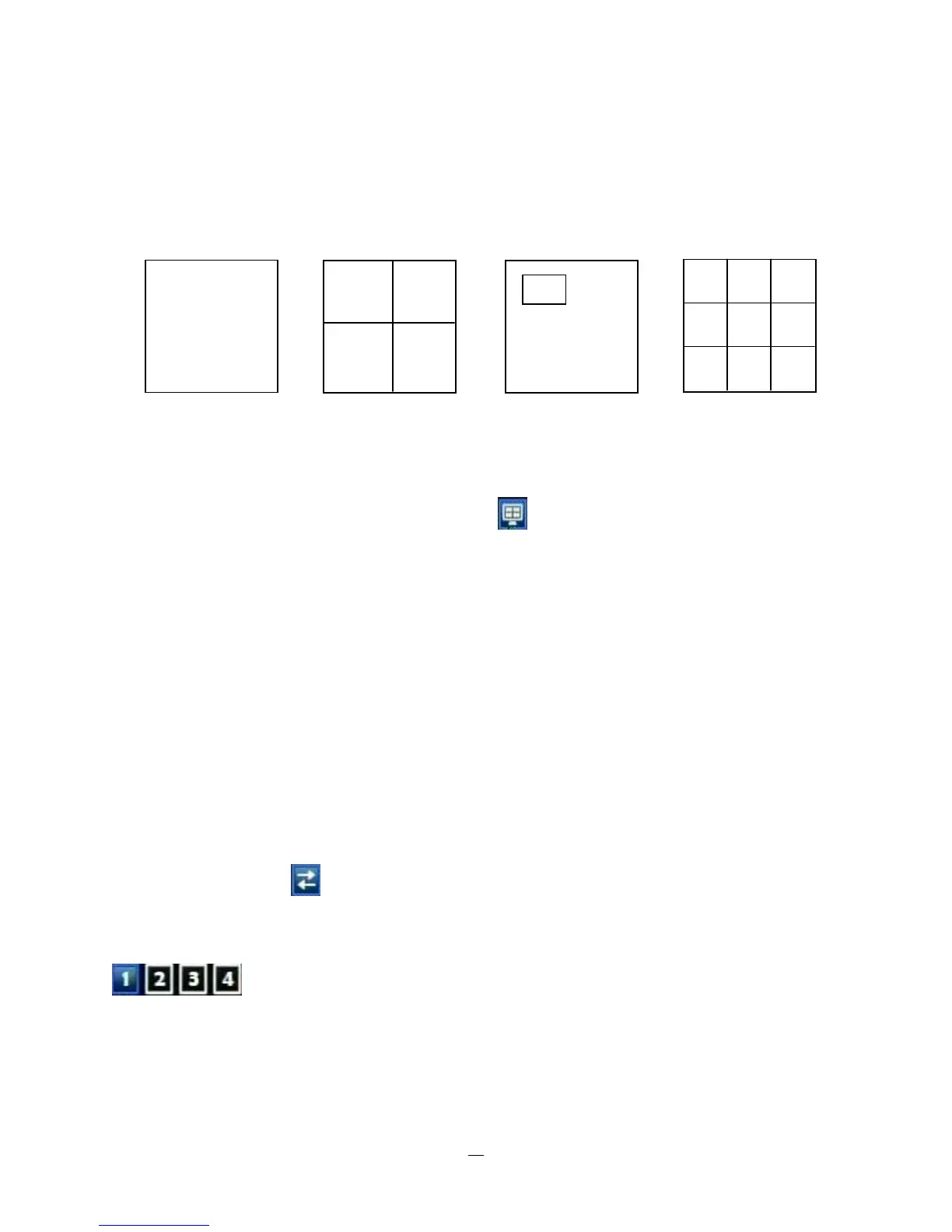
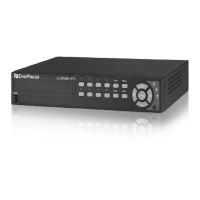
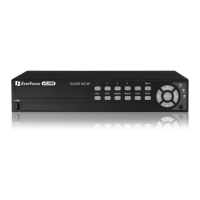
The ECOR264-4/ECOR264-8 DVR has a total of three display modes available. The different available
layouts are shown below:
(Full) (4 screens) (PIP) (9 screens)*
NOTE: PIP display is not available in Playback mode
To change layout, follow the steps below:
By mouse: Right-click to bring up the menu bar and click then click on the desired layout choice.
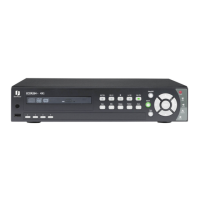
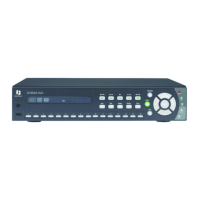
By front panel: Push the “View” button on the front of the DVR to scroll through each display format.
Note: 9 screen view available only on 8 camera unit.
3.7.1 Bring to full screen mode
By mouse: Double left-click on the selected channel to put that camera in full screen mode.
By front panel: Press any channel key to bring that channel to full screen mode.
3.8 CHANNEL SWITCHING
Use this function to change channel position
1. Select one camera
2. Press Channel button .
3. Click on the channel number you wish to select on the channel bar. The display in that position will be
switched.
(four channel model example)
EX: Select camera1 and enter Channel menu and choose “2”, then camera 2 will show on position of
camera 1, camera 1 will show on position of camera 2.



 To Next Page