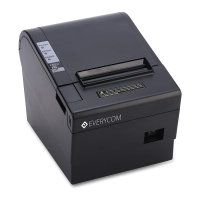
HOW TO : RESTORE FACTORY DEFAULT SETTINGS
If printer is powered on, kindly power it off using the power switch in the front
panel.
Press the feed key and power on the printer at the same time using the power
switch in the front panel. ( Do not release the feed key yet )
After approximately 10 seconds release the feed key and printer settings will
be restored to factory default.
HOW TO : INSTALL PRINTER
1. WINDOWS DRIVER INSTALLATION
Insert the driver CD into the CD drive of your computer, look for windows driver
and double click to initiate the setup, follow the instructions displayed on the
computer and your printer will be ready to use in no time.
2. ANDROID ( BLUETOOTH CONNECTION SETUP ) ( APPLICABLE FOR USB+BLUETOOTH MODEL ONLY )
A. Power on the printer
B. Open the Bluetooth settings of your mobile phone/PDA.
C. Click search/refresh under Bluetooth setting of your mobile phone/PDA and
it will automatically search for all available printer names.
D. Click on “ Everycom EC58” and input pair code ( Factory default : 1234 )
E. Go to corresponding APP to do printer setting and start printing.
3. iOS ( BLUETOOTH CONNECTION SETUP ) ( APPLICABLE FOR USB+BLUETOOTH MODEL ONLY )
A. Power on the printer
B. Open the Bluetooth settings of your iOS device.
C. Click search/refresh under Bluetooth setting of your iOS device and it will
automatically search for all available printer names.
D. Click on “ Everycom EC58” and input pair code ( Factory default : 1234 )
E. Go to corresponding APP to do printer setting and start printing.


 To Next Page