z. V.A DE—7
Gaming Case User Guide
RGB and K-Boost Button Controls
The DG-77 case supports the EVGA KBoost function,and DG-76
and DG-77 both support RGB LED controls through DG Tuner
software. The KBoost function can also be enabled / disabled
from the button on the case. To use the RGB I FD and/or KBoost
functions, make sure to plug the DG-7's USB 2.0 header into
the 9pin USB 2.0 header on the motherboard. Once the USB 2.0
is connected to the case, boot into Windows and install the DG-7
Software suite.
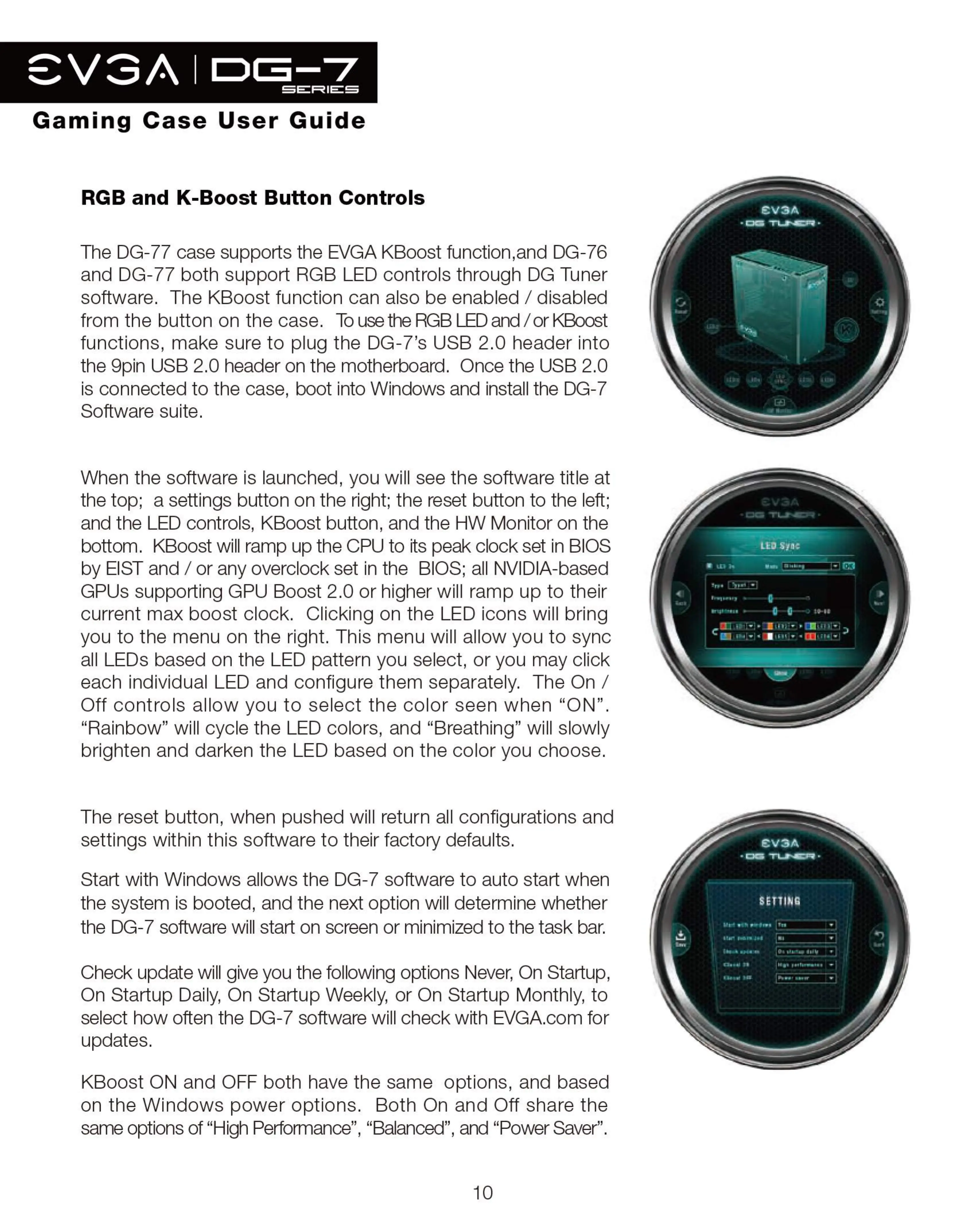
When the software is launched, you will see the software title at
the top; a settings button on the right; the reset button to the left;
and the LED controls, KBoost button, and the HW Monitor on the
bottom. KBoost will ramp up the CPU to its peak clock set in BIOS
by EIST and / or any overclock set in the BIOS; all NVIDIA-based
GPUs supporting GPU Boost 2.0 or higher will ramp up to their
current max boost clock. Clicking on the LED icons will bring
you to the menu on the right. This menu will allow you to sync
all LEDs based on the LED pattern you select, or you may click
each individual LED and configure them separately. The On /
Off controls allow you to select the color seen when "ON".
"Rainbow" will cycle the LED colors, and "Breathing" will slowly
brighten and darken the LED based on the color you choose.
The reset button, when pushed will return all configurations and
settings within this software to their factory defaults.
Start with Windows allows the DG-7 software to auto start when
the system is booted, and the next option will determine whether
the DG-7 software will start on screen or minimized to the task bar.
Check update will give you the following options Never, On Startup,
On Startup Daily, On Startup Weekly, or On Startup Monthly, to
select how often the DG-7 software will check with EVGA.com for
updates.
KBoost ON and OFF both have the same options, and based
on the Windows power options. Both On and Off share the
same options of "High Performance", "Balanced", and "Power Saver".
10
€V3A
ev3A


 To Next Page
 Loading...