EasyManua.ls Logo

Eviciv MDS-12301 - User Manual

Eviciv MDS-12301
6 pages
Print Icon
To Next Page IconTo Next Page
Loading...
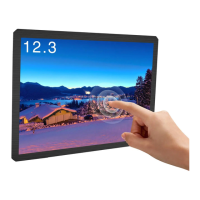
EVICIV 12.3 inch 1600 x 1200 Portable Touch Monitor
USER MANUAL
DS-12301

Questions and Answers

  • R
    Rachel JonesAug 4, 2025
    Why does my Eviciv Touchscreen say 'No signal' after connecting it?
    • K
      Kayla RosalesAug 4, 2025
      If your Eviciv Touchscreen displays 'No signal' after connection, verify that the connection method is correct and that the cables are not broken. Also, check if your computer mode is set to extended or copied. If it's in Extend Mode, try adjusting it to Duplicate Mode. You might also need to adjust your computer's resolution. For iOS systems, you can adjust the resolution by going to Finder-system preferences-displays-resolution-scaled.
  • J
    John BurgessAug 10, 2025
    What to do if the picture on my Eviciv Touchscreen is blurred and pulled up & down?
    • S
      Stacy JamesAug 10, 2025
      If the picture on your Eviciv Touchscreen is blurred and pulled up & down, set the Second Screen Mode on your PC. Ensure the picture only shows on the UPERFECT display and adjust the resolution to 1600*1200. Only setting Second Screen Mode can avoid the problem. Note that using Duplicate Mode will cause the picture to rise.
  • R
    Robert BarnettAug 16, 2025
    How to fix slight jitter on my Eviciv MDS-12301 Touchscreen after connecting it?
    • C
      combssierraAug 16, 2025
      If you notice a slight jitter on your Eviciv Touchscreen after connecting it, it might be related to your host PC and its display settings. Check if your PC's default resolution is higher than 1600*1200. If it is, adjust the default resolution to 1600*1200 or below.
  • W
    woodjohnAug 21, 2025
    What to do if Eviciv MDS-12301 display doesn't touch or shows touch bias?
    • S
      Stephen ClarkAug 21, 2025
      If your Eviciv Touchscreen display doesn't respond to touch or shows touch bias, this could be related to your host PC and its display settings. Set the UPERFECT display as the first/main display on your computer, then adjust the mode to Duplicate Mode. This should allow you to touch it normally.
  • W
    William RobertsAug 28, 2025
    How to enable touch function on Eviciv Touchscreen?
    • L
      loganevanAug 28, 2025
      If your Eviciv Touchscreen monitor works normally after connection, but the touch function isn't working, check if the USB cable is correctly connected, as it's specifically for touch functionality. Connect one end of the USB cable to the UPERFECT monitor and the other end to the corresponding signal device. Do not connect the USB cable to a power bank or socket, as only the signal device supports touch.

Summary

Attention

Product List

Button&Port

Port and Button Descriptions

Detailed explanation of all input/output ports and menu controls.

Specifications

Connecting

No Touch Function

Connecting the monitor for display without touch functionality.

Touch Function

Connecting the monitor for both display and touch functionality.

Adjusting

Picture Settings

Adjusting brightness, contrast, sharpness, and other picture parameters.

Color Settings

Adjusting gamma, color temperature, hue, and saturation.

Display Settings

Adjusting auto-adjustment, H/V position, and pixel clock.

Input Settings

Selecting input sources like VGA, HDMI, DVI.

Audio Settings

Adjusting volume, mute, and audio source.

Advance Settings

Configuring aspect ratio, overscan, and blue screen.

Other Settings

Resetting, language, menu time, and transparency.

Information

Displaying technical information like resolution and refresh rate.

Troubleshooting

Touch Function Issues

Solutions for when the touch function is not recognized or has bias.

Display Jitter and Blur

Troubleshooting minor jitters or blurred/pulled images.

No Signal Error

Resolving issues when the monitor displays "No signal".

Aspect Ratio and Resolution

Addressing screen ratio limitations and resolution compatibility.

VESA Mount and Multi-monitor Setup

Information on VESA mounting and connecting multiple displays.

Support

Eviciv MDS-12301 Specifications

General IconGeneral
BrandEviciv
ModelMDS-12301
CategoryTouchscreen
LanguageEnglish