EasyManua.ls Logo

Evo VEGA 3000M - User Manual

Evo VEGA 3000M
12 pages
Print Icon
To Next Page IconTo Next Page
Loading...
VEGA 3000M
Quick Guide
C’less MSRICC Touch
screen
Printer Battery
Mobile Payment Terminal
Guide Version 3.0.2
Question and Answer IconNeed help?

Do you have a question about the Evo VEGA 3000M and is the answer not in the manual?

Summary

VEGA Description

Power ON, Power OFF

Insert paper to the printer

Idle screen

Status bar description

Date and Time Information

Displays current date and time information in the status bar.

Connectivity Indicators

Shows status for ECR, WiFi, Bluetooth, GPRS/GSM, and Server connections.

Battery Health Indicator

Displays remaining battery capacity and recharge status.

Menu items

Keyboard description

3 G;WiFi connection

WiFi connection setup

Steps to connect the terminal to a WiFi network.

First sale transaction

Receipt details

Merchant and Terminal Identifiers

Details on merchant, terminal, and bank terminal identification.

Transaction Sequence and Batch Numbers

Information on STAN and batch numbers for transaction tracking.

Card Information and Transaction Type

Details on card brand, PAN, AID, and transaction type.

Transaction Amount and Authorization Code

Information on transaction currency, amount, and authorization code.

Overview

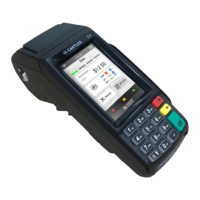
The VEGA 3000M is a new generation mobile payment terminal designed for quick transaction processing and a superb user experience, combining ergonomic design with the latest technologies.

Function Description

The terminal supports various payment methods including contact, contactless, and magnetic stripe cards, as well as mobile devices via NFC (Apple Pay, Google Pay, etc.). Contactless card or NFC device transactions are performed by placing the item at the top of the screen where the contactless symbol is displayed. Chip card transactions utilize the chip card reader located at the bottom of the terminal, while magnetic stripe card transactions use the magnetic card reader on the right side.

The device features a color touch screen, which serves as the primary interface for interaction. The idle screen provides essential information such as date, time, connection type, signal strength, and battery status, all displayed in the status bar at the top. A green flashing area on the screen indicates the terminal's readiness to accept contactless transactions. Virtual buttons at the bottom of the screen allow users to initiate a sale, access the main terminal menu, or enter the Quick Menu.

The terminal's menu lists all available functions, which can be accessed by touching the "Menu" virtual key. Users can scroll through the list using "Screen Up" and "Screen Down" buttons and return to the previous menu with the "Back" arrow. The specific functions available depend on the terminal's configuration.

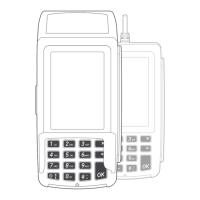
A physical keyboard is also provided as an alternative navigation method, useful for entering PINs, passwords, and other data. The keyboard includes numeric keys (0-9), function keys (e.g., "OK", "Cancel", "Correction"), and navigation keys (Item Up/Down, Page Up/Down).

The VEGA 3000M supports both GPRS/GSM and WiFi connections for internet connectivity. Switching between these connection types is done through the "Network settings" in the "Menu" or "Quick Menu." The status bar indicates the current connection type (icon for established connection, X for lost connection). WiFi network setup involves selecting the desired network from a list and entering the password using the numerical keys, which function similarly to old keyboard phones (repeated presses to select characters).

Standard payment transactions can be initiated by pressing the "Quick Pay" virtual button or by typing the amount on the numeric keypad. Other transaction types can be selected via the "Menu" or "Quick Menu" buttons. After each transaction, a receipt is printed, serving as proof of transaction.

Important Technical Specifications

  • Paper Roll Dimensions:
    • Width: 57 mm
    • Diameter: 40 mm or less

Usage Features

  • Power ON/OFF: The terminal is switched ON by pressing and holding the Power button for at least 2 seconds. It takes approximately 1 minute for the terminal to boot up. To switch OFF, hold the Power button for at least 5 seconds.
  • Status Bar: Provides real-time information including:
    1. Date: Present date (dd:mm:yy).
    2. Time: Current time (hh:mm:ss).
    3. ECR connection: Indication of connection with ECR.
    4. WIFI signal: On/off indication and signal strength.
    5. Bluetooth: On/off indication of BT connection.
    6. GPRS/GSM: Connection via SIM card, network type, and signal strength.
    7. Server connection: Indication of payment server connection.
    8. Battery status: Remaining battery capacity and recharge status.
  • Idle Screen: Displays date, time, connection type, signal strength, battery status, and a green flashing area for contactless transaction readiness. Virtual buttons for "Sale," "Menu," and "Quick Menu" are also present.
  • Menu Items: Includes functions such as "Sale," "Pre-Authorization," "Finish-Authorizat.," "Reprint Receipt," "Reverse last trans.," and "Refund."
  • Keyboard: Used for entering PINs, passwords, and navigating the terminal. Keys include numeric (0-9), "OK," "Cancel," "Correction," and navigation arrows.
  • Connectivity: Supports GPRS/GSM and WiFi. Connection status is indicated by icons on the status bar.
  • Receipt Details: Each receipt includes:
    1. Merchant name and address.
    2. STAN (Ordinal number of transaction within batch).
    3. Batch Number (Ordinal number of batch within terminal).
    4. Terminal ID (Unique identifier of terminal).
    5. Merchant ID (Unique identifier of merchant within acquirer bank).
    6. Bank Terminal ID (Unique identifier of terminal within acquirer bank).
    7. Card Brand (e.g., VISA, MasterCard).
    8. PAN (Masked unique card number).
    9. Application ID (AID) and Name (Identifier number of application on card, corresponds to card type).
    10. Transaction type (e.g., Sale, Refund).
    11. Transaction currency and Amount.
    12. Authorisation code (Unique code for transaction).

Maintenance Features

  • Battery: Ensure the battery is charged or the power adapter is connected before turning on the terminal.
  • Printer Roll Replacement:
    • Open the lid of the terminal.
    • Remove any remaining old roll.
    • Insert a new roll, ensuring the free end of the tape is unwound from the rear direction.

Evo VEGA 3000M Specifications

General IconGeneral
BrandEvo
ModelVEGA 3000M
CategoryPayment Terminal
LanguageEnglish

Related product manuals