No. Button Function
Press to enter standby mode or wake up.
Press to enter channel numbers or numeric input when changing settings.
Press to shuffle the music.
Press to decrease the volume.
Press to mute audio output, and press again to resume.
6 Menu Press to enable the option menu, where you can change the review mode of file manager and media library;
Press to display or hide the option menu during playback.
Press to enter the home screen.
8 Navigational buttons Press the arrow buttons to select menu options, and the OK button to confirm.
Press Up/Down to rotate a photo during photo playbck.
Press to begin/pause playback.
11
Press to fast rewind the current playback. Press repeatedly to select speeds
Press to fast forward the current playback. Press repeatedly to select speeds.
Function is available in virtual keyboard.
Function is available in virtual keyboard.
Press to enter the setup menu.
16
Press to switch between NTSC, PAL, 480P, 576P, 720P, 1080I, and 1080P.
Press to jump to a specific point on a title. Specify the point using Title, Chapter and Time.
Press to play back in slow motion. Press the PLAY button to resume regular playback.
Press to enter file manager.
Press to copy/delete/rename/move file in file manager.
Press to enter file selecting menu.
Press to set the beginning and end points of a section to repeat.
Press to change the view angle during DVD (with multi-angle) playback.
Press to zoom the image (photo or video).
Press to select an audio track.
Press to set subtitle options. You can change the color/size/offset/text encoding of subtitle.
Reserved button. No function has been assigned to it yet.
Press to open/close USB DVD-rom.
Press to view the previous file / page up.
30 Next Press to view the next file / page down.
31 Info Press to display current status.
Press during playback, an onscreen display appears showing track number and time elapsed/remaining.
Function is available in virtual keyboard.Press OK button to confirm.
Press to return to the previous screen while navigating menus.
Press to increase the volume.
Press to set repeat option.
36
Press to safely remove the USB device.
2.4 First Time Usage
2.4.1 Connection
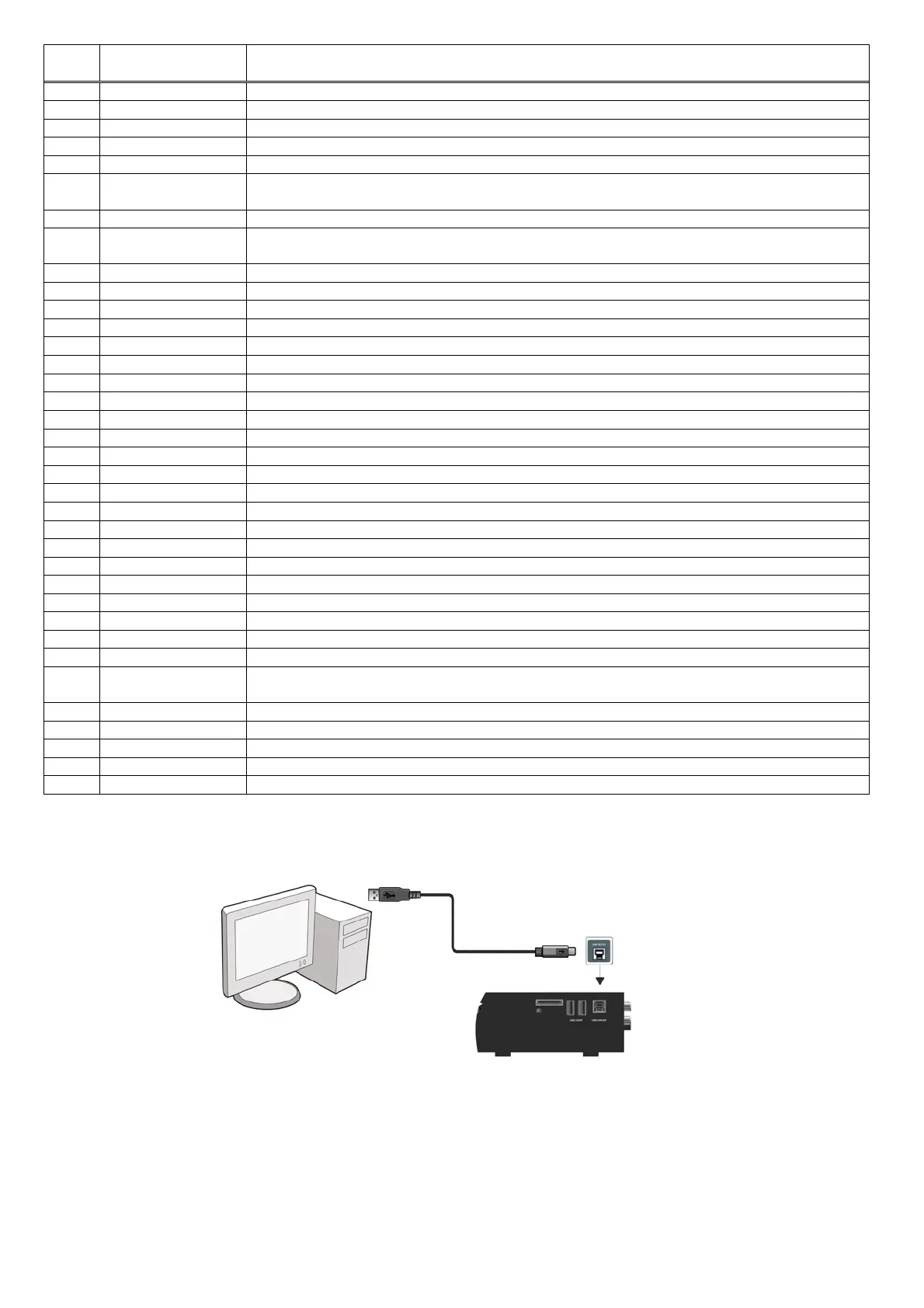
Connect to Computer
EVOLVE Infinity can be used as a portable external storage device with its built-in SATA interface and high-speed USB 3.0.
Install an internal hard disk Power on EVOLVE Infinity Connect EVOLVE Infinity to PC with the USB3.0 cable.
Note:
A USB 3.0 cable is necessary to use EVOLVE Infinity as a portable external storage device. USB 2.0 cable is useless.
Connection to the TV
Depending on the jacks on your TV, select the connection mode. We suggest you to use HDMI output (High Definition, up to 1080p). Picture quality will
be improved compared to using the component video output (use Y/Pb/Pr OUT jack) or the composite video output (Standard Definition, use A/V OUT
jack).


 To Next Page