201131 5 2007-10-10
4. Enter any feature License Key purchased. The License Key is unique and tied to the
unit’s serial number. Press the UPDATE button to accept the entry.
5. Change the radio’s IP address, as desired, on the Administration Settings page and press
the UPDATE button.
Note: If the IP address is changed, open a new browser window and navigate the GUI to the new IP
address.
At this time, all other configuration parameters can remain at their factory-default settings, and the
link operates for back-to-back bench testing. However, for most installations, the following
parameters must match the link design at both ends of the radio link:
Administration Settings: Link Security Key
AES (option) enable/disable, & key
Configuration>System: DFS enable/disable (where applicable)
Radio Transmit Power
Bandwidth
Mode
RF Frequency
Link Distance
TDD Frame Size
TX/RX Throughput Ratio (opposite)
Configuration>Interface>(all sub groups): All settings
Notes:
• Disable any T1/E1/DS3 interface that is not intended for use. Available throughput is allocated
to the Ethernet interface.
• The default setting for the Radio Transmit Power is usually set to the minimum level.
This product must be professionally installed. The Radio Transmit Power must be
configured prior to connection to the antenna system in accordance to all applicable
government regulations. The professional installer is responsible for ensuring that
the implementation is within legal limits.
Configure all parameters on both radio terminals to match the requirements of the system design and
verify that the radio link communicates properly during the back-to-back bench test. It can be
extremely challenging, time consuming, and costly to troubleshoot a system that is not properly
preconfigured and tested.
It is highly recommended to upgrade the radio to the latest firmware. The firmware is available
at the website link provided at the start of this document. Use the File Transfer function to upload
the latest firmware and the File Activation function to activate the loaded firmware. Always refer to
the software release notes for details. The I&M manual and/or the release notes provide a step-by-
step instruction for upgrading the firmware.
Extracting the I&M Manual
Click the Manual navigation link. The browser displays I&M manual PDF file. Click the Save
button in the PDF toolbar to save the manual on the local system.
Reset to Critical Factory Settings
To reset the radio to critical factory settings for IP settings and passwords:
1. Remove power.
2. Remove connections to the ALARMS port.
3. Set all DIP switch positions (if any) to the down (zero) setting
4. Hold the RMT button on the front panel while applying power..
Continue to hold the RMT button through the entire boot cycle (this can be up to 2
minutes, in some cases). The front-panel LEDs toggle during the boot cycle.
5. Release the RMT button when LED behavior stabilizes for at least 10 seconds.
201131 2 2007-10-10
Introduction
Note: Read this entire document before attempting to install Exalt Digital Microwave Radios.
This quick start guide provides a brief overview of the Exalt i-Series models. It is assumed that the
reader has networking and RF experience.
Refer to the I&M manual for model descriptions, regulatory requirements, safety requirements,
warranty, and troubleshooting information. The I&M manual is embedded in the radio’s graphical
user interface (GUI) and can be saved locally (further described in this document). The I&M manual
is also available at:
http://www.exaltcom.com/support/downloads.htm
User ID: go_exalt
Password: wexmaltux
A browser is required to access the GUI. Microsoft Internet Explorer 5.0 or greater is recommended.
Netscape, Mozilla, and Firefox are generally supported.
Preparation
Complete a path analysis and link design prior to installation. Gather the following information in
the link design phase:
• Length(s) and type(s) of transmission system cabling/connectors
• Antenna(s) make and model
• Antenna structure requirements
• Antenna mounting heights
• Cable routes and egress location
• Grounding and lightning protection plan, mechanics, power, and wiring
• Radio mounting location
• RF center frequency
• Transmitter output power
• Occupied channel bandwidth
• Mode selection
• TDD frame length
• Link distance setting
• Anticipated RSL
• Number of T1/E1/DS3 circuits enabled (if any)
Perform the following tasks before installing the radio terminals:
• Build antenna structures and egress mechanics
• Mount antennas and transmission line, lightning arrestor(s), and grounding
• Prepare and test interface and power cables
Shipping Contents
Review the labeling and contents of all boxes and the physical condition of the shipping container
and contents. Ensure that items are not damaged, and that part numbers and serial numbers match the
original equipment order and shipping information. Each radio terminal box should contain the
following:
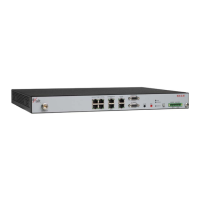
• Radio terminal
• AC adapter with power cord
• Accessory kit
• Quick start guide (this document)
• Product registration card
The accessory kit contains the following items:
• Rack mount flanges
• Flange mounting hardware (4 x M4 screws; 4 x M4 wave washers)
• DC power connector (1)
• Grounding hardware (1 x M5 screw; 1 x M5 wave washer; 2 x M5 flat washers)


 To Next Page
 Loading...
