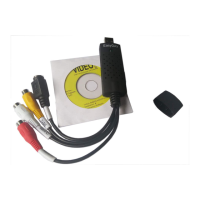
USB Video Grabber
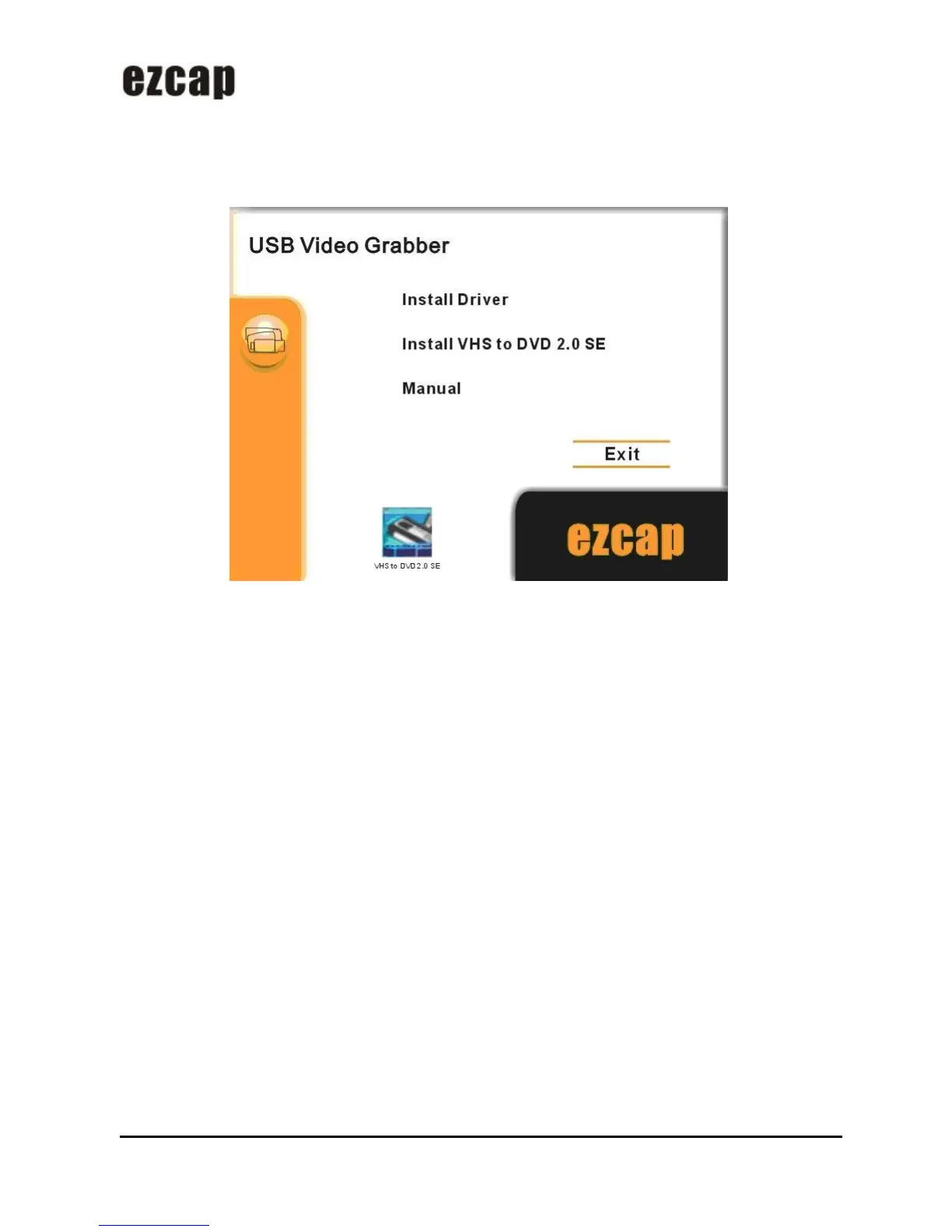
Please insert the” installations CD-ROM” into your CD drive, you will get a window, select “Install Driver”. In the
next windows, you can choose set up language for the installation, when you see the “Software Installation”
window, please click “Continue Anyway” icon. Then click “Finish” icon to complete the installation.
The operating system will install the drivers for ezcap USB Video Grabber automatically.
Please connect the ezcap USB Video Grabber to your computer, you should see a window, select “Yes, this
time only”, and then select “Install the software automatically (Recommended)”, select “Continue Anyway”. Wait
for a moment until the system appears you “Your new hardware is installed and ready to use”. It means the driver
has been installed.
You will now need to check that the drivers are installed correctly. Connect the ezcap USB Video Grabber to
your computer, Right Click on My Computer and Left Click on properties. Click on Hardware tab and then Device
Manager. In the Device Manager click on the “Sound, video and game controllers” correctly you should see the
“SMI Grabber Device”. If it has a Yellow mark next to it then this means that the driver is not installed correctly.
You will need to remove the driver and disconnect ezcap USB Video Grabber from the computer and reconnect
is to install the driver again.


 To Next Page