2
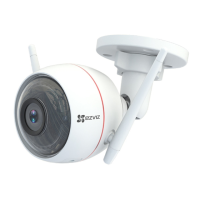
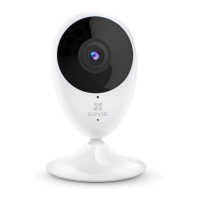
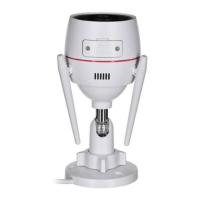
- Scan the QR code on the body of the camera.
- Follow the EZVIZ app wizard to finish Wi-Fi configuration.
You can also select wired connection.
- connect the camera to a router with a network cable.
- add the camera to EZVIZ app by scanning its QR code.
N3
Network Cable
• Hold the RESET button for 5 seconds when adding cameras or Wi-Fi connection failed.
• Please make sure your phone is connected to the 2.4GHz Wi-Fi from the router for Wi-Fi
configuration.


 To Next Page