EasyManua.ls Logo

Ezviz HP7 - User Manual

Ezviz HP7
18 pages
Print Icon
To Next Page IconTo Next Page
Loading...
COPYRIGHT © Hangzhou EZVIZ Software Co., Ltd. ALL RIGHTS RESERVED.
Any and all information, including, among others, wordings, pictures, graphs are the properties of
Hangzhou EZVIZ Software Co., Ltd. (hereinafter referred to as “EZVIZ”). This user manual (hereinafter
referred to as “the Manual”) cannot be reproduced, changed, translated, or distributed, partially or
wholly, by any means, without the prior written permission of EZVIZ. Unless otherwise stipulated,
EZVIZ does not make any warranties, guarantees or representations, express or implied, regarding to
the Manual.
About this Manual
The Manual includes instructions for using and managing the product. Pictures, charts, images and
all other information hereinafter are for description and explanation only. The information contained
in the Manual is subject to change, without notice, due to firmware updates or other reasons. Please
find the latest version in the ™ website (http://www.ezviz.com).
Revision Record
New release – January, 2023
Trademarks Acknowledgement
™, ™, and other EZVIZ’s trademarks and logos are the properties of EZVIZ in various
jurisdictions. Other trademarks and logos mentioned below are the properties of their respective
owners.
Legal Disclaimer
TO THE MAXIMUM EXTENT PERMITTED BY APPLICABLE LAW, THE PRODUCT DESCRIBED, WITH
ITS HARDWARE, SOFTWARE AND FIRMWARE, IS PROVIDED “AS IS”, WITH ALL FAULTS AND ERRORS,
AND EZVIZ MAKES NO WARRANTIES, EXPRESS OR IMPLIED, INCLUDING WITHOUT LIMITATION,
MERCHANTABILITY, SATISFACTORY QUALITY, FITNESS FOR A PARTICULAR PURPOSE, AND
NON-INFRINGEMENT OF THIRD PARTY. IN NO EVENT WILL EZVIZ, ITS DIRECTORS, OFFICERS,
EMPLOYEES, OR AGENTS BE LIABLE TO YOU FOR ANY SPECIAL, CONSEQUENTIAL, INCIDENTAL, OR
INDIRECT DAMAGES, INCLUDING, AMONG OTHERS, DAMAGES FOR LOSS OF BUSINESS PROFITS,
BUSINESS INTERRUPTION, OR LOSS OF DATA OR DOCUMENTATION, IN CONNECTION WITH
THE USE OF THIS PRODUCT, EVEN IF EZVIZ HAS BEEN ADVISED OF THE POSSIBILITY OF SUCH
DAMAGES.
TO THE MAXIMUM EXTENT PERMITTED BY APPLICABLE LAW, IN NO EVENT SHALL EZVIZ’S TOTAL
LIABILITY FOR ALL DAMAGES EXCEED THE ORIGINAL PURCHASE PRICE OF THE PRODUCT.
EZVIZ DOES NOT UNDERTAKE ANY LIABILITY FOR PERSONAL INJURY OR PROPERTY DAMAGE AS
THE RESULT OF PRODUCT INTERRUPTION OR SERVICE TERMINATION CAUSED BY: A) IMPROPER
INSTALLATION OR USAGE OTHER THAN AS REQUESTED; B) THE PROTECTION OF NATIONAL OR
PUBLIC INTERESTS; C) FORCE MAJEURE; D) YOURSELF OR THE THIRD PARTY, INCLUDING WITHOUT
LIMITATION, USING ANY THIRD PARTY’S PRODUCTS, SOFTWARE, APPLICATIONS, AND AMONG
OTHERS.
REGARDING TO THE PRODUCT WITH INTERNET ACCESS, THE USE OF PRODUCT SHALL BE WHOLLY
AT YOUR OWN RISKS. EZVIZ SHALL NOT TAKE ANY RESPONSIBILITES FOR ABNORMAL OPERATION,
PRIVACY LEAKAGE OR OTHER DAMAGES RESULTING FROM CYBER ATTACK, HACKER ATTACK,
VIRUS INSPECTION, OR OTHER INTERNET SECURITY RISKS; HOWEVER, EZVIZ WILL PROVIDE
TIMELY TECHNICAL SUPPORT IF REQUIRED. SURVEILLANCE LAWS AND DATA PROTECTION
LAWS VARY BY JURISDICTION. PLEASE CHECK ALL RELEVANT LAWS IN YOUR JURISDICTION
BEFORE USING THIS PRODUCT IN ORDER TO ENSURE THAT YOUR USE CONFORMS TO THE
APPLICABLE LAW. EZVIZ SHALL NOT BE LIABLE IN THE EVENT THAT THIS PRODUCT IS USED WITH
ILLEGITIMATE PURPOSES.
IN THE EVENT OF ANY CONFLICTS BETWEEN THE ABOVE AND THE APPLICABLE LAW, THE LATTER
PREVAILS.
Question and Answer IconNeed help?

Do you have a question about the Ezviz HP7 and is the answer not in the manual?

Summary

Legal Disclaimer

IMPORTANT SAFETY INSTRUCTIONS

Overview

Package Contents

Lists all included items for the video doorphone system.

General

Provides a general description of the video doorphone system's components and functionality.

Basics

Monitor

Details the components and ports of the monitor unit.

Intercom Panel (Doorbell)

Details the components and ports of the intercom panel.

Setup

About the Name Card

Instructions for using and customizing the name card on the intercom panel.

Get the EZVIZ App

Steps to download, install, and register for the EZVIZ mobile application.

Wiring

Explains wiring diagrams and connections for the video doorphone system.

Connect an Electric Strike Plate or Lock

Details how to connect an electric strike plate or lock to the intercom panel.

Connect a Gate Motor

Details how to connect a gate motor to the intercom panel for automated gate opening.

Power on the Monitor

Instructions on how to power on the monitor unit using the power adapter.

Installation

Provides advice and important instructions for installing the video doorphone system.

Install the monitor

Step-by-step guide for mounting the monitor unit on the wall.

Install the intercom panel

Step-by-step guide for mounting the intercom panel on the wall.

Install Micro SD Card (Optional)

Instructions for inserting and initializing a Micro SD card for storage.

Connect Your EZVIZ Video Doorphone To Your Smartphone

Guide to connecting the video doorphone to a smartphone via the EZVIZ app.

Configure the RFID Badge

Steps to add and delete RFID badges for access control.

Three Unlocking Methods

Explains various methods to unlock doors or gates using the system.

View Your Device on the EZVIZ App

Live View

Details how to view live feeds, take snapshots, and record videos in the EZVIZ app.

Settings

Intercom Panel Settings

Configurable parameters for the intercom panel, including name, notification, and card management.

Monitor Settings

Configurable parameters for the monitor, including audio, screen, and network settings.

EZVIZ Connect

Use Amazon Alexa

Instructions for integrating and controlling the EZVIZ device with Amazon Alexa.

Use Google Assistant

Instructions for integrating and controlling the EZVIZ device with Google Assistant.

SAFETY PRECAUTIONS

Initiatives on the Use of Video Products

Summary

Legal Disclaimer

IMPORTANT SAFETY INSTRUCTIONS

Overview

Package Contents

Lists all included items for the video doorphone system.

General

Provides a general description of the video doorphone system's components and functionality.

Basics

Monitor

Details the components and ports of the monitor unit.

Intercom Panel (Doorbell)

Details the components and ports of the intercom panel.

Setup

About the Name Card

Instructions for using and customizing the name card on the intercom panel.

Get the EZVIZ App

Steps to download, install, and register for the EZVIZ mobile application.

Wiring

Explains wiring diagrams and connections for the video doorphone system.

Connect an Electric Strike Plate or Lock

Details how to connect an electric strike plate or lock to the intercom panel.

Connect a Gate Motor

Details how to connect a gate motor to the intercom panel for automated gate opening.

Power on the Monitor

Instructions on how to power on the monitor unit using the power adapter.

Installation

Provides advice and important instructions for installing the video doorphone system.

Install the monitor

Step-by-step guide for mounting the monitor unit on the wall.

Install the intercom panel

Step-by-step guide for mounting the intercom panel on the wall.

Install Micro SD Card (Optional)

Instructions for inserting and initializing a Micro SD card for storage.

Connect Your EZVIZ Video Doorphone To Your Smartphone

Guide to connecting the video doorphone to a smartphone via the EZVIZ app.

Configure the RFID Badge

Steps to add and delete RFID badges for access control.

Three Unlocking Methods

Explains various methods to unlock doors or gates using the system.

View Your Device on the EZVIZ App

Live View

Details how to view live feeds, take snapshots, and record videos in the EZVIZ app.

Settings

Intercom Panel Settings

Configurable parameters for the intercom panel, including name, notification, and card management.

Monitor Settings

Configurable parameters for the monitor, including audio, screen, and network settings.

EZVIZ Connect

Use Amazon Alexa

Instructions for integrating and controlling the EZVIZ device with Amazon Alexa.

Use Google Assistant

Instructions for integrating and controlling the EZVIZ device with Google Assistant.

SAFETY PRECAUTIONS

Initiatives on the Use of Video Products

Overview

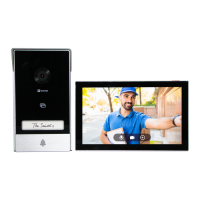
This document describes the EZVIZ video doorphone system, which comprises an indoor answering unit with a 7-inch touch screen monitor and an outdoor intercom panel (doorbell) with a weather-proof shield. The system is designed for easy installation, requiring only six wires to handle all functions including the doorbell, video feed, intercom, and opening controls for strike plates and automated gates. It supports up to two monitors and two intercom panels, offering flexibility for various home setups.

Function Description

The primary function of the EZVIZ video doorphone is to allow users to see and communicate with visitors who press the doorbell button. When a visitor presses the doorbell, the indoor monitor rings and displays the exterior video feed, enabling two-way communication. The system integrates video, audio, and access control functionalities into a single unit.

The intercom panel, equipped with a lens, IR light, and badge reading zone, captures video and audio from the outdoor environment. The monitor, featuring a microphone, loudspeaker, and touchscreen, serves as the central control unit indoors.

Usage Features

The EZVIZ video doorphone offers multiple ways to interact with the system and manage access:

  • Visitor Communication: When the doorbell is pressed, the indoor monitor rings and displays the live video feed from the intercom panel. Users can then engage in two-way audio communication with the visitor.
  • Door/Gate Unlocking: The system provides three methods for unlocking doors or gates:
    • Via Monitor: Users can open the gate or unlock the door directly from the monitor's main menu by tapping the designated icons.
    • Via EZVIZ App: Through the EZVIZ app on a smartphone, users can access the intercom panel's live view page and tap icons to unlock the door or gate remotely.
    • Via Smart RFID Badge: Pre-programmed RFID badges offer a convenient way to unlock. A quick swipe of the badge on the intercom panel's reading zone confirms the opening of an electric strike plate or lock with a short beep. Holding the badge for at least 3 seconds opens the gate, also confirmed by a short beep. Three short beeps indicate a failure to open.
  • Remote Viewing and Control (EZVIZ App): The EZVIZ app extends the system's functionality to mobile devices. Users can:
    • Live View: Watch and listen to a live feed from the intercom panel.
    • Snapshots and Recording: Take snapshots or manually start/stop video recording of the live feed.
    • Call Log: View a history of calls.
    • Two-way Talk: Talk to or listen to people in front of the camera through the app.
    • Remote Unlocking: Unlock electric strike plates, locks, or gates directly from the app.
    • Video Definition: Select video resolution (Quad HD, Full HD, Hi-Def) for optimal viewing.
    • Multi-screen Live: Choose different window layouts for viewing multiple feeds if applicable.
  • Name Card Customization: The intercom panel includes a name holder where users can insert a name card. Additional name cards are provided, and the name holder area can be illuminated, a feature manageable through the EZVIZ App. It is recommended to write the name on the card before installing the intercom panel.
  • Integration with Smart Home Platforms: The EZVIZ system can be integrated with Amazon Alexa and Google Assistant, allowing for voice control of certain functions.
    • Amazon Alexa: After linking the EZVIZ account to Alexa, users can discover EZVIZ devices and control them with voice commands. This includes answering the EZVIZ Intercom Panel and speaking to visitors through Alexa-enabled devices like Echo Spot or Fire TV.
    • Google Assistant: Similarly, integration with Google Assistant enables users to activate EZVIZ devices and watch live feeds using voice commands, especially with a TV connected to Chromecast.
  • Micro SD Card Storage (Optional): The monitor supports a Micro SD card (up to 512GB, Class 10 recommended) for local video storage. The card needs to be initialized in the EZVIZ app before use.

Maintenance Features

The EZVIZ system incorporates features and guidelines to ensure its longevity and optimal performance:

  • Firmware Updates: The information in the manual is subject to change due to firmware updates, implying that the device receives ongoing software improvements. Users are encouraged to check the EZVIZ website for the latest version of the manual.
  • SD Card Management: The EZVIZ app allows users to check the status of the Micro SD card and initialize it if necessary, ensuring proper video storage.
  • Card Management (RFID Badges): The EZVIZ app provides a "Card Management" section where users can add or delete RFID badges, including setting their names and terms of validity.
  • Device Settings: Both the intercom panel and monitor have extensive settings accessible via the EZVIZ app:
    • Name Customization: Users can customize the name of their device.
    • Intelligent Detection (Intercom Panel): Select different detection types for the intercom panel.
    • Notifications: Manage device messages and EZVIZ App notifications.
    • Audio and Image Settings: Adjust relevant audio and image parameters for both the intercom panel and monitor.
    • Light Settings (Intercom Panel): Configure light parameters for the intercom panel.
    • Cloudplay: Subscribe to and manage cloud storage.
    • Security Settings: Customize privacy areas and encrypt videos with a password.
    • Network Settings: View Wi-Fi name and connection status, and change Wi-Fi networks if needed.
    • Device Information: Access detailed information about the device.
    • Share Device: Share device access with family members or guests.
    • Restart Device: Remotely restart the device.
    • Delete Device: Remove the device from the EZVIZ App.
  • Installation Advice: The manual provides important advice for installation, such as avoiding testing the intercom panel and monitor in the same room to prevent shrill noise, protecting the intercom panel lens from direct sunlight or reflective surfaces, and using protective sheaths for cables to guard against breakage and bad weather. It also recommends checking Wi-Fi accessibility at the planned installation location for optimal monitor Wi-Fi function.
  • Wire Management: Solutions are offered for connecting wires, including adjusting cable thickness with a wire stripper and using provided wire connectors, to ensure secure connections to terminal blocks.
  • Protective Film Removal: Users are advised to remove the protective film from the intercom panel before use for better image quality.
  • Safety Precautions: The manual outlines crucial safety measures, including using the correct voltage, ensuring proper electrical connections, and contacting experienced personnel for doubts. It also warns against plugging/unplugging with wet hands, damaging power supply cables, and replacing damaged cables without expertise. Adequate ventilation for the device is emphasized, along with avoiding exposure to open flames or liquids.

Ezviz HP7 Specifications

General IconGeneral
Sensor typeCMOS
Motion sensorYes
Maximum frame rate15 fps
Optical sensor size1/2.7 \
Maximum image resolution2048 x 1296 pixels
LED typeIR
Night vision distance6 m
Display diagonal7 \
Display resolution1024 x 600 pixels
Video formats supportedH.264, H.265
Frequency band2.4/5 GHz
Connectivity technologyWired & Wireless
Number of displays supported1
Audio system2-way
Number of ringtones20
Operating temperature (T-T)-30 - 60 °C
Operating relative humidity (H-H)0 - 95 %
Compatible memory cardsMicroSD (TransFlash)
Maximum memory card size512 GB
Wi-Fi standards802.11b, 802.11g, Wi-Fi 4 (802.11n), Wi-Fi 5 (802.11ac)
Indoor unit power typeDC
Power consumption (typical)8 W
Operating current (door opener)1.5 A
Operating voltage (door opener)24 V
Product colorBlack, Silver
Weight and Dimensions IconWeight and Dimensions
Depth15.2 mm
Width180.3 mm
Height111.6 mm
Door station dimensions (WxDxH)86.75 x 19.5 x 160.7 mm