EasyManua.ls Logo

Ezviz LT70 - User Manual

Ezviz LT70
18 pages
Print Icon
To Next Page IconTo Next Page
Loading...
COPYRIGHT © Hangzhou EZVIZ Software Co., Ltd.. ALL RIGHTS RESERVED.
Any and all information, including, among others, wordings, pictures, graphs are the properties of
Hangzhou EZVIZ Software Co., Ltd. (hereinafter referred to as “EZVIZ”). This user manual (hereinafter
referred to as “the Manual”) cannot be reproduced, changed, translated, or distributed, partially or
wholly, by any means, without the prior written permission of EZVIZ. Unless otherwise stipulated,
EZVIZ does not make any warranties, guarantees or representations, express or implied, regarding to
the Manual.
About this Manual
The Manual includes instructions for using and managing the product. Pictures, charts, images and
all other information hereinafter are for description and explanation only. The information contained
in the Manual is subject to change, without notice, due to rmware updates or other reasons. Please
nd the latest version in the ™ website (http://www.ezviz.com).
Revision Record
New release – January, 2023
Trademarks Acknowledgement
™, ™, and other EZVIZ’s trademarks and logos are the properties of EZVIZ in various
jurisdictions. Other trademarks and logos mentioned below are the properties of their respective
owners.
Legal Disclaimer
TO THE MAXIMUM EXTENT PERMITTED BY APPLICABLE LAW, THE PRODUCT DESCRIBED, WITH ITS
HARDWARE, SOFTWARE AND FIRMWARE, IS PROVIDED “AS IS”, WITH ALL FAULTS AND ERRORS,
AND EZVIZ MAKES NO WARRANTIES, EXPRESS OR IMPLIED, INCLUDING WITHOUT LIMITATION,
MERCHANTABILITY, SATISFACTORY QUALITY, FITNESS FOR A PARTICULAR PURPOSE, AND NON-
INFRINGEMENT OF THIRD PARTY. IN NO EVENT WILL EZVIZ, ITS DIRECTORS, OFFICERS, EMPLOYEES,
OR AGENTS BE LIABLE TO YOU FOR ANY SPECIAL, CONSEQUENTIAL, INCIDENTAL, OR INDIRECT
DAMAGES, INCLUDING, AMONG OTHERS, DAMAGES FOR LOSS OF BUSINESS PROFITS, BUSINESS
INTERRUPTION, OR LOSS OF DATA OR DOCUMENTATION, IN CONNECTION WITH THE USE OF THIS
PRODUCT, EVEN IF EZVIZ HAS BEEN ADVISED OF THE POSSIBILITY OF SUCH DAMAGES.
TO THE MAXIMUM EXTENT PERMITTED BY APPLICABLE LAW, IN NO EVENT SHALL EZVIZ’S TOTAL
LIABILITY FOR ALL DAMAGES EXCEED THE ORIGINAL PURCHASE PRICE OF THE PRODUCT.
EZVIZ DOES NOT UNDERTAKE ANY LIABILITY FOR PERSONAL INJURY OR PROPERTY DAMAGE AS
THE RESULT OF PRODUCT INTERRUPTION OR SERVICE TERMINATION CAUSED BY: A) IMPROPER
INSTALLATION OR USAGE OTHER THAN AS REQUESTED; B) THE PROTECTION OF NATIONAL OR
PUBLIC INTERESTS; C) FORCE MAJEURE; D) YOURSELF OR THE THIRD PARTY, INCLUDING WITHOUT
LIMITATION, USING ANY THIRD PARTY’S PRODUCTS, SOFTWARE, APPLICATIONS, AND AMONG
OTHERS.
REGARDING TO THE PRODUCT WITH INTERNET ACCESS, THE USE OF PRODUCT SHALL BE WHOLLY
AT YOUR OWN RISKS. EZVIZ SHALL NOT TAKE ANY RESPONSIBILITES FOR ABNORMAL OPERATION,
PRIVACY LEAKAGE OR OTHER DAMAGES RESULTING FROM CYBER ATTACK, HACKER ATTACK,
VIRUS INSPECTION, OR OTHER INTERNET SECURITY RISKS; HOWEVER, EZVIZ WILL PROVIDE TIMELY
TECHNICAL SUPPORT IF REQUIRED.SURVEILLANCE LAWS AND DATA PROTECTION LAWS VARY BY
JURISDICTION. PLEASE CHECK ALL RELEVANT LAWS IN YOUR JURISDICTION BEFORE USING THIS
PRODUCT IN ORDER TO ENSURE THAT YOUR USE CONFORMS TO THE APPLICABLE LAW. EZVIZ
SHALL NOT BE LIABLE IN THE EVENT THAT THIS PRODUCT IS USED WITH ILLEGITIMATE PURPOSES.
IN THE EVENT OF ANY CONFLICTS BETWEEN THE ABOVE AND THE APPLICABLE LAW, THE LATTER
PREVAILS.

Question and Answer IconNeed help?

Do you have a question about the Ezviz LT70 and is the answer not in the manual?

Overview

This document describes the EZVIZ Smart Fingerprint Lock, a security device designed for residential use, offering multiple unlocking methods and smart management features via a mobile application.

Function Description

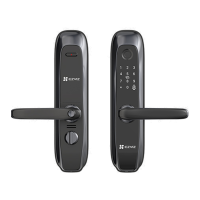
The EZVIZ Smart Fingerprint Lock provides secure access control to a property, integrating various unlocking mechanisms including fingerprint, passcode, RFID card, and a traditional mechanical key. It is designed to be managed through the EZVIZ mobile application, allowing users to monitor events, manage users, and configure settings remotely. The lock features a keypad for passcode entry, a fingerprint reader for biometric authentication, and a card swiping area for RFID cards. For emergency situations, it includes an emergency power supply interface and a mechanical keyhole.

Important Technical Specifications

  • User Capacity: The lock accommodates up to 100 fingerprints, 100 passcodes, and 100 cards.
  • Power Supply: It operates on 8 AA-sized batteries.
  • Connectivity: Supports 2.4GHz Wi-Fi for app integration and remote management.
  • Passcode Length: Passcodes can be 6-10 digits long.
  • Fingerprint Registration: Supports a maximum of 5 fingerprints per user, with a recommendation to use the thumb for increased success rate, especially for flat or thin fingerprints.
  • Security Features: Includes security protection functions such as system locking after multiple failed unlock attempts (5 times continuously in 5 minutes for fingerprint, passcode, or card), and Anti-Peeping Passcodes for enhanced privacy during entry.
  • Alarms: Features an anti-tamper alarm (lasting about one minute if forcibly dismantled), a system locked alarm (after 5 incorrect verifications), and a low battery warning.

Usage Features

  • Multiple Unlock Methods:
    • Fingerprint Unlock: Users place their finger on the reader. After a voice prompt, the handle can be put down to open the door. The system locks for 3 minutes after 5 continuous fingerprint recognition errors. This function can be turned off in the EZVIZ app.
    • Passcode Unlock: Users activate the keypad, enter their 6-10 digit passcode, and press '#'. The lock supports Anti-Peeping Passcodes, allowing users to add extra-long digits before or after their original code for privacy. Similar to fingerprint unlock, 5 continuous passcode recognition errors will lock the system for 3 minutes.
    • Card Unlock: Users place a registered proximity card on the card swiping area. After a voice prompt, the handle can be put down to open the door. The system also locks for 3 minutes after 5 continuous card recognition errors.
    • Mechanical Key Unlock: For emergencies or when other methods fail, a mechanical key can be used. The keyhole cover needs to be opened, and the key inserted and turned to unlock.
  • Administrator/User Management: The lock distinguishes between administrators and ordinary users. Administrators can unlock the door, log into the menu to add/delete users, and configure other settings. Ordinary users can only unlock the door.
  • Menu Navigation: Settings are accessed by pressing the SET button or touching the keypad area to activate the lock, followed by specific key presses for different functions (e.g., '#' for administrator, '1' for fingerprint, '2' for passcode, '3' for card, '4' for system information).
  • Wi-Fi Configuration: The lock can be connected to Wi-Fi by pressing and holding the SET button for more than 3 seconds, entering configuration mode, and following the EZVIZ app guide.
  • EZVIZ App Integration:
    • Homepage: Provides an overview of the lock's status, including battery level, Wi-Fi signal strength, and a list of all events (e.g., who opened the door and when).
    • Privacy Mode: When enabled, the door can only be unlocked by an administrator's fingerprint, passcode, or card, or by the mechanical key. The lock will also mute in this mode.
    • User Management: Allows administrators to manage added users via the app. New users must be added directly on the lock.
    • Temporary Passcode: The app can generate temporary access codes for visitors.
    • Settings: Offers options to customize the device name, manage notifications, adjust audio parameters, check battery storage, configure security settings (privacy mode, trial and error locking), view network and device information, and share or delete the device.
  • Emergency Unlock: In case of battery depletion, a power bank can be connected to the emergency power supply interface on the front panel via a micro-USB cable to temporarily power the lock and unlock the door.

Maintenance Features

  • Battery Replacement: Users are reminded to replace batteries promptly when the low battery warning is issued, paying attention to positive and negative poles. Old and new batteries should not be mixed, and batteries should be removed if the lock is unused for a long time.
  • Cleaning and Lubrication:
    • Avoid corrosive materials near the lock to prevent damage.
    • If the door deforms, adjust the strike plate position.
    • Keep the mechanical key properly.
    • When collecting fingerprints, press the finger horizontally on the reader.
    • Keep the rotating parts of the lock lubricated for smooth operation and prolonged service life.
    • Regularly check fixed screws (every six months or year).
    • Apply a small amount of graphite or pencil powder to the lock cylinder slot periodically (one year or six months) to ensure smooth key insertion and removal. Avoid grease to prevent sticking.
  • Troubleshooting (FAQ): The manual provides a comprehensive FAQ section addressing common issues such as:
    • Door not opening with verifications (fingerprint, passcode, card) – often due to installation problems, lever handle not returning, or motor fault.
    • Door not opening with mechanical key – due to incorrect key, damaged cylinder/lock body, or key not fully inserting.
    • Keypad or fingerprint reader not responding – often due to dead batteries, loose connection lines, or damaged components.
    • Lock remaining open – possibly due to clutch component fault.
    • Fingerprint recognition issues – invalid/deleted fingerprint, large deviation, damaged/dry/wet/dirty fingers, or insufficient pressure during collection.
    • Lock offline on EZVIZ app – due to unstable network environment. Solutions typically involve checking batteries, re-entering passcodes/fingerprints, using the correct key, or contacting professionals for repair/replacement of damaged components. For offline issues, connecting to a Wi-Fi with a good signal is recommended.
  • Factory Reset: To restore factory settings, remove batteries from the rear panel, press the SET button for 5 seconds while reinserting batteries, then release the SET button and press '#' to confirm after voice prompts.

Ezviz LT70 Specifications

General IconGeneral
BrandEzviz
ModelLT70
CategoryLocks
LanguageEnglish

Related product manuals