3
EN
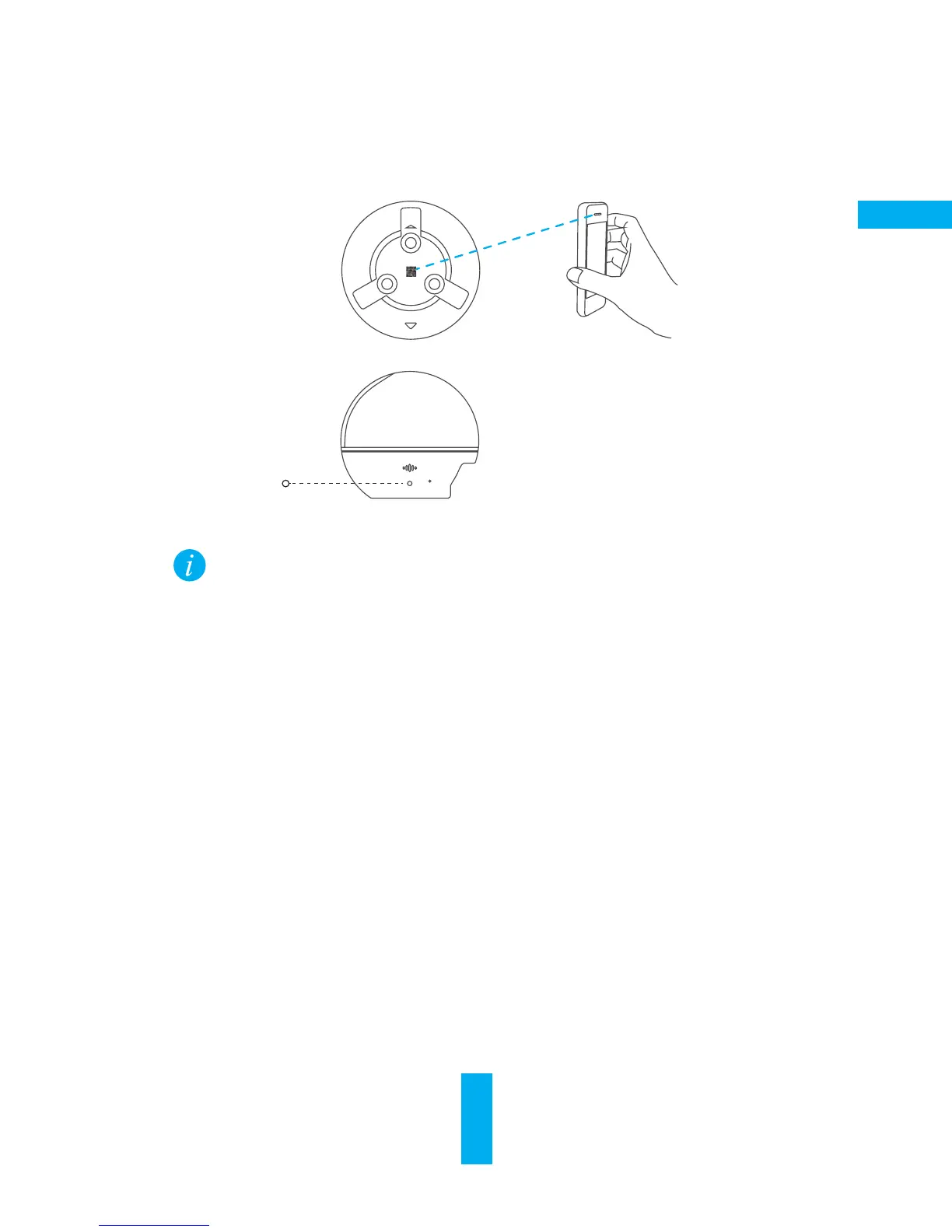
• If the camera fails to connect to your Wi-Fi network, press and hold the RST button
for 3s and repeat Step 2.2.
• To select another Wi-Fi network, press and hold the RST button for 3s to reboot the
device. When the LED indicator flickers red and blue, you can choose a new Wi-Fi
network.
3. To Change the Default Password
The camera uses the verification code found on the bottom of the camera as the default
password. After adding the camera to your network, you will be required to change the device
password to ensure video security. The password is used for Image Encryption, too. If you turn
on the Image Encryption, you will be required to input your password when you view live video
or playback stored video from the camera.
r- Go to the camera settings screen to change the default password.
- Tap on “Change Password”.
Reset Button
Scan the QR Code



 To Next Page