Need help?
Do you have a question about the Ezviz S3 and is the answer not in the manual?
This document serves as the user manual for an EZVIZ Action Camera, providing comprehensive instructions on its basics, operation, display introduction, gesture controls, playback, and wireless control features.
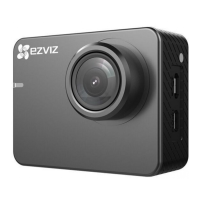
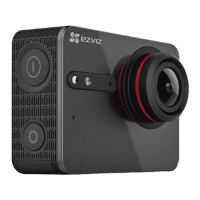
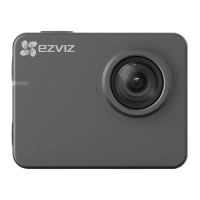
The EZVIZ Action Camera is a portable device designed for capturing videos and photos, including burst shots and time-lapse sequences. It features a shutter button for starting and stopping recordings, a camera status LED indicator to show standby or recording status, and a microphone for audio capture. For visual feedback, it includes an LCD touchscreen that displays live view, playback images, and various recording parameters. The camera is equipped with a micro-HDMI interface for connecting to external displays and a USB interface for data transfer and charging. It also supports wireless control via Wi-Fi, allowing connection to a mobile app or a dedicated remote control for enhanced usability.
The camera's operation begins with a simple setup process. Users must first remove the camera from its housing to insert a microSD card, which is essential for storage (not included and must be purchased separately). The battery is then installed by pushing down an arrow on the battery cover and inserting the EZVIZ-logo-facing-up battery, followed by closing the cover. For initial use, it is recommended to fully charge the camera in a power-off state by connecting it to a power outlet via the provided power cable.
The LCD touchscreen is central to interacting with the camera. Tapping the screen opens or closes display information. Swiping left from the right edge allows users to choose different camera modes, such as video, photo, burst, or time-lapse. Swiping right from the left edge enables viewing of captured photos or videos. Swiping downward provides access to more functions, including settings, driving car mode, wireless options, and screen lock. Swiping upward opens the setting interface for the current shooting mode, allowing adjustments to resolution, frame rate, capture rate, and interval.
The display introduction details the information presented on the screen, including the current recording mode icon (video, photo, burst, time-lapse), time already recorded or time left for recording (for video), or the number of captured pictures and pictures left (for photo, burst, and time-lapse). It also shows the resolution and frame rate for video, resolution for photos, resolution and capture rate for burst, and resolution and capture interval for time-lapse. Battery status is indicated, and the live view or playback image is displayed. Additionally, the screen can show meter mode, professional mode, or dewarping settings.
For playback, users can view photos and videos directly on the camera's LCD screen. The camera can also be connected to an external display (monitor) using a micro-HDMI cable (not included) to show live view or playback. When connected to an external display, the LCD screen on the camera becomes inactive, and users must use the physical buttons to switch recording modes or navigate menus. The "Next Item/Next Mode" button, "Confirm" button, and "Return" button facilitate navigation in this scenario.
Wireless control is a significant feature, allowing the camera to be controlled remotely. Users can enable Wi-Fi by tapping the dedicated Wi-Fi icon. The wireless control mode can be set in the setup menu. If "App" is selected, users can download the "EZVIZ SPORTS" app from the App Store or Google Play™. After installing the app, users connect their mobile phone to the camera's Wi-Fi signal using the default Wi-Fi name (EZVIZ_XXXX) and password (1234567890). It is crucial to change this default password for security purposes, as it is only intended for first-time log-in. If "Remote" is selected as the wireless control mode, users should refer to the Quick Start Guide of the Remote Control for specific instructions.
The camera's design allows for easy battery replacement. If the battery runs out, users can hold down the arrow on the battery cover and pull it out to replace the battery. The microSD card slot is also easily accessible for inserting or replacing the storage card. For ongoing support and manual downloads, users are directed to the EZVIZ service website. The manual emphasizes the importance of changing the default Wi-Fi password to protect against unauthorized access and ensure proper functioning of the device. If the camera is reset, the Wi-Fi name and password will revert to their default settings.
 General
| Video Compression | H.264 |
|---|---|
| Audio Input | Built-in microphone |
| Frequency Range | 2.4GHz |
| IP Rating | IP68 |
| Lens Aperture | f/2.8 |
| View Angle | 150 degrees |
| Audio Output | Built-in speaker |
| Storage | MicroSD card (up to 128GB) |
| Wireless | Wi-Fi 802.11 b/g/n |
| Operating Conditions | -10°C to 45°C |
| Power Supply | Rechargeable battery |
| Sensor | CMOS |
| Frame Rate | 30fps (4K), 60fps (1080p) |
| Lens Wide-Angle | 150° |
| Waterproof | Yes, with included housing |
| Connectivity | Wi-Fi, Bluetooth |

 To Next Page