Chapter Five: Using FSMS Utilities
FedEx Ship Manager
®
Server User Guide, Version 7.6 183
Toolbar Buttons
Open Opens a report template, i.e. .rpt file.
Refresh Use to refresh the report trees with current data.
Export Use to export selected report(s) to the directory specified in the FSMS
Configuration Utility or to the default directory. All reports in a category may
be exported simultaneously by selecting the category, e.g. Domestic, or may
be exported individually by selecting the specific report, e.g. Invoice.
Print Send selected report(s) to currently specified printer. By default, no printer is
selected.
About
Select Printer Allows the user to select a printer to print reports.
Select Export Allows the user to select an export directory. The currently selected export
Directory directory displays on status bar.
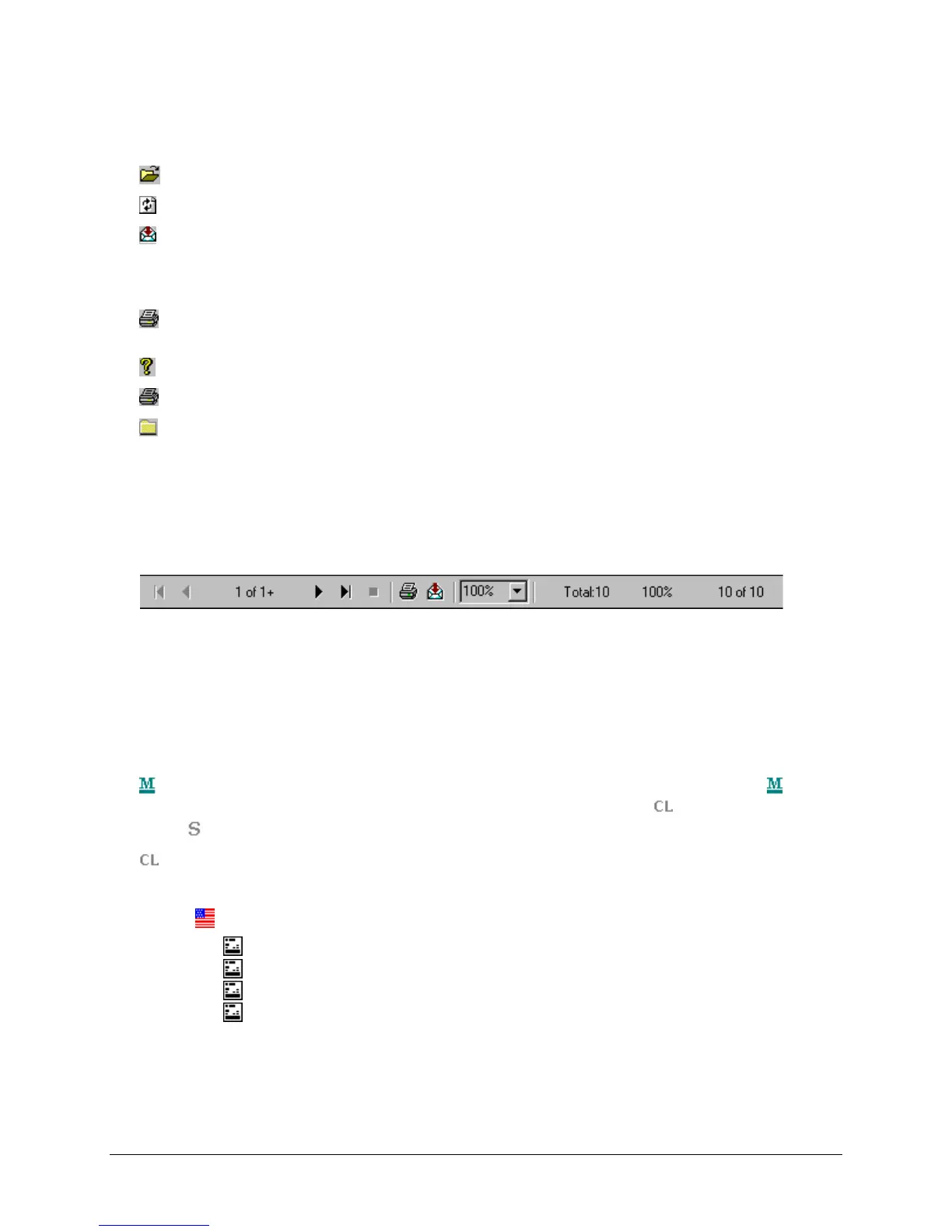
Crystal Report Toolbar
Once a report is generated, the following toolbar displays at top of the Report window and has the
following functions:
• Navigation through report pages
• Print currently displayed report
• Export currently displayed report to disk file in different formats
• Zoom in and out of currently displayed report
Tree View Nodes
Meter Number: Each meter loaded in the FSMS system is associated with this icon ( ) in the
Tree control. Each meter node has two other nodes, Close Reports (
) and Shipment Reports
(
).
Close Reports: All Close register IDs are listed in order by process date: CL 2005-01-07
16:00:04 (year-month-day and time). Some of the reports available under each ID are:
Domestic
Courier
Invoice
Shipments
EOD


 To Next Page
 Loading...