Chapter One: Setting Up FSMS
78 FedEx Ship Manager
®
Server User Guide, Version 7.6
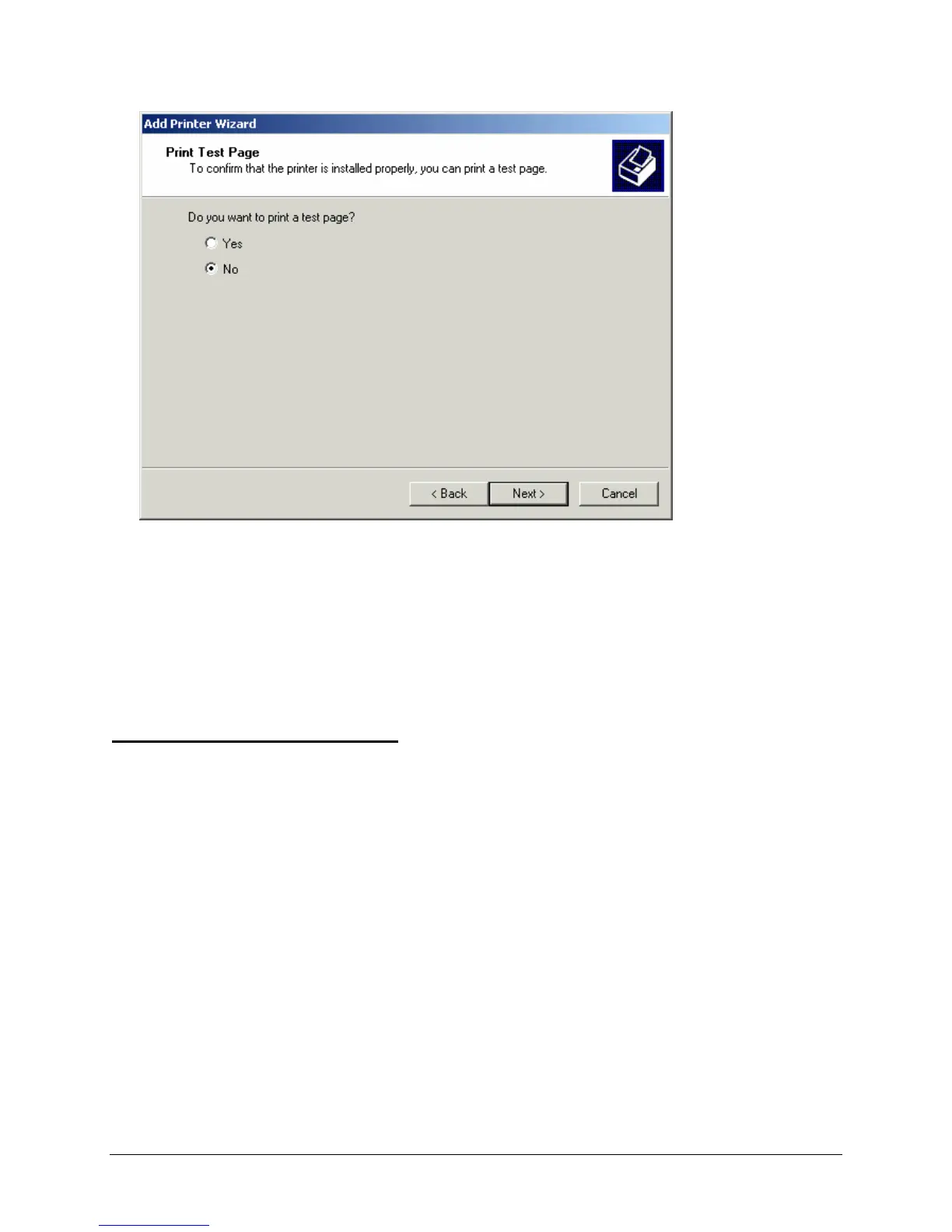
12. To print a test page, click Yes. Otherwise, select No. Click Next to continue. The Add Printer
Completed window is displayed.
13. In this window, the information you added during printer installation is recapped. If you want to make
changes to this configuration, click Back. To end printer installation, click Finish.
You may continue to add local printers using the steps described above. After you have installed printers
for all of your shipping applications (labels, reports, etc.), you are ready to start coding your shipping
transactions.
Adding a Local TCP/IP Printer
To add a local printer, start up the Windows Add Printer Wizard. This wizard is usually located on the
Windows Start menu. The Windows Printer Wizard start-up window is displayed.
1. Click Next to start the Add Printer Wizard function. The Local or Network Printer window is
displayed.


 To Next Page
 Loading...