Chapter One: Setting Up FSMS
FedEx Ship Manager
®
Server User Guide, Version 7.6 81
7. Select the port type from the Device Port pull-down list. For example, we have selected Port 1
(Parallel) as the sample port type. Click Next to continue. The Add Port Completed window is
displayed.
8. In the Add Port Completed window, the information you added during port installation is recapped. If
you want to make changes to this configuration, click Back. To accept the port installation as
displayed in this window, click Finish. The Select Printer Model window is displayed.
After you have successfully configured a TCP/IP port for printer installation, you may install a specific
printer for this port. Step-by-step instructions for installing a local printer are provided in the “Printer Set-
Up: Adding a Local Printer” section of this chapter.
Additional Installation Steps for Windows 2000
If you are running Windows 2000 as your operating system, you must switch the TCP/IP port to LPR after
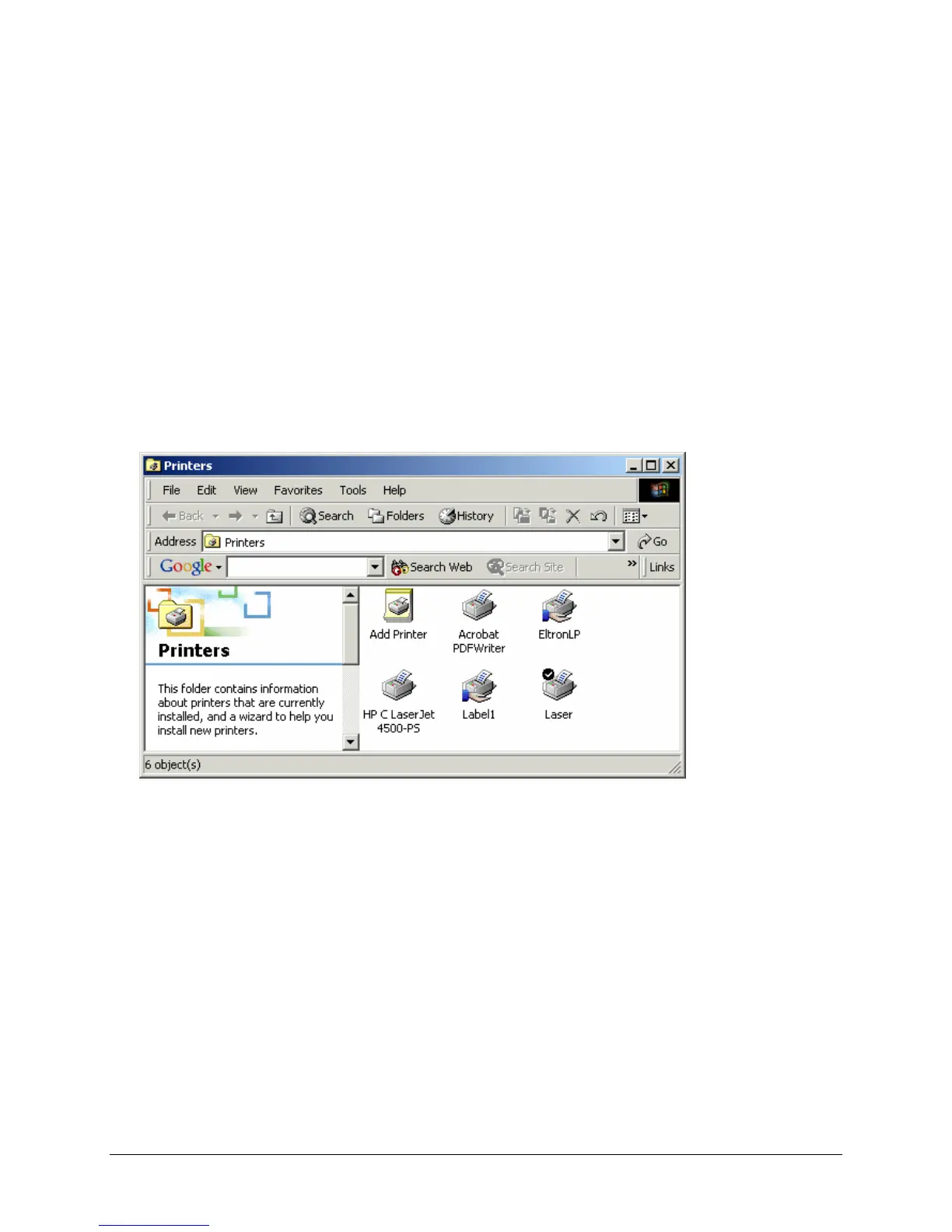
the printer is added. To perform this action, select Printers from the Windows Start menu. The following
window is displayed:
1. Right click the printer icon of the TCP/IP printer you installed. Select Properties from the right-click
menu. The Printer Properties window for the printer you selected is displayed.


 To Next Page
 Loading...