Need help?
Do you have a question about the Feelworld FW279S and is the answer not in the manual?
Important warnings and cautions for safe and proper use of the monitor.
Details on the monitor's buttons, indicator light, and light sensor.
Information on battery compatibility and DC power input methods.
How to access and use the main and shortcut menus via touch.
Instructions for operating menus using the control wheel.
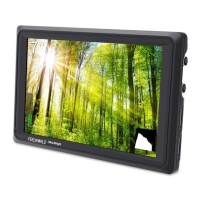
This document describes a 7-inch 3D LUT Touchscreen Monitor, designed for professional video monitoring with a 2200nits daylight viewable display. The monitor offers a comprehensive set of features for filmmakers and videographers, including advanced monitoring tools, flexible power options, and multiple mounting points.
The monitor serves as an ultra-bright 7-inch touchscreen display for video monitoring. It supports both SDI (optional) and HDMI input and output, allowing for versatile integration into various camera setups. An auxiliary power output is also available to power external devices like cameras. The primary interface is a touch screen menu, which simplifies operation and access to its extensive features.
Key functionalities include HDR monitoring and the ability to upload user-defined 3D LUTs (Look-Up Tables) for accurate color representation and creative grading. It supports Log to REC.709 conversion, ensuring proper display of log footage. The monitor is equipped with a 1920x1200 full HD IPS screen, providing a clear and detailed image.
For exposure and focus control, the monitor offers a suite of advanced features. These include Parade, Vector, and RGB Histogram functions, which are quantitative tools to inspect image brightness and guide exposure. Focus Assist provides peaking colors (red, green, blue, white, yellow) to highlight in-focus areas. Zebra Exposure and False Color functions help in identifying overexposed or underexposed regions, aiding in proper lighting and post-production.
Additional image analysis and utility features include Pixel to Pixel mapping for accurate 1:1 pixel display, Center Marker and Safety Marker for framing, and Marker Mat for aspect ratio overlays. Monochrome mode allows viewing in gray, red, green, or blue. Image Freeze captures a still frame for detailed analysis. Zoom-in and Anamorphic Mode functions provide flexibility for different shooting scenarios and lens types. Image Flip H and Flip V allow for horizontal and vertical image inversion, useful in various mounting orientations.
The monitor also includes basic image adjustments such as Brightness, Contrast, Sharpness, Hue, Saturation, and Color Temperature. For audio monitoring, it features an Audio Meter and a Stereo Earphone output.
The monitor is designed for ease of use with its touchscreen interface and intuitive menu system.
The monitor offers flexible power options. It features dual F970 battery plates on the rear cover, compatible with Sony F970 series batteries (F970, F960, F950, F930, F770, F750, F730, F570, F550, F530). It is recommended to use standard original F970 batteries for optimal performance. Users should remove batteries if the monitor will not be used for an extended period. Additionally, the monitor can be powered via a DC IN 12V input (7~24V DC) with a 5.5mm outer, 2.1mm inner barrel connector. A DC OUT 8.4V power output is available to power cameras using separately available dummy battery cables (e.g., NP-FW50 for Sony, LP-E6 for Canon, DMW-BLF19 for Panasonic).
The monitor has three 1/4"-20 thread points (bottom, right, and left) for easy connection to hot shoe mounts or tripods. An included Tilt Arm allows for 360° tilt adjustment and features a cold shoe for attaching accessories like microphones, LED lights, or wireless receivers.
The monitor's menu can be operated via touch screen or a MENU wheel.
These buttons can be customized to quickly access frequently used functions such as Input, All Waves, Nine Grid, Safety Marker, Center Marker, Marker Mat, False Color, Lut Switch, Parade, Vector, RGB Histogram, Histogram, Audio Meter, Monochrome, Focus Assist, Zebra, Scan Mode, Video Aspect, Anamorphic Mode, Auto Mirror, Flip H, Flip V, Freeze, Pixel to Pixel, Mute, and Lut Out.
Firmware upgrades and 3D LUT uploads are performed via an SD card slot. Users copy the update file or 3D LUT files to an SD card, insert it into the slot, and then use the menu options to initiate the upgrade or import the LUTs.
The monitor contains no adjustable components that users should attempt to repair. Disassembling or repairing the unit by oneself is not recommended and may cause damage.
The manual provides basic troubleshooting steps for common issues:
For persistent issues, users are advised to contact technologists for support. The manufacturer reserves the right to improve product features and performance, and specifications may change without prior notice.
 General
| Screen Size | 7 inch |
|---|---|
| Resolution | 1920x1200 pixels |
| Contrast Ratio | 1000:1 |
| Viewing Angle | 178° |
| Aspect Ratio | 16:10 |
| Input | HDMI |
| Output | 3G-SDI |
| Battery Type | NP-F series |
| Mounting Options | 1/4"-20 threads |

 To Next Page