EasyManua.ls Logo

FEKER Alice 80 - Switch & USB Functionality; Mac System Mode; Windows System Mode; Wireless Mode Activation

FEKER Alice 80
4 pages
Print Icon
To Next Page IconTo Next Page
To Previous Page IconTo Previous Page
Loading...
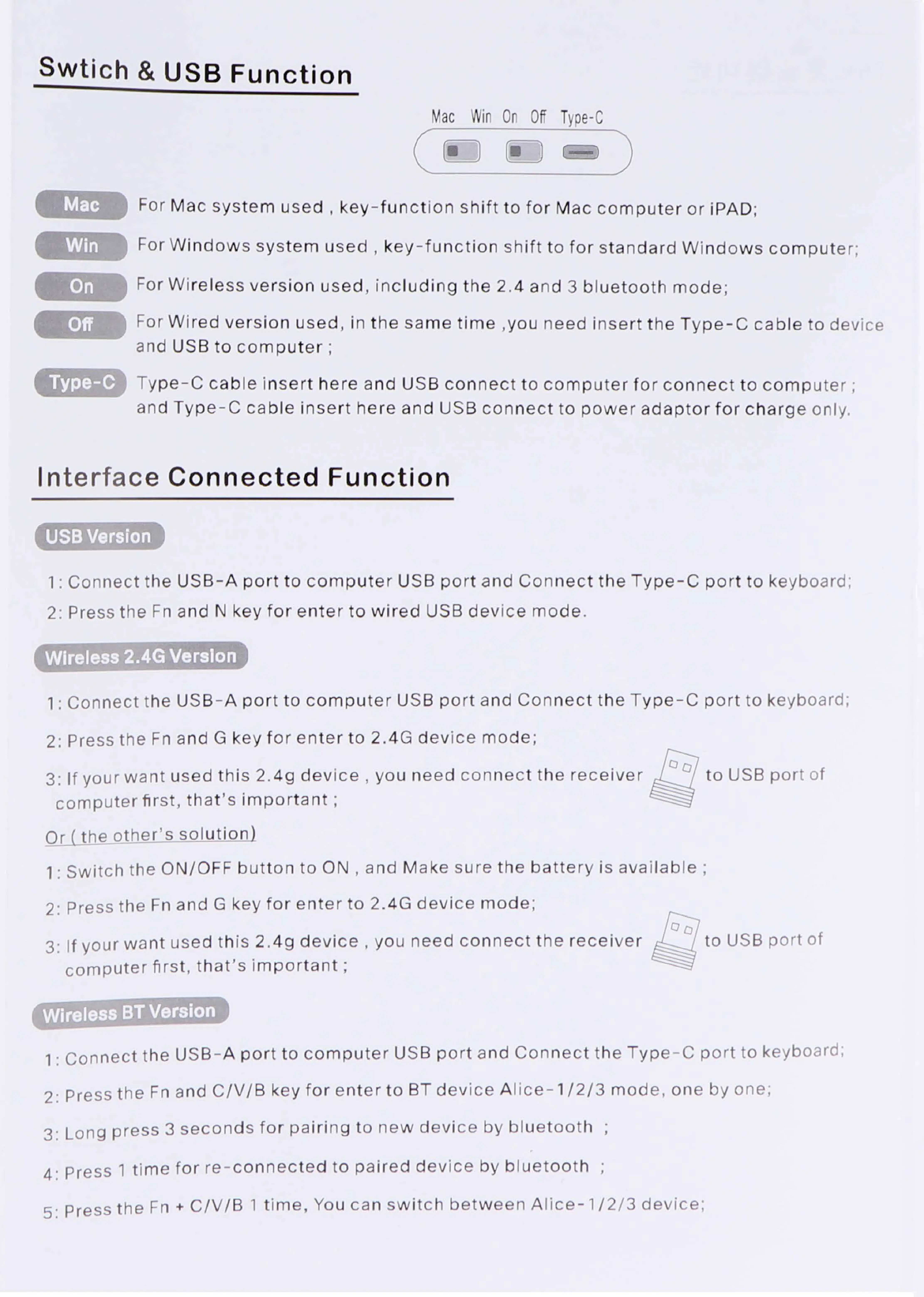
Swtich
&
USB
Function
Mac
Win
On
Of
Type-C
For
Mac
system
used
,
key-function
shift
to
for
Mac
computer
or
iPAD:
For
Windows
system
used
,
key-function
shift
to
for
standard
Windows
computer:
For
Wireless
version
used,
including
the
2.4
and
3
bluetooth
mode:
For
Wired
version
used,
in
the
same
time
,you
need
insert
the
Type-C
cable
to
device
and
USB
to
computer
;
'Type-C
'
Type-C
cable
insert
here
and
USB
connect
to
computer
for
connect
to
computer
;
and
Type-C
cable
insert
here
and
USB
connect
to
power
adaptor
for
charge
only.
Interface
Connected
Function
USB
Version
1:
Connect
the
USB-A
port
to
computer
USB
port
and
Connect
the
Type-C
port
to
keyboard;
2:
Press
the
Fn
and
N
key
for
enter
to
wired
USB
device
mode.
Wireless
2.4G
Version
1:
Connect
the
USB-A
port
to
computer
USB
port
and
Connect
the
Type-C
port
to
keyboard,
2:
Press
the
Fn
and
G
key
for
enter
to
2.4G
device
mode,
Q
to
USB
port
of
3:
If
your
want
used
this
2.4g
device
,
you
need
connect
the
receiver
S
computer
first,
that’s
important
;
Or
(
the
other’s
solution)
1:
Switch
the
ON/OFF
button
to
ON
,
and
Make
sure
the
battery
is
available
;
o5
3:
|f
your
want
used
this
2.4g
device
,
you
need
connect
the
receiver
/
to
USB
port
of
computer
first,
that’s
important;
2:
Press
the
Fn
and
G
key
for
enter
to
2.4G
device
mode;
1:
Connect
the
USB-A
port
to
computer
USB
port
and
Connect
the
Type-C
port
to
keyboard;
2:
Press
the
Fn
and
C/V/B
key
for
enter
to
BT
device
Alice-1/2/3
mode,
one
by
one;
3:
Long
press
3
seconds
for
pairing
to
new
device
by
bluetooth
;
4
Press
1
time
for
re-connected
to
paired
device
by
blu'etooth
;
5:
Press
the
Fn
+
C/V/B
1
time,
You
can
switch
between
Alice-1/2/3
device;

Related product manuals