2
CONTENTS
Bluetooth
®
Keyboard, Charging Cable and Carrying Case with Wrist Support.
USER MANUAL
Thank you for choosing Fellowes. For optimum performance, please read this instruction guide carefully before
operation. Keep for reference.
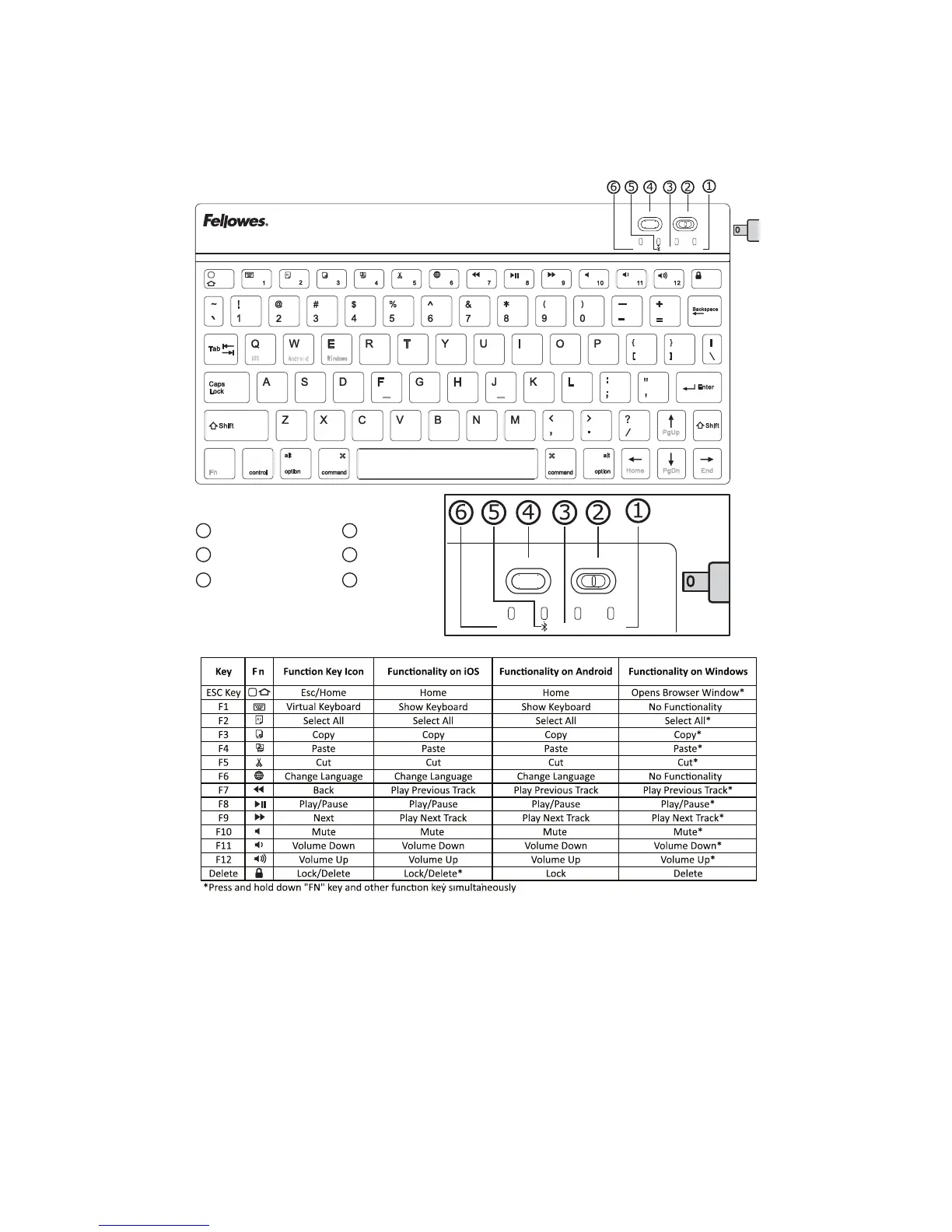
APPEARANCE
GETTING STARTED
1. BUTTONS
On/Off Slider Switch: Slide switch ON or OFF to turn the device ON or OFF
Connect Button: After the On/Off Slider Switch is in the ON position, press the Connect Button.
The keyboard is now ready to connect to your device.
2. STATUS LIGHTS
Caps Lock Light: Light will glow blue when Caps Lock is activated.
Bluetooth
®
Status Light: Press the Connect Button. The Bluetooth
®
Status Light will blink blue until the
keyboard connects with your device. After connecting with your device the blue light will turn off.
Charging Light: Light will glow red while the keyboard is charging. When the keyboard is fully charged the
light will turn off.
Power Light: Slide the On/Off Slider Switch to ON. The blue status light will illuminate for four seconds
and turn off to save power. Your keyboard is still on.



 To Next Page