

EasyManua.ls Logo

Fermax Wi-BOX - User Manual

Fermax Wi-BOX
8 pages
Print Icon
To Next Page IconTo Next Page
Loading...
1. Connect the connector into the Wi-BOX
Insert the connector;
+ is red
F1 is white
Question and Answer IconNeed help?

Do you have a question about the Fermax Wi-BOX and is the answer not in the manual?

Summary

Connect Wi-BOX Connector

Identify Connector Wires

Instructions to connect the cable, identifying red as '+' and white as 'F1'.

Terminate Wi-BOX Wiring

Wi-BOX Power Safety Precautions

Warning to avoid shorting cables while power is on to prevent system failure.

Prepare Cabling Pathway

Guidance on creating a cable pathway through the unit if not using the rear.

Wiring Connection Guide

Details on connecting wires (+, L, M, V, Ct, F1) to corresponding terminals.

Re-mount Monitor to Bracket

Monitor Power-Up LED Status

Observation of the LED blinking slowly in red upon power-up after re-connection.

Program VDS Number into Wi-BOX

Initiate VDS Programming Sequence

Press the button once to start the VDS programming process.

Complete VDS Programming

Press door lock release within 10 seconds; LED turns solid green.

Attach Wi-BOX Cover

Locate Wi-BOX QR Code

Indicates the position of the QR code on the Wi-BOX device.

Pair Wi-BOX to Wi-Fi Network

Download and Install FERMAX App

Get the FERMAX Wi-BOX App from the Play Store or App Store.

Execute Wi-BOX Wi-Fi Pairing

Press and hold the button until the LED blinks red, then release.

Confirm Wi-Fi Pairing Success

The LED will turn solid blue upon successful Wi-Fi network pairing.

Activate Call Divert Feature

Initiate Call Divert Activation

Press the button once to turn on the call divert function.

Verify Call Divert Status

The LED will turn solid blue when call divert is active.

Troubleshoot Wi-BOX LED Lights

Resolve Wi-Fi and Pairing Issues

Troubleshooting for no Wi-Fi, pairing router, and server connection problems.

Address Power and VDS Issues

Troubleshooting for no power, unprogrammed VDS, and call divert statuses.

Summary

Connect Wi-BOX Connector

Identify Connector Wires

Instructions to connect the cable, identifying red as '+' and white as 'F1'.

Terminate Wi-BOX Wiring

Wi-BOX Power Safety Precautions

Warning to avoid shorting cables while power is on to prevent system failure.

Prepare Cabling Pathway

Guidance on creating a cable pathway through the unit if not using the rear.

Wiring Connection Guide

Details on connecting wires (+, L, M, V, Ct, F1) to corresponding terminals.

Re-mount Monitor to Bracket

Monitor Power-Up LED Status

Observation of the LED blinking slowly in red upon power-up after re-connection.

Program VDS Number into Wi-BOX

Initiate VDS Programming Sequence

Press the button once to start the VDS programming process.

Complete VDS Programming

Press door lock release within 10 seconds; LED turns solid green.

Attach Wi-BOX Cover

Locate Wi-BOX QR Code

Indicates the position of the QR code on the Wi-BOX device.

Pair Wi-BOX to Wi-Fi Network

Download and Install FERMAX App

Get the FERMAX Wi-BOX App from the Play Store or App Store.

Execute Wi-BOX Wi-Fi Pairing

Press and hold the button until the LED blinks red, then release.

Confirm Wi-Fi Pairing Success

The LED will turn solid blue upon successful Wi-Fi network pairing.

Activate Call Divert Feature

Initiate Call Divert Activation

Press the button once to turn on the call divert function.

Verify Call Divert Status

The LED will turn solid blue when call divert is active.

Troubleshoot Wi-BOX LED Lights

Resolve Wi-Fi and Pairing Issues

Troubleshooting for no Wi-Fi, pairing router, and server connection problems.

Address Power and VDS Issues

Troubleshooting for no power, unprogrammed VDS, and call divert statuses.

Overview

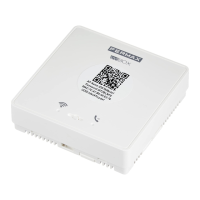
The Fermax Wi-BOX is a device designed to integrate with Fermax VDS (Video Door System) monitors, enabling call diversion to mobile devices via a Wi-Fi network. This allows users to receive calls from their door entry system on their smartphone or tablet, providing remote access and control.

Function Description:

The primary function of the Wi-BOX is to act as a bridge between a Fermax VDS monitor and a Wi-Fi network, facilitating call diversion. When a visitor presses the call button at the door panel, the call is routed to the connected VDS monitor and simultaneously diverted to the user's mobile device through the Wi-BOX and the associated FERMAX Wi-BOX App. This allows users to see and speak to visitors, and even open the door remotely, from anywhere with an internet connection.

The device supports a minimum requirement of connecting to the +, L, and - terminals of the VDS system. For video functionality, it also connects to the V and M terminals. Optional connections include Ct and F1 for additional features.

Installation and Setup:

  1. Connection: The Wi-BOX connector is inserted into the Wi-BOX unit. The + wire (red) and F1 wire (white) are identified for this initial connection.
  2. Termination: The Wi-BOX is terminated by connecting its wires to the corresponding ports on the VDS monitor, mirroring the existing wiring.
    • Minimum Requirement:
      • + (Wi-BOX red) to connector +
      • L (Wi-BOX yellow) to connector L
      • - (Wi-BOX brown) to connector -
    • For Video:
      • V (Wi-BOX blue) to connector V
      • M (Wi-BOX black) to connector M
    • Optional:
      • Ct (Wi-BOX green) to connector Ct
      • F1 (Wi-BOX white) to connector F It is crucial to turn off power to the monitor before wiring to prevent short circuits and system failure. If routing cables through the front, some plastic may need to be cut from the Wi-BOX housing.
  3. Re-connection: After wiring, the monitor is re-connected to its bracket. Upon power-up, the Wi-BOX's LED (WIFI LED) should blink slowly in red, indicating it's ready for programming.
  4. VDS Number Programming:
    • Press the programming button on the Wi-BOX once.
    • The LED will blink quickly in red.
    • Within 10 seconds, press the door lock release button on the monitor or handset.
    • The LED will turn solid green, indicating successful VDS number programming.
  5. Cover Installation: The cover is added to the Wi-BOX, which includes a QR Code Location for app setup.
  6. Wi-Fi Pairing:
    • Download the FERMAX Wi-BOX App from the Play Store or App Store and follow the in-app instructions.
    • When prompted by the app, press and hold the Wi-Fi button on the Wi-BOX until the LED blinks quickly in red (approximately 5-10 seconds), then release.
    • Once successfully paired to the Wi-Fi network (2.4GHz only), the LED will turn solid blue.
  7. Call Divert Activation:
    • Press the call divert button on the Wi-BOX once.
    • The LED will turn solid blue, indicating that call divert is active.

Important Technical Specifications:

  • Network Compatibility: Operates on 2.4GHz Wi-Fi networks only.
  • Power: Draws power from the VDS monitor.
  • Connectivity: Wired connection to VDS monitor terminals (+, L, -, V, M, Ct, F1).
  • App Integration: Requires the FERMAX Wi-BOX App for mobile device integration and configuration.
  • QR Code: Features a QR code for easy device identification and setup within the app.

Usage Features:

  • Remote Call Reception: Receive calls from the door entry system on a smartphone or tablet.
  • Remote Door Opening: Open the door remotely via the mobile app.
  • Two-Way Communication: Speak to visitors from anywhere with an internet connection.
  • Easy Activation/Deactivation: A dedicated button on the Wi-BOX allows for quick activation or deactivation of the call divert function.
  • LED Indicators: Clear LED indicators provide status updates on power, Wi-Fi connection, VDS programming, and call divert status.

Troubleshooting LED Lights:

The Wi-BOX features several LED indicators to help diagnose issues:

  • WIFI LED (Left LED):

    • No WIFI configured: No light.
    • No WIFI connection: Red (solid colour).
    • Pairing router: Red (fast blinking).
    • Router connected but no server connection: Green (fast blinking).
    • Router and server connected: Blue (solid colour).
  • CALL DIVERT LED (Right LED):

    • No power: No light.
    • No VDS address programmed: Red (slow blinking).
    • Setting the VDS address from the monitor: Red (fast blinking).
    • Call divert deactivated: Green (solid colour).
    • Call divert activated: Blue (solid colour).
    • Call divert in progress: Blue (fast blinking).

Maintenance Features:

  • Firmware Updates: Likely managed through the FERMAX Wi-BOX App to ensure optimal performance and security.
  • Self-Diagnosis: The LED indicators provide immediate visual feedback for troubleshooting common issues related to power, network connectivity, and VDS programming, simplifying maintenance.
  • Reset Functionality: While not explicitly detailed, most devices of this type include a factory reset option, often accessible via a hidden button or a specific button press sequence, to resolve persistent configuration issues.

The Fermax Wi-BOX is a user-friendly device designed to enhance the functionality of existing VDS door entry systems by bringing them into the realm of smart home connectivity, offering convenience and peace of mind through remote access.
Fermax Wi-BOX Specifications

General IconGeneral
BrandFermax
ModelWi-BOX
CategorySoftware
LanguageEnglish