This document provides operating instructions for the Fiodio 15.8-inch Portable Monitor, model 15K3F-C. It covers product introduction, appearance, packaging, usage, menu description, notes, troubleshooting, health in eye use, low blue ray description, basic parameters, regular certification, hazardous substances information, and guarantee details.
Function Description
The Fiodio 15.8-inch Portable Monitor (15K3F-C) is designed to extend or mirror the display of various devices, including desktop hosts, laptops, and mobile phones. It functions as a secondary display, enhancing productivity and entertainment on the go. The monitor supports both Type-C and HDMI signal inputs, allowing for versatile connectivity. It includes integrated speakers for audio output and features a user-friendly menu system for adjusting display settings. The device is lightweight and portable, making it suitable for travel and flexible work environments.
Important Technical Specifications
- Product Name: 15.8-inch Portable Monitor
- Product Code: 15K3F-C
- Screen Size: 15.8 inch
- Screen Type: IPS
- Resolution: 1920*1080P
- Luminance: 220cd/m²
- Touch Control: Not supported
- Speaker: 2*1W
- Refresh Rate: 60Hz
- FreeSync: None
- Color Gamut: 45%NTSC
- Display Color: 16.7M (6BIT+FRC)
- Static Contrast Ratio: 800:1
- Interface: Type-C*2 and Mini HDMI*1
- Overall Dimensions: 373.2*236.8mm
- Product Thickness: 9.4mm
- Net Weight: 990g
- Input Voltage: DC 20V === 1.5A / 15V === 2.0A / 12V === 2.5A / 9V === 3.0A
- Ambient Temperature: 0°C~45°C
The monitor's IPS panel ensures wide viewing angles and consistent color reproduction. The 1920x1080P resolution provides a sharp and clear image, suitable for various applications from document editing to media consumption. The dual Type-C ports support both power and signal transmission, offering convenience with compatible devices. The Mini HDMI port provides an alternative for devices lacking Type-C video output. The monitor's slim profile and light weight contribute to its portability.
Usage Features
The monitor offers straightforward connectivity and a comprehensive on-screen display (OSD) menu for customization.
Connectivity:
- Desktop Host Connection: Connect via HDMI cable for video and a Type-C power line to an adapter for power. The Type-C ports are blind-insertable for ease of use.
- Laptop Connection: Connect via a Type-C data cable for both signal and power (if the laptop supports Type-C video output and power delivery) or use a separate Type-C power line with an adapter.
- Mobile Phone Connection: Connect via a Type-C data cable for signal and a Type-C power line with an adapter for power.
Function Keys:
The monitor features a set of functional keys on the right side, including an Up key, Down key, and Power key, along with a Power indicator.
- Up Key: When the main menu is closed, it calls up the shortcut volume icon. Pressing it again adjusts volume up. When the main menu is open, it navigates up or to the previous cycle.
- Down Key: When the main menu is closed, it calls up the shortcut volume icon. Pressing it again adjusts volume down. When the main menu is open, it navigates down or to the next cycle.
- Power Key/Shortcut Menu Key: When the main menu is closed, a short press calls up the menu. Holding for 6 seconds turns the machine on/off. When the main menu is open, a short press confirms selection, entering the next level. Holding for 1 second returns to the previous menu.
- Power/Signal Indicator: Ice blue indicates normal operation; orange indicates standby; off indicates turned off.
Menu Description (OSD):
The OSD menu is accessed by pressing the power key when the machine is on. It provides various settings categorized into:
- Home Page: Adjusts luminance, contrast ratio, and sound options.
- Ringer Mode: Selects different display modes (e.g., Standard, Game, Movie, Text, RTS, FPS) to optimize visual experience for specific content.
- Color Temperature: Adjusts the color temperature (e.g., 6500K, 9300K, User). In User mode, R, G, B values can be individually adjusted.
- Color: Adjusts chromaticity, saturation, and sharpness.
- Eye Care: Enables a mode to reduce eye strain.
- Mute: Toggles audio mute on/off.
- TYPE-C: Switches the signal input to the Type-C port.
- HDMI: Switches the signal input to the HDMI port.
- OD (Overdrive): Enables or disables the overdrive function for faster response times.
- DCR (Dynamic Contrast Ratio): Enables or disables the dynamic contrast ratio function.
- Reset: Resets all settings to factory defaults.
- EXIT: Exits the OSD menu.
Navigation within the menu is done using the Up and Down keys, with the Power key for selection and return. The menu automatically disappears after 3 seconds of inactivity.
Low Blue Ray Description:
The monitor includes a function to reduce blue light emission, specifically targeting harmful blue rays in the 415-455nm range. Users can enable this "low blue ray mode" through the menu settings to mitigate potential eye damage from prolonged exposure.
Maintenance Features
The manual provides important notes and troubleshooting steps to ensure proper operation and longevity of the device.
General Notes:
- Environment: Keep the monitor away from water, damp places, radiation, and heat sources. Store and use in a cool, dry, and well-ventilated area.
- Stability: Ensure the device is placed on a stable surface to prevent falls and potential damage or injury.
- Ventilation: Do not cover or block the vent holes on the back cover. Avoid placing it on soft surfaces like beds or sofas.
- Power Supply: Use the correct voltage range as indicated on the back cover label. Consult the dealer or electric utility if unsure.
- Safety: Disconnect power during prolonged idle periods or thunderstorms to prevent electric shock and damage. Avoid overloading sockets.
- Foreign Objects: Do not insert foreign objects into the machine to prevent short circuits, fire, or electric shock.
- Repair: Do not disassemble or repair the product without authorization. Contact after-sales service personnel for malfunctions.
- Cables: Do not pull or twist signal and data cables excessively. If provided cables are defective, obtain original replacements from the dealer or manufacturer.
Troubleshooting:
The manual lists common issues and their solutions:
- Unable to start up: Check power supply connection and long-press the power key.
- Dim images: Adjust luminance and contrast ratio.
- Jumping image or ripple screen: Move away from electrical equipment causing interference.
- Indicator not lit up, no picture: Check power line connection to computer/mobile phone and monitor, ensure Type-C power line is correctly connected.
- Screen displays "Out of range": Set the resolution to the recommended value (1920x1080P).
- Machine cannot be started after adapter connection (ice blue indicator off): Hold the power key for more than 6 seconds until the ice blue indicator goes on.
Health in Eye Use:
To prevent eye fatigue and physical discomfort from prolonged use, the following recommendations are provided:
- Viewing Distance: Maintain 20 to 28 inches (50-70 cm) from the screen.
- Blinking Frequency: Increase blinking frequency to relieve eye fatigue.
- Rest Breaks: Take a 20-minute rest every two hours.
- Distant Gaze: During rest, look at a distant target for at least 20 seconds.
- Stretching: Stretch neck, arms, back, and shoulders during rest periods.
Guarantee Information:
The product comes with a "three-guarantee" service, requiring the service sheet and purchasing invoice for free repair services during the warranty period. The warranty is valid only if the product's body number matches the service sheet. Without a purchasing invoice, the production date determines the warranty start. The warranty does not cover damage from unauthorized repairs, improper use, external factors (falls, transportation), non-company accessories, harsh environmental conditions, natural disasters, or exceeding the warranty period. The service is applicable only to users in mainland China.

 Need help?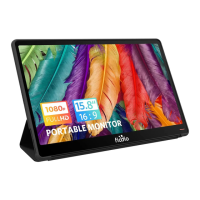

 To Next Page
 General