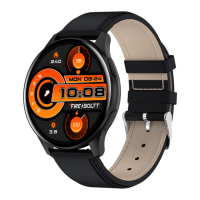
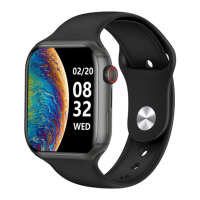
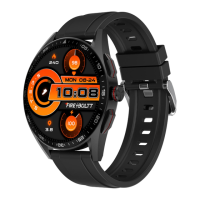
Need help?
Do you have a question about the Fire Boltt BSW053 and is the answer not in the manual?
Download and install the Da Fit app via QR code or app store for smartphone compatibility.
Ensure your mobile phone meets Android 5.1/iOS 9.0+ and Bluetooth 4.0+ for connection.
Connect directly to the device in the scanned list on Android for seamless pairing.
Confirm Bluetooth pairing on iOS by clicking 'Pair' when prompted by the app.
Enable notifications for apps like Messages, Facebook, Twitter, and WhatsApp for ease of use.
Learn how to activate the Bluetooth calling feature and make calls directly from the watch.
Switch on Bluetooth and pair 'Audio_FB BSW053' in iOS settings to enable calling.
Ensure the device status shows 'Connected' in iOS Bluetooth settings.
Accept the Bluetooth pairing request on Android to enable calling features.
View recent calls directly from the watch interface after connecting via Bluetooth.
Use the dial pad on the watch to make calls and initiate calls by pressing the call button.
To disconnect Bluetooth calling, go to phone's Bluetooth settings and unpair the device.
Add up to 8 contacts from the Da Fit App to 'Favorite Contacts' for quick access on the watch.
Select desired contacts from your address book to be added and displayed as shortcuts on the watch.
Switch active calls between your watch and phone by tapping the handset earpiece icon.
Battery lasts 2-3 days with calling enabled, 5-7 days on standby. Turn off Bluetooth when not in use.
Navigate the watch interface by sliding left/right or up/down for different menus and features.
Slide down for settings, slide up for List Menu from the watch face.
Access various functions like Activity, Phone Call, Sleep, and more from the List Menu.
Slide right from the watch face to access the Smart Menu for quick information.
Slide left to view Smart Components; add or remove up to 10 components as per choice.
Short press to unlock the screen or return to the watch face from menus.
Long press the side button to turn the watch on from a power-off state.
Wear the watch with moderate tightness for accurate heart rate and SpO2 readings.
Charge using mobile chargers or computer USB ports; ensure clean charging pins for connectivity.
The watch automatically tracks steps taken, resetting to zero at midnight.
Wear the watch during sleep to monitor sleep duration and quality from 8 PM to 10 AM.
Measure SpO2 levels for reference; values are not for medical use.
Record and measure your heart rate throughout the day, with options for high heart rate alerts.
Make and receive calls directly from the watch using Bluetooth connectivity.
Choose from over 100 exercise modes including Walking, Running, Cycling, and more.
Focus on breathing activity with guided inhale and exhale sessions.
Check notifications and messages received on your phone directly on the watch.
Use the stopwatch to time events by starting, pausing, and stopping the timer.
Set and manage countdown timers for specific events or goals.
Set up to 3 alarm clocks via the Da Fit App for timely reminders.
View current weather and up to 6 days forecast synced from your phone.
Control your phone's camera remotely from the watch for convenient photography.
Manage music playback on your phone, such as play, pause, and skip tracks, from the watch.
Use the flashlight function to navigate in darkness.
Explore other features and configurations within the watch's settings menu.
Long press the home screen to find and set available watch faces directly on the watch.
Download and sync watch faces from the Watch Face Store via the Da Fit App profile.
Enable 'App alerts' in Da Fit App and keep phone connected for receiving notifications.
Watch vibrates for notifications and displays content; slide up to view missed notifications.
Configure vibration for notifications and enable Low Power Mode for reduced consumption.
Enable DND to turn off vibrations and dim the screen brightness.
Enable Bluetooth calling mode with a single click for convenient communication.
Reset the Bluetooth calling function if needed.
Restart, power off, or reset the watch from the System Menu.
View device firmware version, QR code, MAC address, and app download details.
Receive ring and vibration alerts for incoming calls; options to silent or reject.
Get reminders to move when sedentary by enabling 'Reminder to Move' in Da Fit App settings.
Receive vibrations when step goals are met; set goals in the Da Fit App.
Get synchronized vibration alerts on the watch when the mobile phone alarm rings.
Choose and add from a wide range of exercise modes via the exercise tab.
Select an exercise type in the Activity entry and enable it to begin tracking.
The watch supports over 100 workout modes, including running, cycling, and yoga.
 General
| Display Size | 1.3 inches |
|---|---|
| Resolution | 240 x 240 pixels |
| Water Resistance | IP68 |
| Heart Rate Monitor | Yes |
| Fitness Tracking | Yes |
| Bluetooth | Yes |
| Compatibility | Android & iOS |
| Charging Time | 2 hours |
| Sports Modes | Multiple |
| Sensors | Heart rate |

 To Next Page