EasyManua.ls Logo

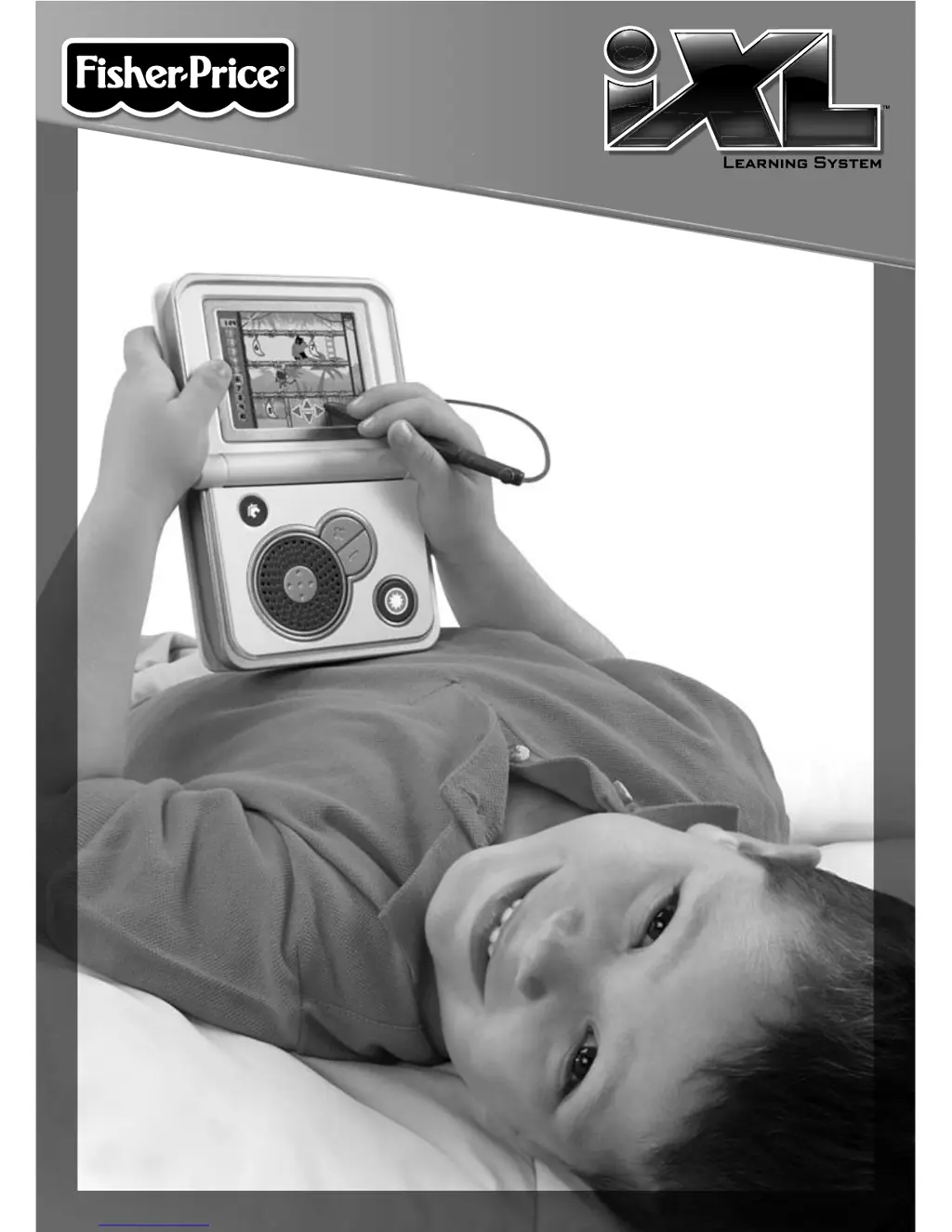
Fisher-Price iXL - User Manual

Fisher-Price iXL
60 pages
Print Icon
To Next Page IconTo Next Page
Loading...
2
www.fi sher-price.com

Other manuals for Fisher-Price iXL

Questions and Answers

  • L
    Lisa PowellAug 20, 2025
    Why Fisher-Price Toy iXL power will not turn ON?
    • J
      Jessica BassAug 20, 2025
      If your Fisher-Price Toy iXL power won't turn on, there are several possible reasons. First, the battery power may be low, and you should replace the batteries with four new “AA” (LR6) alkaline batteries. Also, if you are using an SD card, make sure it is unlocked and properly installed. Finally, the power will not turn on if the iXL is partially open, so ensure it is completely open.
  • K
    Kathleen MezaAug 22, 2025
    What to do if Fisher-Price iXL touch screen does not respond to the stylus?
    • S
      spencersharonAug 22, 2025
      If the touch screen on your Fisher-Price Toy does not respond to the stylus, it could be due to low battery power. Try replacing the batteries in the iXL with four new “AA” (LR6) alkaline batteries. If that doesn't work, you may need to calibrate the touch screen and the stylus.
  • I
    ileAug 25, 2025
    Why my computer does not recognize Fisher-Price Toy iXL?
    • J
      Jeffrey GibsonAug 25, 2025
      If your computer does not recognize the Fisher-Price Toy iXL, ensure that the iXL™ Computer Software is installed on your computer. Also, verify that the iXL is connected to your computer, opened, and the power is ON. Low battery power can also cause this issue, so replace the batteries with four new “AA” (LR6) alkaline batteries. Another solution is to unplug the USB cable from the USB port on your computer and re-insert it into another USB port.
  • E
    Eric MartinezAug 26, 2025
    How to fix content that will not transfer to Fisher-Price Toy iXL?
    • M
      Michael WilsonAug 26, 2025
      If content won't transfer to your Fisher-Price Toy iXL™, ensure the iXL power is on and it's connected to your computer. Low battery can cause transfer issues, so replace the batteries with four new “AA” (LR6) alkaline batteries. Also, iXL might have run out of memory, so install a secure digital (SD or SDHC) memory card and transfer content to it. Make sure to use ONLY iXL computer software to transfer content. Unplug the USB cable from the USB port on your computer and reinsert it in another USB port. Re-connect iXL to your computer and transfer the files again. Make sure the transfer process is complete before disconnecting iXL.
  • M
    martin39Aug 28, 2025
    Why Fisher-Price Toy iXL has intermittent sound and/or video?
    • H
      Hannah BlackAug 28, 2025
      If your Fisher-Price Toy iXL has intermittent sound and/or video, the battery power may be low. Try replacing the batteries in iXL with four new “AA” (LR6) alkaline batteries.
  • R
    rachel33Aug 29, 2025
    What to do if Fisher-Price iXL does not have enough memory to transfer content?
    • T
      thompsonbobAug 30, 2025
      If there is not enough memory on your Fisher-Price Toy iXL™ to transfer content, turn the iXL power OFF and disconnect it from your computer. Then, install a memory card (SD or SDHD card sold separately). You can also connect iXL to your computer and use iXL Computer Software to remove items from iXL.
  • B
    brooke77Aug 31, 2025
    How to fix Fisher-Price Toy iXL that does not recognize the installed SD card?
    • K
      kingpamelaSep 1, 2025
      If your Fisher-Price Toy iXL does not recognize the installed SD card, check to make sure the SD card is unlocked and properly installed in iXL. You may also need to reformat the SD card by connecting iXL to your computer, turning the power on, going to the Start Menu, selecting My Computer, right-clicking on the SD card icon, selecting Format, and clicking the Start button.
  • B
    Brad HensonSep 2, 2025
    What to do if custom profile does not appear on Fisher-Price Toy iXL login screen?
    • A
      Andrew EdwardsSep 2, 2025
      If the custom profile does not appear on the login screen of your Fisher-Price Toy iXL, connect iXL to your computer and launch iXL computer software. Check to be sure the custom profile exists; if not, try transferring it again. Also, the custom profile might have been over-written (deleted), so recreate the custom profile in iXL computer software and transfer it to iXL. Ensure the Name field is filled in on the custom profile screen in computer software before transferring the profile again to iXL.
  • C
    carlos19Sep 4, 2025
    Why loaded music does not play on Fisher-Price Toy?
    • L
      Linda JacksonSep 4, 2025
      The Fisher-Price Toy iXL only plays MP3 or WMA formatted files.
  • P
    Paul OrtizSep 6, 2025
    Why loaded pictures do not appear in picture slideshow on Fisher-Price iXL?
    • D
      Debbie BryantSep 6, 2025
      Load only JPEG (JPG) picture files to Fisher-Price Toy iXL.

Summary

Quick Start

Consumer Information

Minimum System Requirements

Details the necessary computer specifications for iXL software operation.

Battery Installation

iXL Features

Getting Started

Login Screen

Instructions for accessing the device's login interface and creating profiles.

Home Screen Navigation

Changing Background Design

How to customize the visual appearance of the Home Screen.

iXL Activities Overview

Software Select

Information on how to choose and load additional software titles for the iXL device.

Digital Reader

Read-to-Me Mode

Guidance on using the Digital Reader to listen to stories with narration.

Play Mode

Instructions for interactive story reading and comprehension activities.

Game Player

Game Player Screen

Details on gameplay mechanics, controls, and objectives for the counting game.

Notepad

Notepad Screen

How to practice writing letters, numbers, and words using the touch screen interface.

Art Studio

Art Studio Interface

Overview of the creative interface for drawing and artwork creation.

Backgrounds and Styles

Selecting backgrounds, drawing tools like pencils, paintbrushes, and spray paint.

Art Studio Tools

Color Palette

Selecting colors from the available palette for drawing and painting.

Stampers

Using pre-designed graphics (stampers) to decorate artwork.

Art Studio Editing

Editing and Music Features

Using undo/erase features and enabling background music for artwork.

MP3 Player

MP3 Player Operations

Accessing the MP3 Player, selecting songs, and controlling playback.

Photo Viewer

Photo Viewer Interface

Viewing slideshows and accessing tools for photo annotation.

Photo Editing Tools

Options for selecting drawing styles, colors, stampers, and eraser for photos.

Computer Software Installation

PC and Mac Installation

Steps to install the software on PC and Macintosh systems.

Connecting iXL to Computer

Computer Software Interface

Welcome Tab Navigation

Navigating the initial screen of the iXL computer software for setup and access.

Printable Activities

Settings and System Information

Software Updates and Control

Managing software updates, system details, and firmware repair.

My Library Management

My Library Tab Access

Accessing the content management section for transferring files to the iXL.

My Library Pictures

Picture Transfer Process

Steps to transfer pictures from a computer to the iXL, including selection and import.

My Library Music

Music Transfer Process

Steps to transfer music files from a computer to the iXL, including selection and import.

My Library Software Titles

Software Title Transfer

Transferring and managing additional software titles and activities.

My Library Customize Profile

Profile Creation and Customization

Creating and personalizing user profiles with names, pictures, and preferences.

SD Card Installation

SD Card Slot Access

Instructions for installing an SD card to expand device memory.

Resetting the Device

Reset Hole Procedure

Procedure for performing a hard reset using the reset hole.

Touch Screen Calibration

Calibration Hole Usage

Using the calibration hole to align the stylus with the touch screen for accurate input.

Software Uninstall

Troubleshooting

Device Operation Issues

Solutions for touch screen, power, memory, and display problems on the iXL.

Content Recognition Issues

Resolving problems with SD cards, pictures, and music playback recognition.

Computer Software Troubleshooting

Software and Profile Errors

Addressing issues with software installation, computer recognition, and profile display in the iXL software.

Content Transfer Troubleshooting

Content Transfer Problems

Resolving issues that prevent content transfer (software, music, pictures) to the iXL.

Safety Warnings and Care

Epilepsy and Seizures Notice

Important safety notice regarding photosensitive epilepsy and recommended precautions.

Regulatory Compliance

FCC and ICES Statements

Device compliance with US (FCC) and Canadian (ICES/NMB) radio frequency regulations.

Software Credits and Licenses

Device Credit Information

Details regarding software, trademarks, and licensing acknowledgments for the iXL.

Consumer Assistance

Fisher-Price iXL Specifications

General IconGeneral
CategoryElectronic Learning Toy
ManufacturerFisher-Price
Screen Size3.5 inches
DisplayColor LCD
TouchscreenYes
ConnectivityUSB (for connecting to a computer)
Power Source4 AA batteries
ActivitiesPhoto, Music
StorageInternal memory for saving creations

Related product manuals