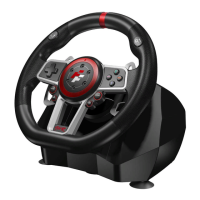
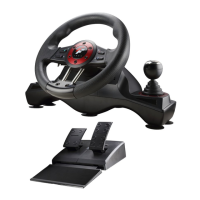
The Flash Fire Suzuka Wheel ES900R is a 6-in-1 wired steering wheel designed for an immersive racing experience across multiple platforms. It is compatible with PS3™, PS4™, PC, Xbox One™, Xbox 360™, and Switch™. The steering wheel features an ergonomic design, mimicking a real racing wheel to reduce fatigue during extended use and enhance the authenticity and enjoyment of game control.
Function Description:
The steering wheel includes built-in motors that provide various vibrating modes, synchronized with in-game situations (provided the game supports vibration). This enhances the tactile feedback and realism of the racing experience.
Key Components and Layout:
The device consists of three main parts: the steering wheel, a foldable 3-pedal unit, and a six-speed shifter.
Steering Wheel Layout:
- Integrated control buttons: General purpose buttons for in-game actions.
- Left paddle shifter: For gear changes or other assigned functions.
- Right paddle shifter: For gear changes or other assigned functions.
- L1 button: Corresponds to L1 on PlayStation, RB on Xbox One, 6 on PC (D-INPUT), and R on Switch.
- L2 button: Corresponds to L2 on PlayStation, LB on Xbox One, 5 on PC (D-INPUT), and L on Switch.
- D-pad: For directional input (Up, Down, Left, Right).
- ABXY buttons: Action buttons, mapping differently across platforms (e.g., X, O, Triangle, Square on PlayStation; A, B, X, Y on Xbox).
- Share button: For sharing content on PlayStation platforms, View on Xbox One, and - on Switch.
- Options button: For in-game options or menus, Menu on Xbox One, 10 on PC (D-INPUT), and + on Switch.
- Prog button: Used for programming custom button layouts and sensitivity settings.
- Home button: For accessing system menus or returning to the home screen.
- Rotation switch: Allows selection between 900 and 270 degrees of rotation for the steering wheel.
- R2 button: Corresponds to R2 on PlayStation, RB on Xbox One, 8 on PC (D-INPUT), and ZR on Switch.
- L2 button: Corresponds to L2 on PlayStation, LB on Xbox One, 7 on PC (D-INPUT), and ZL on Switch.
- Earphone port: For connecting a headset.
- Port of foot pedals: Connects the 3-pedal unit to the steering wheel.
- Guiding port: For connecting the original console controller for authentication.
- Port of shifter: Connects the six-speed shifter to the steering wheel.
- USB cable: Main connection cable to the console or PC.
- Mounting clamps: For securing the steering wheel to a desk or racing stand.
Shifter Layout:
- MODE switch: For selecting between 1-6 + R and 7-12 + R gear positions (PC mode only).
- HAND-BRAKE switch: Activates or deactivates the handbrake function.
3-Pedal Unit:
The foldable 3-pedal unit includes a clutch, brake, and gas pedal. The left pedal functions as the clutch, the middle as the brake, and the right as the gas. The clutch function is supported in compatible games. If a game does not support the clutch, only gas and brake functions will be available.
The steering wheel offers extensive programming capabilities to customize button functions and sensitivity.
- Programmable buttons: Include □/1/X/Y, ○/3/B/A, Δ/4/Y/X, X/2/A/B, L1/5/LB/L, L2/7/LT/ZL, R1/6/RB/R, R2/8/RT/ZR.
- Defined programming buttons: Left bumper, right bumper, HAND-BRAKE, clutch accelerator, and brake.
Programming Features:
- Program Design Configuration: Press "PROG" once (red LED flashes quickly), press the desired button once (red LED flashes slowly), then press "PROG" again (red LED lights up) to complete the programming.
- Cleanup Programming: Follow the program design configuration steps, but press the defined programming button once again after it flashes slowly to clear the programming step.
- Program Design Full Deletion: Press "PROG" once (red LED flashes quickly), then press and hold OPTIONS/10/MENU/+ buttons for 4 seconds until the red LED lights up. All custom button functions and sensitivity settings will be reset to High.
- Program Exit: Press "PROG" once (red LED flashes quickly), then press "PROG" again to exit programming without saving changes. If no further action, programming exits automatically after 10 seconds.
Sensitivity Configuration:
- Press "PROG" once (red LED flashes quickly).
- Use the D-pad (left/right for Middle, upper for High, lower for Low) to adjust sensitivity. The red LED will light up upon successful setting.
- Press and hold OPTIONS/10/MENU/+ buttons for 4 seconds to reset sensitivity to High and delete custom button functions.
Maximum Effective Angle Setting (900° Gear Position):
- Set the gear position switch to "900°".
- Press "PROG" once (red LED flashes quickly).
- Rotate the steering wheel more than 60° from the center to either left or right and hold it.
- Press "OPTIONS/10/MENU/+" buttons once until the LED lights up. This sets the current position as the MAX effective angle.
- To remove angle configuration:
- Press "PROG" once (red LED flashes quickly), then press and hold PTIONS/10/MENU/+ for 4 seconds.
- Alternatively, press "PROG" once (red LED flashes quickly), rotate the wheel to the MAX angle (900°), then press OPTIONS/10/MENU/+ again.
Usage Features:
Connection and Installation:
- PlayStation 3™: Connect pedals and shifter to the steering wheel. Insert the steering wheel's main USB cable into the PS3™. The LED indicator will light up, and PS3™ will assign a channel.
- PlayStation 4™:
- Controller Mode (without Six-speed shifter): For games like "PS4 Need for Speed" series.
- Wheel Mode (with Six-speed shifter): Does not support vibration.
- Connect pedals and shifter to the steering wheel. Connect the original PS4™ controller via USB cable to the steering wheel's guiding port (PS4™ controller must be off during guiding). Insert the steering wheel's main USB cable into the PS4™. The steering wheel LED will light up. Press the HOME button after successful guiding (PS4™ controller LED will also light up).
- Xbox 360™: Connect pedals and shifter. Connect the original Xbox 360™ controller via USB cable to the steering wheel's guiding port (Xbox 360™ controller must be off). Insert the steering wheel's main USB cable into the Xbox 360™. Steering wheel and Xbox 360™ controller LEDs will light up after successful guiding.
- Xbox One™:
- Steering Wheel Mode (with Six-speed shifter): No vibration or headset functions.
- Connect pedals and shifter. Connect the original Xbox One™ controller via USB cable to the steering wheel's guiding port (Xbox One™ controller must be off). Insert the steering wheel's main USB cable into the Xbox One™. Steering wheel and Xbox One™ controller LEDs will light up after successful guiding.
- PC Mode:
- Steering Wheel Mode (with Six-speed shifter): When connected with the shifter, it operates in "Steering Wheel" mode.
- Gamepad Mode (without Six-speed shifter):
- X-INPUT (Default): Red LED lights up. Press and hold HOME for 3 seconds to switch to D-INPUT (red LED blinks 3 times then lights up). Press and hold HOME for 3 seconds again to return to X-INPUT.
- D-INPUT: For Windows Vista/7/8/10. Insert the driver disc, run SETUP twice, and follow instructions to install the driver.
- Nintendo Switch™: Connect pedals to the steering wheel. Connect the steering wheel to the Switch™ via USB or Type-C cable. The wheel LED indicator will light up upon successful connection. Press "SHARE/9/VIEW/-" and "OPTIONS/10/MENU/+" for screenshots.
Product Testing (PC):
- Access Control Panel → Equipment & Printer → Right Click Equipment → Controller Settings → Property.
- Test buttons and axes separately.
- Calibrate the axis.
- Test vibration function through axes or pedals.
Unload Drive (PC):
- Go to Control Panel → App & Function.
- Find the drive name in "Unload or Change App" menu, click "Delete", and follow prompts.
Maintenance Features:
Troubleshooting:
- LED indicator not lighting up: Re-insert the steering wheel or check if the guide controller is functioning normally.
- Steering wheel unresponsive/screen not reacting: The device may have crashed. Reboot the device and re-insert the steering wheel.
- Improper operation: Re-insert the steering wheel.
- Connection failure: Ensure the guide controller is turned off when connecting to prevent conflicts.
- Incorrect button configurations: Use "Cleanup Programming" or "Program Design Full Deletion" to reset settings.
- Incorrect direction button or pedal settings (Calibration):
- Switch steering wheel to 270 degrees.
- Press L1+L2+R1+R2 simultaneously (LED flashes once per second).
- Rotate left to max position (LED flashes twice per second).
- Rotate right to max position (LED flashes three times per second).
- Step right pedal to max position (LED flashes four times per second).
- Step middle pedal to max position (LED flashes five times per second).
- Step left pedal to max position (LED flash slows down). Press OPTIONS once to complete correction.
Environmental Compliance:
The device is RoHS compliant, indicated by the "RoHS COMPLIANT" symbol. It also features symbols for WEEE (Waste Electrical and Electronic Equipment) and proper disposal, encouraging environmentally responsible recycling.

 Need help?
 General

 To Next Page