FlexDSL Telecommunications AG
Steinackerstrassse 31
8902 Urdorf
Switzerland
Page 2/5
Tel: +41 44 741 52 90
Fax: +41 44 741 52 93
Email: info@flexdsl.ch
Web: www.flexdsl.ch
Quick Installation Guide
Enter an Orion3 Device
You can use the Monitor (Local Craft Terminal, RS-232) interface with Hyper Terminal (or any equal program) or you can
address the device with Telnet through the Ethernet interface.
Monitor (LCT, RS-232 or USB) Interface:
• Configure the COM port: Bits per second:9600, Data bits: 8, Parity: None, Stop bits: 1, Flow control: None
• Press <ENTER>.
Telnet through Ethernet Interface:
• Type in command line <Telnet 192.168.0.235> and press <ENTER>. This is the default Ethernet Address for Orion3
devices.
After a successful entering the main menu of the device will be displayed.
Configure an Orion3 Device
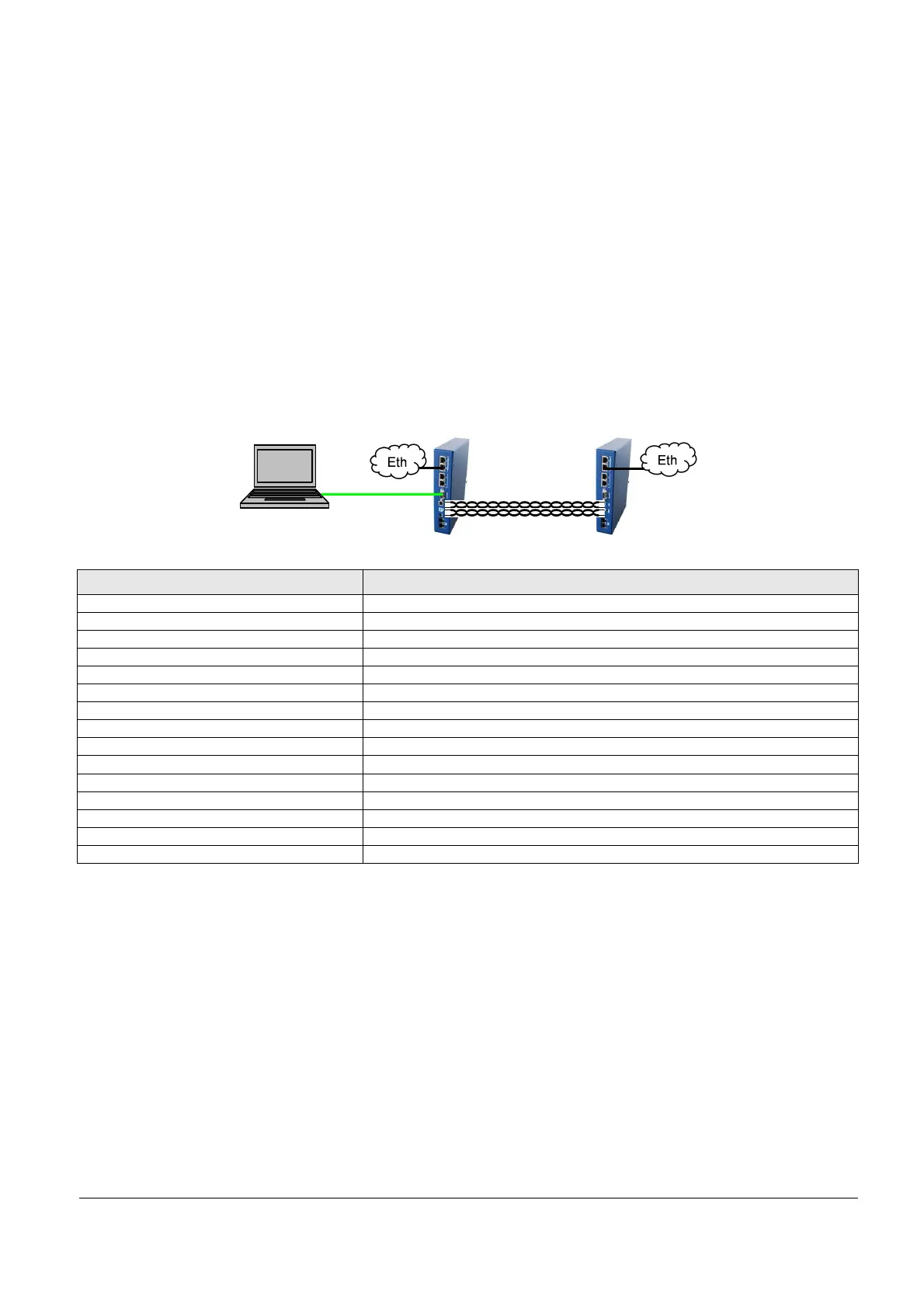
A first installation example with the most important commands and points to care about is shown below. We just like to have
an Ethernet transmission between the two devices over 2 SHDSL copper pairs with a speed of 11.4Mbit/s. The pairs should
aggregate (bundle) the data traffic and in case of any SHDSL pair failure, the remaining pairs should continue to work.
Enter in device 1 with the Monitor (LCT, RS-232 or USB) or Telnet interface.
Type following commands Description
3 <↵>
Go to Configuration Management (CM)
<DEFAULT EVERYTHING> <↵>
Set everything to default configuration
<MASTER ON 1> <↵>
Configure SHDSL 1 as MASTER
<MASTER ON 2> <↵>
Configure SHDSL 2 as MASTER
<PAYLOAD WAN 1> <↵>
Configure Ethernet over SHDSL 1
<PAYLOAD WAN 2> <↵>
Configure Ethernet over SHDSL 2
<NET> <↵>
Go to NET menu
<SETIP 10.0.2.200> <↵>
Set the IP-address of the device
<NETMASK 255.0.0.0> <↵>
Set the subnet mask
<GATEWAY 10.0.0.101> <↵>
Set the default gateway
<M> <↵>
Go to Configuration Management (CM)
<M> <↵>
Go to Main Menu
2 <↵>
Go to Fault and maintenance management (FMM)
<APPLY ALL> <↵>
Apply all configurations (written in the running config.)
<CONFIRM> <↵>
Confirm all configurations (written in the startup config.)
In Menu Configuration Management (CM) you can type <CONFIG> to see the following picture:
CO_CM>CONFIG
--------------------------------------------------------------------------------
Running Line Configuration
--------------------------------------------------------------------------------
xDSL DSL1 DSL2
Mode : Master(HTU-C) Master(HTU-C)
Extended rates: OFF OFF
Line coding : PAM32 PAM32
Baserate : 89 89
Annex : B B
Payload : WAN WAN
Clock source : Int Int
GS compatible : OFF
NM threshold : OFF
LA threshold : OFF
--------------------------------------------------------------------------------
CO_CM>


 To Next Page
 Loading...