EN ManualEN Manual
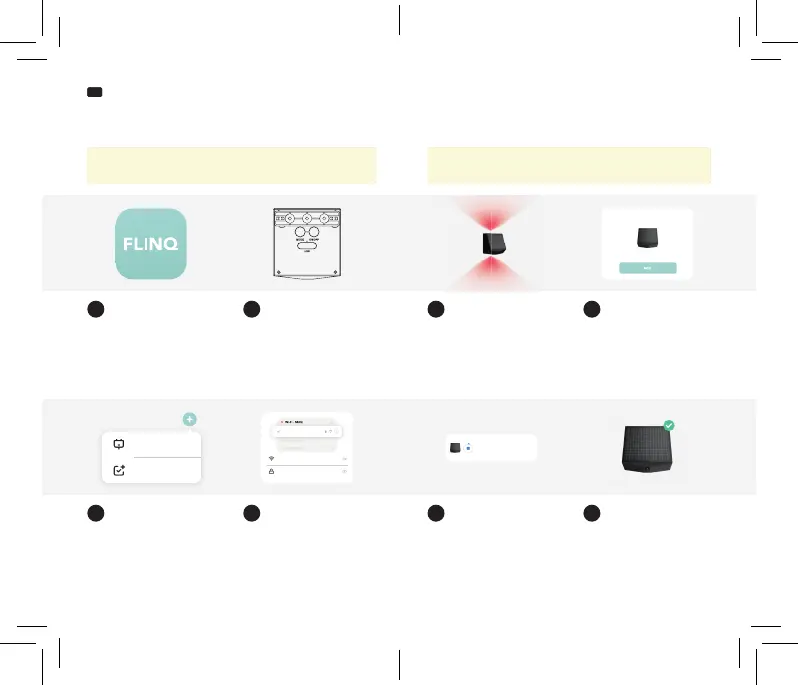
Connect with the FlinQ app
Open the FlinQ app or download
the app from the iOS appstore
or Google Play Store. Login or
register and continue with the
next step.
If not detected automatically, tap
the “+“ button or “Add device“
button and select the Orion lamp
from the “Lights“ tab.
The red LED will quickly ash to
indicate it’s ready to pair/connect
after turning on the lamp. If not,
hold the mode button for 3-5
seconds to turn on pairing mode.
The device is installed. This can
take up to 2 minutes.
Make sure that the lamp is set up,
placed and powered ON during
the 1st setup and within a range
of 10 meters max between your
mobile device and the lamp itself.
Now follow the instructions within
the application during connection
and con guration.
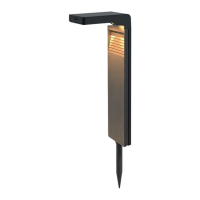
The new smart Orion lamp
will pop up on the app, follow
the instructions within the
application during connection and
con guration.
The device is installed succesfully
and added to your list of
products. You can now setup
timers and control your device
remotely.
Open or download app
Add device (manually)
Turn on pairing mode
Device is being added
Turn on the lamp
Follow instructions
Add device (automatically)
Device added succesfully
1
4b
3
6
2
5
4a
7
FlinQ Smart Outdoor Orion
Note: Please note that only 2,4 GHz networks are supported. 5GHz
networks will not work. Ask your provider how to turn on both frequencies.
Note: Make sure your mobile device is running iOS 9 & higher or Android
5 & higher and Bluetooth is turned ON!
Wi-Fi name
************
Wi-Fi - 5GHz
Wi-Fi - 2.GHz
FlinQ Smart Outdoor Orion
Being added...
Add Device
Create Scene
Devices to be added: 1
FlinQ Smart outdoor Orion



 To Next Page
 Loading...