PresentationPROä Quick Start Guide
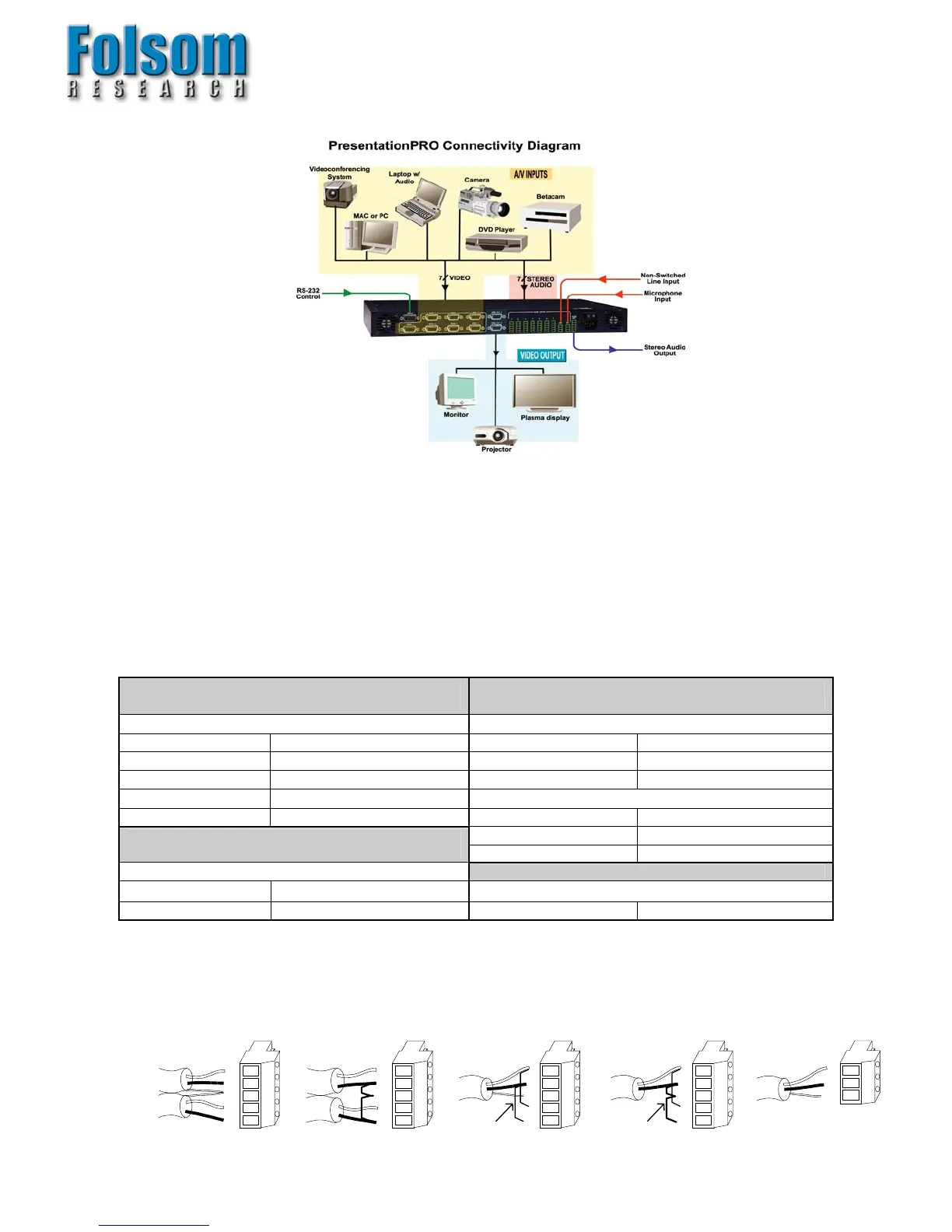
Illustration of Typical PresentationPRO
ä Setup
Step 1: Connect PresentationPROä to Output Devices
Connect Video Out 1 video output to your projector and the audio output to a set of amplified speakers. Note that the second video output
(Video Out 2) may be connected to a local display monitor if the projection screen is not easily viewed by the operator.
Step 2: Connect Input Sources to PresentationPROä
PresentationPROä has seven universal video inputs that accept composite (NTSC & PAL), S-video, component, and computer video
sources. Connect each type of video input source to PresentationPROä as indicated in the following table:
Input Connections
Format – RGB
(Typical Devices: Computers)
Format – YUV or Y Pr Pb (Betacam)
(Typical Devices: DVD Player or Betacam Deck)
Source to PresentationPRO
M
Source to PresentationPRO
TM
R HD15-Pin 1 Y HD15-Pin 2
G HD15-Pin 2 Pr HD15-Pin 1
B HD15-Pin 3 Pb HD15-Pin 3
H HD15-Pin 13 or
V HD15-Pin 14 Y HD15-Pin 2
U HD15-Pin 1
Format – S-Video (Y/C)
(Typical Devices: S-Video VCR)
V HD15-Pin 3
Source to PresentationPRO
TM
Format – Composite/PAL (Typical Devices: NTSC/PAL VCR)
Y HD15-Pin 2
Source to PresentationPRO
TM
C HD15-Pin 3 NTSC/PAL HD15-Pin 2
PresentationPROä has eight audio inputs that accept balanced and unbalanced signals for audio Sources 1 through 7 and a single Line
input. A ninth input accepts several types of microphones. Connect each type of audio input source to PresentationPROä as indicated in
the following diagram:
L
+
-
+
-
R
SH
Stereo Input Connector Wiring
L
+
-
+
-
R
SH
Balanced Wiring Unbalanced Wiring
Jumpers
L
+
-
+
-
R
SH
Mono Input Connector Wiring
L
+
-
+
-
R
SH
Balanced Wiring Unbalanced Wiring
Jumpers
Jumpers
Mic Input Connector
Wiring
+
-
SH


 To Next Page