SYNC 3
®
8 9
PRESETS
To set a new preset, tune to the station
and then press and hold one of the preset
buttons. The audio mutes briefl y while the
system saves the station and then returns.
To access additional presets, swipe le .
NAVIGATION
You can set your destination using the
text entry or map screen. Using text entry,
you can search by entering all or part
of the destination, such as the address,
intersection or city. Using the map screen,
you can select a location on the map, then
select Start to begin the route guidance.
You can adjust the map to display in two-
dimensional or three-dimensional mode.
You can also zoom in or out of the map by
using a pinching gesture. During route guidance, you will see
a turn indicator, points of interest on the map, your current
road and an option to mute the guidance prompts. You
can press the button in the top le -hand corner of the main
map to display estimated time of arrival, remaining travel
time or distance to your destination.
SETTINGS
Under the Settings menu, you can access and adjust the
settings for many of the system features. Once you select
a tile, press the to view an explanation of the feature
or setting.
PAIRING YOUR PHONE FOR THE FIRST TIME
Switch on Bluetooth on your device to begin pairing. Check
the compatibility of your device on the local Ford website.
To add a phone:
1. Select the phone option on the feature bar.
2. Select Add Phone.
3. A prompt alerts you to search for the system on
your phone.
4. Select your vehicle on your phone.
5. Confi rm that the number appearing on your phone
matches the number on the touchscreen.
6. The touchscreen indicates when the pairing is successful.
7. Download the phonebook from your phone when you
are prompted.
To pair subsequent phones, please see the SYNC 3 chapter
in your Owner’s Manual.
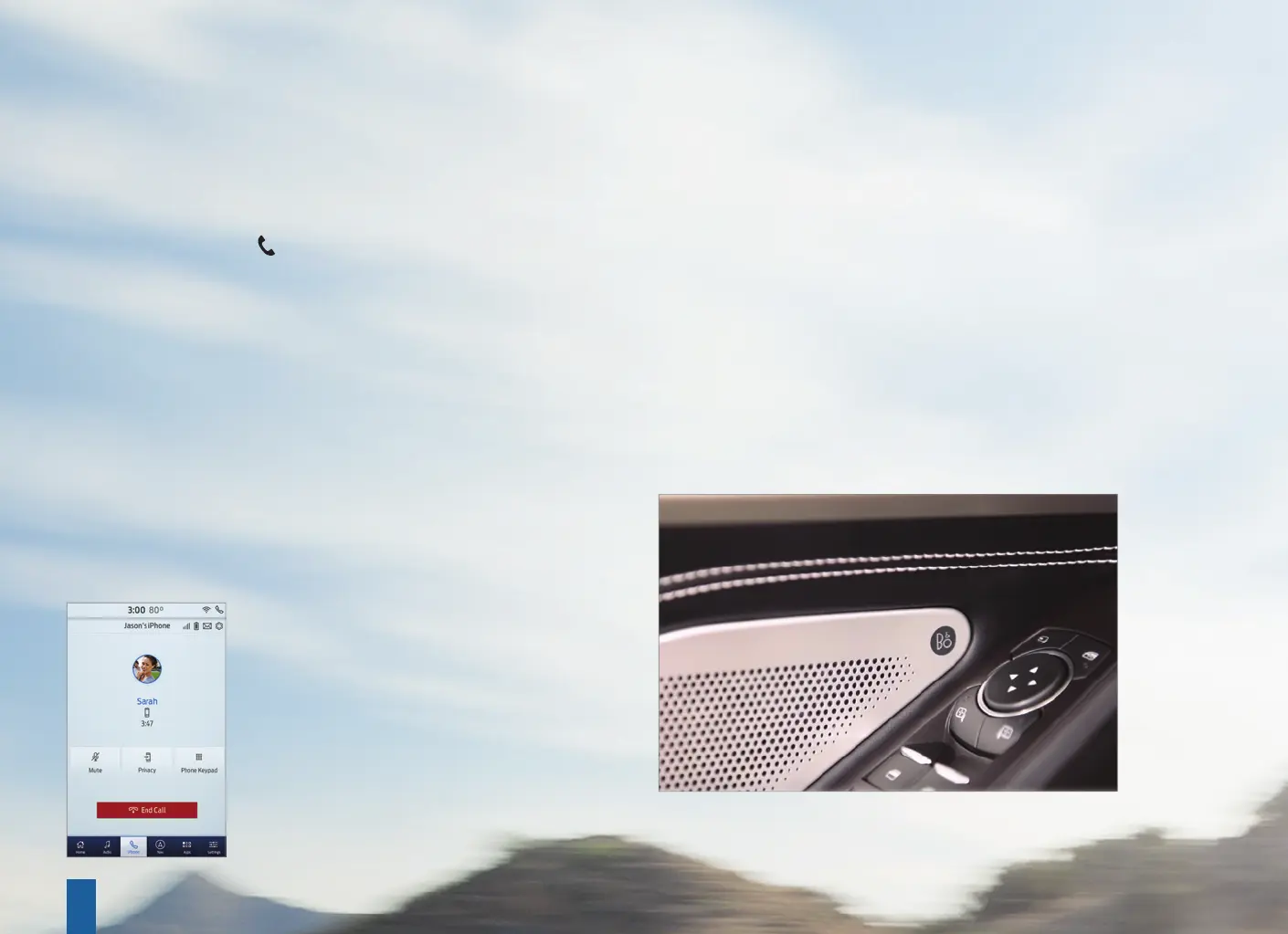
USING YOUR CONNECTED PHONE
To make calls, select from your contacts,
recent calls or dial the number on the
phone keypad. From the phone menu you
can also adjust phone settings, change
devices or mute your phone. The do not
disturb mode rejects all incoming calls and
switches o ring tones and alerts.
APPLE CARPLAY AND ANDROID AUTO
To use Apple CarPlay and Android Auto connect your
device to a front row USB port and follow the instructions
on the touchscreen.
Certain SYNC 3 features are not available when you are using
Apple CarPlay or Android Auto.
Android Auto may need to be enabled from the settings
menu. You can switch Apple CarPlay or Android Auto o
through the settings menu. See the SYNC 3 chapter of your
Owner’s Manual for more information.
AUDIO
You can select from a variety of entertainment options,
including AM/FM radio, USB, Bluetooth Stereo and Apps.
CONNECTED VEHICLE
A connected vehicle has technology that allows your
vehicle to connect to a mobile network and to access
a range of features. When used in conjunction with
the FordPass App, this technology could allow you to
monitor and control your vehicle further, for example
checking the tire pressures, the fuel level and the vehicle
location. The modem has a SIM. The modem was
enabled when your vehicle was built and periodically
sends messages to stay connected to the cell phone
network, receive automatic so ware updates and
send vehicle-related information to us, for example
diagnostic information. These messages could include
information that identifi es your vehicle, the SIM and
the electronic serial number of the modem. Cell
phone network service providers could have access to
additional information, for example cell phone network
tower identifi cation. For additional information about
our privacy policy, visit www.FordConnected.com or
refer to your local Ford website.


 To Next Page
 Loading...