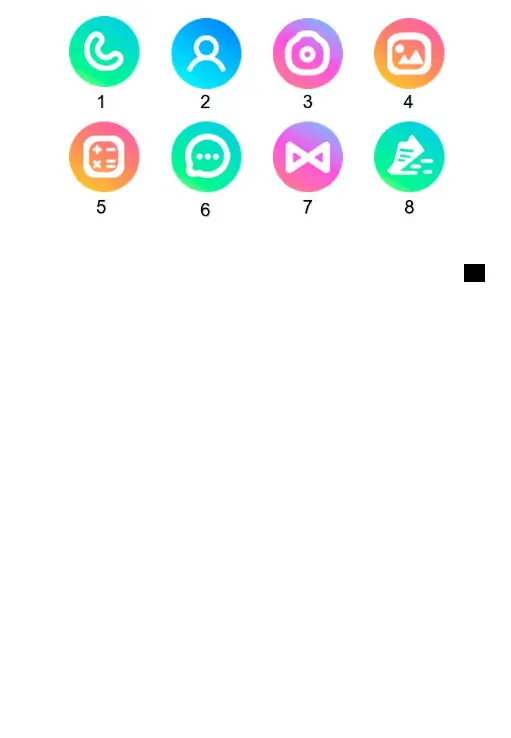
Use of application
Download the „Forever Care” app for iOS or „Forever KidsCare” for Android.
Account and watch registration
In the registration window, enter or scan the watch code (REG CODE) found on the bottom of
the package and in the watch. Enter your email address, name and password. Then select the
language of the application and the area of use of the watch.
Functions
Chat: Send a text or voice message to the watch by typing it on the keyboard or recording it
using the phone’s microphone. You can also listen to the voicemails sent from the watch here.
Route
: select the date and time slot to display the traveled route.
Map
: Select the map icon to view the current location of the watch.
Safety zone
: designate a safety zone, when the watch will found outside the selected zone, you
will receive a notification from the app.
Reward: Select the number of rewards you want to send to your child. After approval, the
information about the award will be sent to the watch.
Alarm clock
: alarm clock settings. Set the desired time and frequency of repeat.
Find Watch: Select a feature to find your device if it’s near you. The watch will ring to
inform you of its location.
Notifications
: This is where you get and preview any notifications and alarms you receive
from
the watch.
Remote camera: take a photo using the watch camera and receive it on your phone.
The captured image appears after a certain waiting time, depending on the signal
strength of the cellular network.
My profile:
•
Personal data: Your account settings
•
Device list: Add, edit or remove a connected devices
•
Change Password: Change the password for your account.





 To Next Page