EasyManua.ls Logo

Foxpro X2S Series - User Manual

Foxpro X2S Series
60 pages
Print Icon
To Next Page IconTo Next Page
Loading...

Table of Contents

Question and Answer IconNeed help?

Do you have a question about the Foxpro X2S Series and is the answer not in the manual?

Summary

Getting Started

Whats in the Box?

Lists the items included with the X2S game call.

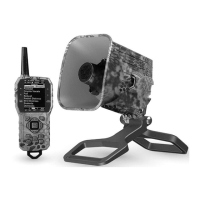
X2 S: First Glance

Provides a graphical overview of the X2S caller's components.

X2 S: Requirements

Details the battery requirements for the X2S game call.

Charging the X2 S

Explains the process and precautions for charging the X2S battery pack.

X2 S Remote: First Glance

Identifies and describes the components of the X2S remote control.

X2 S Remote: Requirements

Specifies the battery requirements for the X2S remote control.

Quick Start Guide

X2 S Remote Setup

Guides on setting the date and time on the X2S remote control.

Playing Sounds

Details how to play sounds using the X2S remote control.

Using Presets;Favorites

Explains how to create and use presets/favorites on the X2S remote.

X2 S Operation

Using a Tripod

Describes how to use the tripod mount for sound propagation and range.

Picatinny Rail Mount

Explains how to install and use the picatinny rail mount.

Bluetooth

Details how to use the X2S as a Bluetooth speaker.

External Speaker Jacks Specifications

Provides specifications for the external speaker jacks.

Auxiliary Device Jack Specifications

Details specifications and limitations for the auxiliary device jack.

Integrated USB Port

Explains the function and location of the integrated USB port.

X2 S Remote Operation

What are FOX FEATURES?

Introduces various specialized features referred to as FOX FEATURES.

Turning on the X2 S Remote

Instructions for powering on the X2S remote control.

Navigating the X2 S Remote

Explains how to navigate menus and options on the X2S remote.

Understanding the X2 S Remote Display

Details the different segments of the X2S remote control display.

Accessing X2 S Remote Configuration Menu

How to access the main configuration menu on the X2S remote.

Verifying Channel of Operation

Ensures devices operate on the same channel for communication.

Playing Sounds with the Remote

Details how to play sounds remotely using the X2S system.

Volume & Mute Control

Explains how to adjust volume and mute sounds on the X2S remote.

Presets; Favorites

Covers setting up and using preset sound shortcuts on the remote.

FOX FEATURES

FOXFUSION

Allows combining two sounds for a fused playback experience.

FOXMOTION

Enables moving sounds between speakers for a dynamic effect.

FOXBANG

Reacts to firearm reports by triggering assigned functions.

FOXPITCH

Modifies the pitch of sounds to alter their character.

AUTO VOLUME

Automatically adjusts volume during playback for dynamic sound.

User Button

Allows assigning custom functions to the User button.

FOXDATA

Tracks hunt details, creating a digital journal of activity.

FOXGRIP

Setup and assignment for the FOXGRIP accessory.

Sound Settings

Volume Step

Adjusts the increment value for volume adjustments.

Primary & Secondary (FOXFUSION) Mode

Sets playback modes for primary and secondary sounds.

Speaker Mode

Selects how sounds are played through the unit's speakers.

Right and Left Speaker

Controls sound output for internal and external speakers.

Preset Mute Override

Ensures presets play even when the unit is muted.

Display; Power

Brightness

Adjusts the screen brightness level from 5% to 100%.

Keypad

Controls the intensity of the keypad backlighting.

Theme

Selects display themes for optimizing screen appearance.

Display Timeout

Configures how long the display stays active before going blank.

Auto Off

Sets the time delay before the remote automatically powers down.

Date; Time(r)

Stand Timer & Timer Reset

Manages the stand timer and its reset function.

Alarm

Sets a visual alarm to trigger after a specified time.

Time

Sets the real-time clock and configures time format.

Date & Date Format

Sets the current date and preferred date format.

TX1000 Settings

Radio Channel

Sets the radio channel for communication between devices.

Download List

Updates the remote's sound list after reprogramming the caller.

AUX

Configures the auxiliary jack for momentary or latched operation.

View

Selects how sounds are displayed on the remote: categories or list.

Temperature Units

Selects display units for temperature (Celsius or Fahrenheit).

Barometer Measurement Units

Selects display units for barometric pressure (inches or millimeters).

Elevation

Sets the device's elevation for accurate barometric measurements.

About Info

Displays system information, version, and loaded content.

Restore Defaults

Resets the X2S remote control to its factory default settings.

X2 S Remote USB Operation

Editing the Presets File

How to manually edit the presets file for custom configurations.

Viewing the FOXDATA File

Explains the FOXDATA file format and its online extension.

Programming the X2 S

Requirements

Lists the necessary items for programming the X2S.

Connecting to a Computer

Step-by-step guide to connect the X2S to a computer.

Manual Programming Process

Details the process of manually programming sounds and files.

Indexing the Files

Explains how file names affect sorting and feature behavior.

Using the FOXPRO Programming Utility

Guide to downloading and using the FOXPRO Programming Utility.

Editing the Categories Manually

Manually editing category text files to organize sounds.

Updating the Remote Playlist

Process to update the sound list on the X2S remote.

Creating FOXCAST Sequence Files

Creating FOXCAST Sequences Manually

Instructions for manually creating FOXCAST sequence text files.

Enabling File Extensions in Windows

How to show file extensions in Windows for sequence files.

Placing Sequences in the X2 S

Step-by-step guide to load FOXCAST sequence files into the X2S.

Creating FOXCAST Sequences Online

Using the online generator to create FOXCAST sequence files.

Synchronizing the X2 S Remote

How to synchronize the X2S remote with new sequence files.

Firmware Updates

X2 S Digital Game Call

Procedure for updating the firmware on the X2S digital game call.

X2 S Remote

Procedure for updating the firmware on the X2S remote control.

Product Care & Maintenance

Troubleshooting

X2 S will Not Turn On

Solution for the X2S not turning on, focusing on battery and power.

X2 S does not produce any sound

Solutions for no sound output from the X2S caller.

X2 S remote not controlling X2 S

Troubleshooting steps for remote control communication issues.

Cannot transfer sound list to X2 S remote

Steps to resolve issues with transferring sound lists.

X2 S remote does not turn on

Troubleshooting for the X2S remote failing to power on.

X2 S remote stuck on start-up screen

Solutions for the remote getting stuck during startup.

Cannot control external decoy

Troubleshooting for external decoy control issues.

Having trouble with programming new sounds

Guidance on resolving issues with programming new sounds.

Poor remote battery life in extreme cold weather conditions

Advice on battery performance in cold weather.

X2 S remote will not turn on after firmware update

Steps to resolve remote power issues post-firmware update.

Cannot control volume on X2 S

Troubleshooting volume control issues on the X2S.

Maximizing Remote Range

FCC & IC Information

Warranty Statement

Summary

Getting Started

Whats in the Box?

Lists the items included with the X2S game call.

X2 S: First Glance

Provides a graphical overview of the X2S caller's components.

X2 S: Requirements

Details the battery requirements for the X2S game call.

Charging the X2 S

Explains the process and precautions for charging the X2S battery pack.

X2 S Remote: First Glance

Identifies and describes the components of the X2S remote control.

X2 S Remote: Requirements

Specifies the battery requirements for the X2S remote control.

Quick Start Guide

X2 S Remote Setup

Guides on setting the date and time on the X2S remote control.

Playing Sounds

Details how to play sounds using the X2S remote control.

Using Presets;Favorites

Explains how to create and use presets/favorites on the X2S remote.

X2 S Operation

Using a Tripod

Describes how to use the tripod mount for sound propagation and range.

Picatinny Rail Mount

Explains how to install and use the picatinny rail mount.

Bluetooth

Details how to use the X2S as a Bluetooth speaker.

External Speaker Jacks Specifications

Provides specifications for the external speaker jacks.

Auxiliary Device Jack Specifications

Details specifications and limitations for the auxiliary device jack.

Integrated USB Port

Explains the function and location of the integrated USB port.

X2 S Remote Operation

What are FOX FEATURES?

Introduces various specialized features referred to as FOX FEATURES.

Turning on the X2 S Remote

Instructions for powering on the X2S remote control.

Navigating the X2 S Remote

Explains how to navigate menus and options on the X2S remote.

Understanding the X2 S Remote Display

Details the different segments of the X2S remote control display.

Accessing X2 S Remote Configuration Menu

How to access the main configuration menu on the X2S remote.

Verifying Channel of Operation

Ensures devices operate on the same channel for communication.

Playing Sounds with the Remote

Details how to play sounds remotely using the X2S system.

Volume & Mute Control

Explains how to adjust volume and mute sounds on the X2S remote.

Presets; Favorites

Covers setting up and using preset sound shortcuts on the remote.

FOX FEATURES

FOXFUSION

Allows combining two sounds for a fused playback experience.

FOXMOTION

Enables moving sounds between speakers for a dynamic effect.

FOXBANG

Reacts to firearm reports by triggering assigned functions.

FOXPITCH

Modifies the pitch of sounds to alter their character.

AUTO VOLUME

Automatically adjusts volume during playback for dynamic sound.

User Button

Allows assigning custom functions to the User button.

FOXDATA

Tracks hunt details, creating a digital journal of activity.

FOXGRIP

Setup and assignment for the FOXGRIP accessory.

Sound Settings

Volume Step

Adjusts the increment value for volume adjustments.

Primary & Secondary (FOXFUSION) Mode

Sets playback modes for primary and secondary sounds.

Speaker Mode

Selects how sounds are played through the unit's speakers.

Right and Left Speaker

Controls sound output for internal and external speakers.

Preset Mute Override

Ensures presets play even when the unit is muted.

Display; Power

Brightness

Adjusts the screen brightness level from 5% to 100%.

Keypad

Controls the intensity of the keypad backlighting.

Theme

Selects display themes for optimizing screen appearance.

Display Timeout

Configures how long the display stays active before going blank.

Auto Off

Sets the time delay before the remote automatically powers down.

Date; Time(r)

Stand Timer & Timer Reset

Manages the stand timer and its reset function.

Alarm

Sets a visual alarm to trigger after a specified time.

Time

Sets the real-time clock and configures time format.

Date & Date Format

Sets the current date and preferred date format.

TX1000 Settings

Radio Channel

Sets the radio channel for communication between devices.

Download List

Updates the remote's sound list after reprogramming the caller.

AUX

Configures the auxiliary jack for momentary or latched operation.

View

Selects how sounds are displayed on the remote: categories or list.

Temperature Units

Selects display units for temperature (Celsius or Fahrenheit).

Barometer Measurement Units

Selects display units for barometric pressure (inches or millimeters).

Elevation

Sets the device's elevation for accurate barometric measurements.

About Info

Displays system information, version, and loaded content.

Restore Defaults

Resets the X2S remote control to its factory default settings.

X2 S Remote USB Operation

Editing the Presets File

How to manually edit the presets file for custom configurations.

Viewing the FOXDATA File

Explains the FOXDATA file format and its online extension.

Programming the X2 S

Requirements

Lists the necessary items for programming the X2S.

Connecting to a Computer

Step-by-step guide to connect the X2S to a computer.

Manual Programming Process

Details the process of manually programming sounds and files.

Indexing the Files

Explains how file names affect sorting and feature behavior.

Using the FOXPRO Programming Utility

Guide to downloading and using the FOXPRO Programming Utility.

Editing the Categories Manually

Manually editing category text files to organize sounds.

Updating the Remote Playlist

Process to update the sound list on the X2S remote.

Creating FOXCAST Sequence Files

Creating FOXCAST Sequences Manually

Instructions for manually creating FOXCAST sequence text files.

Enabling File Extensions in Windows

How to show file extensions in Windows for sequence files.

Placing Sequences in the X2 S

Step-by-step guide to load FOXCAST sequence files into the X2S.

Creating FOXCAST Sequences Online

Using the online generator to create FOXCAST sequence files.

Synchronizing the X2 S Remote

How to synchronize the X2S remote with new sequence files.

Firmware Updates

X2 S Digital Game Call

Procedure for updating the firmware on the X2S digital game call.

X2 S Remote

Procedure for updating the firmware on the X2S remote control.

Product Care & Maintenance

Troubleshooting

X2 S will Not Turn On

Solution for the X2S not turning on, focusing on battery and power.

X2 S does not produce any sound

Solutions for no sound output from the X2S caller.

X2 S remote not controlling X2 S

Troubleshooting steps for remote control communication issues.

Cannot transfer sound list to X2 S remote

Steps to resolve issues with transferring sound lists.

X2 S remote does not turn on

Troubleshooting for the X2S remote failing to power on.

X2 S remote stuck on start-up screen

Solutions for the remote getting stuck during startup.

Cannot control external decoy

Troubleshooting for external decoy control issues.

Having trouble with programming new sounds

Guidance on resolving issues with programming new sounds.

Poor remote battery life in extreme cold weather conditions

Advice on battery performance in cold weather.

X2 S remote will not turn on after firmware update

Steps to resolve remote power issues post-firmware update.

Cannot control volume on X2 S

Troubleshooting volume control issues on the X2S.

Maximizing Remote Range

FCC & IC Information

Warranty Statement

Foxpro X2S Series Specifications

General IconGeneral
TypeElectronic Game Call
DisplayLCD
Remote ControlYes
WaterproofNo
Power SourceBattery-powered