BES-2110
User’s Guide
www.franklin.com
Please read the following safety warnings
and precautions before using your device.
Note: If this device is to be used by young
children, this User’s Guide should be read to
them by an adult and their use of the device
should be monitored. Failure to do so may
cause injury.
1. Getting Started
1.1 Installing Batteries
Your product is powered by two AAA
batteries. Follow these easy instructions to
install or replace them. Please have the new
batteries at hand before you remove the old
ones. When the battery power is low, an alert
will appear on the screen.
1. Turn your product o and turn it over.
2. Open the battery cover on the back of your
unit by pushing in the direction of the arrow.
3. Remove the old batteries.
4. Install the batteries following the +/-
markings in the battery compartment.
• Important: Be sure that the batteries are
installed correctly. Wrong polarity may damage
the unit.
5. Replace the battery cover.
Warning: If the batteries wear-out completely
or if you take more than a few seconds while
changing the batteries, any information that
was entered in the built-in books may be
erased. You should always keep written copies
of your important information.
Battery Precautions
• Dierenttypesofbatteriesornewandused
batteries should not be mixed.
• Non-rechargeablebatteriesarenottobere-
charged.Neverrechargebatteriesthatcomewith
the device.
• Rechargeablebatteriesaretoberemovedfromthe
device before being charged.
• Rechargeablebatteriesareonlytobecharged
under adult supervision.
• Onlybatteriesofthesameorequivalenttypeas
recommended are to be used.
• Thesupplyterminalsarenottobeshort-circuited.
• Donotexposebatteriestodirectheatortrytotake
batteries apart. Follow the battery manufacturer’s
instructions for battery use.
• Alwaysremoveaweakordeadbatteryfromthe
device.
• Toavoiddamagecausedbyleakageofthebattery
uid, replace the battery or batteries once every
two years regardless of how much the device has
been used during that time.
• Shouldabatteryleak,thedevicemaybecome
damaged. Clean the battery compartment
immediately, avoiding contact with your skin.
• Keepbatteriesoutofreachofsmallchildren.If
swallowed, consult a physician immediately.
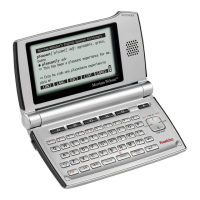
1.2 Understanding Your Device
1) Screen
2) Speaker
3) Function Keys
4) USB Port:TheUSBPortisdesignedforamini-
USB1.1compatibleconnection.Plugthemini-
USBjackofaUSBcableintothisportandthe
standard-sizeUSBjackintoyourPCtoconnect
your device to your PC.
5) Headphone jack:Theheadphonejackis
designed for 3.5 mm, 35 ohm impedance
stereo headphones. Caution: Monophonic
headphones will not work with this unit.
6) Power Key
7) Direction Keys
1.3 Key Guide
Soft Keys
SoftKeyfunctionsarerepresentedbythelabels
displayedalongthebottomofthescreen.To
performaSoftKeyfunction,pressthe
F1
-
F5
key at the top of the keyboard that
corresponds to the label on the screen that you
wanttoselect.Theselabelschangetoreectthe
dierentfunctionsavailableinthevariousbooks
and exercises in this device.
Forexample,inthemainmenu,thefollowingSoft
Keysareavailable:
BOOKS DisplaystheBooksmenu.
LEARN DisplaystheLearnmenu.
EXER DisplaystheExercisesmenu.
GAMES DisplaystheGamesmenu.
TOOLS DisplaystheToolsmenu.
Please refer to the specic topics in this User’s
GuidetolearnthefunctionofanyavailableSoft
Keys.
Function Keys
Turnstheproductonoro.
menú
Goes to the main menu.
Speaksawordorphrase(ifa
pronunciation is available).
cap
Shiftstotypecapitalletters.
FN
Shiftstoallowprev, next, page
up, page down. With number
keys, types special characters.
borrar/clear
Clears or cancels the current
operation and reverts back to
the last working prompt, screen,
or menu. For example, clears the
calculator.
back
Backs up, erases a letter, or turns
othehighlightatanentry.
enter
=
Entersaword,selectsanitem,
submits a response, or begins
selection mode in an entry.
?*
At a word entry screen, types a ?
to stand for an unknown letter in
a word.
While in text, cycles screen type
size(small,medium,large),
overriding the text size settings.
Adjusts the sound volume.
At entry screens, types a space.
Combination Keys
Hold the rst key while pressing the second.
FN
+ / Advances up or down one screen/
page at a time.
FN
+ / In a series of entries, displays the
previous or next entry.
cap
+ / At a menu, goes to the rst or last
menu item. At an entry, goes to
the start or end of the entry.
FN
+ 0-9Typesthespecialcharacter
shown on the number key.
FN
+ Presents a menu of the following
special characters: ! @ # $ % ^ & *
()–/\;:‘“,.?_=¡¿[]
FN
+ DisplaysHelpinstructions.
cap
+ At a word entry screen, types an
asterisk(*)tostandforanyseries
of unknown letters or characters
in a word.
Direction Keys
Movesup( ),down( ),
left( ),orright( ). Follow the
arrow: Theashingarrowsonthe
right of the screen show which
Merriam-Webster
SpeakingSpanish English
Dictionary
2
4
3
1
7
5
6
menú
?*

 Need help?
 Power
Power Weight and Dimensions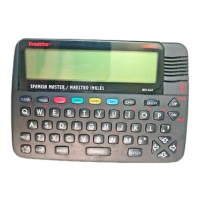



 To Next Page