
 Need help?
Do you have a question about the Franklin T10 and is the answer not in the manual?
Identifies key physical components of the T10 Mobile Hotspot device, including buttons, screen, and ports.
Steps for removing the back cover, inserting the battery, and securing the cover.
Instructions for connecting the USB cable and charging adapter to power the device.
Steps to connect your Wi-Fi-enabled device to the hotspot's network using SSID and password.
Procedure to turn the hotspot on or off by pressing the Power Button for two seconds.
How to cycle through various information displays like home, data usage, Wi-Fi name, and password.
Instructions to access the Hotspot Manager via a web browser and enter login credentials.
How to reset only the Wi-Fi configuration via the Hotspot Manager.
Steps to restore the device to its original factory default settings.
Guidance on accessing the user guide and checking for firmware updates.
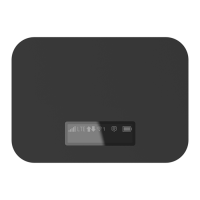
The T10 Franklin Mobile Hotspot is a portable device designed to provide Wi-Fi connectivity on the go. It acts as a personal Wi-Fi network, allowing multiple Wi-Fi-enabled devices to connect to the internet through a cellular network. The device features a compact, rectangular design with a smooth, dark finish, making it easy to carry and use in various environments.
The primary function of the T10 Mobile Hotspot is to create a wireless internet connection. It utilizes a SIM card to access a cellular network, converting the cellular data signal into a Wi-Fi signal that other devices can use. This enables users to connect laptops, tablets, smartphones, and other Wi-Fi-enabled gadgets to the internet without relying on public Wi-Fi networks or tethering from a smartphone. The device is particularly useful for travelers, remote workers, or anyone needing a reliable internet connection away from home or office Wi-Fi.
Setting up the T10 Mobile Hotspot involves a few simple steps. First, the back cover of the device needs to be removed using the thumb catch located on the bottom edge. The battery's contacts must then be aligned with those inside the battery compartment, and the battery gently pressed down until it is securely seated. Finally, the back cover is replaced and clicked into place to ensure it is securely closed.
To charge the device, the small end of the USB Type C cable is inserted into the USB charging port on the right side of the hotspot. The charging adapter is then plugged into a standard AC power outlet. It's important to note that using a different charger or USB cord than the one supplied may result in slower charging times, emphasizing the importance of using the provided accessories for optimal performance.
To turn the Hotspot on or off, the Power/Wake Device Navigation Button, located on the front of the device, needs to be pressed and held for at least two seconds. This button also serves as a navigation key for cycling through the various screens on the LCD display.
Once the Hotspot is powered on, users can connect their Wi-Fi-enabled devices. This involves turning on both the Hotspot and the Wi-Fi-enabled device. Users then open the Wi-Fi application or controls on their computer or device and search for available networks. The Hotspot's Wi-Fi name (SSID) and password will appear on the Hotspot's LCD display, which users need to find and enter to establish a connection to the internet.
The T10 Mobile Hotspot features an LCD screen that provides essential device information and system alerts. The Power/Wake Device Navigation Button allows users to cycle through different screens.
The Hotspot Manager is a web-based interface that allows users to access, monitor, and customize their device settings. To log in, users open a browser on a computer connected to the Mobile Hotspot and navigate to http://mobile.hotspot. They then enter their password and click "Login" to access the Hotspot Manager home page. It's important to note that the default Admin password for logging into the Mobile Hotspot Manager is 'admin' and must be changed to proceed, ensuring security. The Hotspot Manager provides a comprehensive overview, including network status (Connected, LTE), time connected, data used, and options to disconnect or reset data usage. It also displays information about the Main Wi-Fi and Guest Wi-Fi networks.
If users need to clear their account information or reset Wi-Fi settings, the device offers a specific option for this. To reset Wi-Fi settings only, users log in to the Mobile Hotspot Manager, click the "Settings" tab, and from the drop-down menu, select "Wi-Fi > Basic." Under "Wi-Fi Settings Reset," they can click "Reset."
For a more comprehensive reset, the device can be restored to its factory default settings. To do this, the device must be turned on. The battery cover is then removed while the device is still powered on. Users then press and hold the "Reset" button until the "Factory Reset Restarting..." message appears on the LCD screen. Once the device reboots, all settings will be restored to their original factory defaults. A crucial note for this process is that the Hotspot must be powered on when pressing the Reset button and must have sufficient battery level to complete the operation.
For further assistance, a detailed User Guide is available. Users can log in to the Mobile Hotspot Web UI and click "Support" on the top menu to download the User Guide as a PDF version. The device is designed to automatically download the latest firmware updates at power-on. However, users can also manually check for the latest firmware version by navigating to Mobile Hotspot Web UI > Settings > Device > Software Update > Check for New Software. This ensures the device remains up-to-date with the latest features and security enhancements.
The T10 Mobile Hotspot emphasizes security. Users are encouraged to take appropriate measures to secure their devices. The handset includes a locking function, such as user-defined codes or patterns, which serves as a first line of defense against unauthorized use or access to stored information. Preloaded security applications may also be available to help track or locate misplaced devices. In case of loss or theft, it is recommended to immediately report it to the wireless carrier so that appropriate measures can be taken to protect accounts. Users can refer to their wireless carrier's Privacy Policy for additional information on safeguarding their devices.
 General
| Model | Franklin T10 |
|---|---|
| Category | Network Router |
| Network Technology | 4G LTE |
| Wi-Fi Connectivity | 802.11 b/g/n |
| Wi-Fi Frequency | 2.4 GHz |
| Max. Wi-Fi Users | 15 |
| Security | WPA2 |
| Ports | Micro USB |
| Antenna | Internal |
| 4G LTE Bands | B2, B4, B5, B66 |
| Display | LCD |
| Wireless Data Rates | Up to 150 Mbps download/50 Mbps upload |
| Weight | 4.4 oz (125 g) |

 To Next Page