EasyManua.ls Logo

Fresh 'N Rebel 6ATAG3 - User Manual

Fresh 'N Rebel 6ATAG3
4 pages
Print Icon
To Next Page IconTo Next Page
Loading...
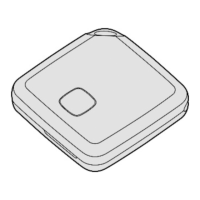
FRESH ‘N REBEL SMART FINDER 6ATAG3 v1 001
GETTING STARTED
IMPORTANT: Update to the latest version of iOS or iPadOS before getting started.
REQUIREMENTS
Apple ID
iPhone or iPad, with iOS 14.5 or iPadOS 14.5 or later and two-factor authentication turned on.
Find My turned on.
Bluetooth turned on.
A strong Wi-Fi or cellular connection.
Location Services turned on: Go to Settings > Privacy > Location Services. Scroll down, tap Find My, and choose a level
of access. For the most accurate location, turn on Precise Location.
SETUP
Remove the Smart Finder’s battery lm by pulling it out to connect the battery. You will hear a chime to indicate the
Smart Finder is powered on. If you do not hear the chime, press the function button once to power on your Smart Finder.
Open the Apple Find My app on your supported iPhone or iPad.
Tap +, then “Add Other ltem”. Please make sure not to use “Add AirTag”, as this is reserved for Apple AirTag. You can
only use the option “Add Other Item”.
Once your 6ATAG3 is located, tap “Connect”.
Enter a name, select an emoji for your Smart Finder, and tap “Continue’’.
Tap “Agree” to add the Smart Finder to your Apple ID.
Tap “Finish” and your Smart Finder will be set up and ready to be used.
If the Smart Finder is not added to an Apple ID within 10 minutes after powering it on, it will automatically power off again.
Press the function button once to power it on and repeat steps 2 to 7 if that happens.
SUPPORT
Smart Finder setup is not successful, what should I do?
Make sure you have updated to the latest version of iOS or iPadOS, that you meet all the requirements listed
above, and that your device is ready for setup.
If you have multiple Smart Finders to set up, make sure that only one is near your device at one time.
Make sure you select “Add Other ltem”. Please make sure not to use “Add AirTag”.
Check if the Smart Finder is powered on. Press the function button once to power it on and you should hear a chime.
When you long-press the function button for at least 3 seconds, you will hear 2 beeps and it will power off.
If the setup animation disappeared, press the side button or the Sleep/Wake button on your iPhone or iPad to put your
device to sleep. Then wake and unlock your iPhone or iPad. Wait up to 15 seconds, and the animation should reappear.
If setup is still not successful, Remove and Replace the Battery. If after that the Smart Finder will still not connect to your
device, Reset your Smart Finder.
Question and Answer IconNeed help?

Do you have a question about the Fresh 'N Rebel 6ATAG3 and is the answer not in the manual?

Summary

Getting Started with Your Smart Finder

Setup Requirements

Lists essential prerequisites like Apple ID, iOS version, and network connectivity for setup.

Smart Finder Setup Procedure

Step-by-step guide to connect the Smart Finder to your Apple ID using the Find My app.

Smart Finder Support and Troubleshooting

Troubleshooting Setup Issues

Provides solutions for common problems encountered during the Smart Finder setup process.

Battery Management and Reset

Removing and Replacing the Battery

Detailed instructions on how to open the device and change the CR2032 battery.

Resetting the Smart Finder

Steps to reset the Smart Finder before setup or after it's added to an Apple ID.

Frequently Asked Questions About Your Smart Finder

Find My Network and Smart Finder Functionality

Explains how the Find My network and Bluetooth signal enable location tracking.

Privacy and Location Data

Details the encryption and privacy measures used by the Find My network.

Activating Lost Mode

Step-by-step guide to enable Lost Mode for a lost Smart Finder.

Instructions for Found Smart Finder

Overview

The Fresh 'n Rebel Smart Finder (model 6ATAG3 v1 001) is a personal item tracker designed to help users locate compatible items using Apple's Find My network. It integrates seamlessly with Apple devices, leveraging the vast network of iPhones, iPads, and Macs to provide location information.

Function Description:

The Smart Finder's primary function is to enable users to locate their personal items through the Apple Find My app. It emits a secure Bluetooth signal that is detected by nearby Apple devices within the Find My network. These devices then relay the Smart Finder's location to iCloud, allowing the user to view its position on a map in the Find My app. The entire process is designed to be anonymous and encrypted, ensuring user privacy. It is not a real-time GPS tracker but rather relies on the Find My network for location updates. When the Smart Finder is no longer connected to the network, it saves its last known location with a timestamp.

Important Technical Specifications:

  • Compatibility: Requires an Apple ID and an iPhone or iPad running iOS 14.5 or iPadOS 14.5 or later. Two-factor authentication must be enabled on the Apple device.
  • Connectivity: Utilizes Bluetooth for signal emission and requires a strong Wi-Fi or cellular connection on the user's Apple device for setup and location updates. Location Services must be enabled on the Apple device, with "Precise Location" recommended for accuracy.
  • Battery: Powered by a CR2032 battery. The battery is user-replaceable.
  • Power On/Off: Powers on with a single press of the function button (indicated by a chime). Powers off by long-pressing the function button for at least 3 seconds (indicated by two beeps). If not added to an Apple ID within 10 minutes of powering on, it will automatically power off.
  • Reset: Can be reset by pressing the function button four times rapidly and then holding it a fifth time until a ringing chime is heard. If already paired, it must first be removed from the Apple Find My app.
  • NFC: The Smart Finder does not support NFC.

Usage Features:

  • Setup Process:
    1. Ensure iOS/iPadOS is updated to the latest version (14.5 or later), Apple ID is active, Find My and Bluetooth are on, and Location Services (with Precise Location) are enabled.
    2. Remove the battery film to power on the Smart Finder (a chime will sound). If no chime, press the function button once.
    3. Open the Apple Find My app on your iPhone or iPad.
    4. Tap "+" and then "Add Other Item" (crucially, not "Add AirTag").
    5. Once the 6ATAG3 is located, tap "Connect."
    6. Enter a name, select an emoji, and tap "Continue."
    7. Tap "Agree" to add to your Apple ID.
    8. Tap "Finish" to complete setup.
  • Location Updates: Location updates depend on the density of Apple devices in the vicinity. In busy areas, updates can occur every one to two minutes. In secluded areas, updates may be infrequent due to a lack of nearby devices.
  • Location History: The Smart Finder does not store location history. Users can only see the current or last known location.
  • Lost Mode:
    1. Open the Apple Find My app and select the "Items" tab.
    2. Tap on your Smart Finder from the list.
    3. Under "Lost Mode," tap "Enable."
    4. Tap "Continue" on the pop-up screen.
    5. Enter your phone number or email address and tap "Next."
    6. Optionally, enter a message for the finder.
    7. Tap "Activate." When Lost Mode is enabled, "Notify When Found" is automatically enabled, and the Smart Finder is locked, preventing pairing with a new device.
  • Unwanted Tracking Prevention: If an unknown Smart Finder, separated from its owner, travels with a user, their iPhone will send an alert. After a period, the Smart Finder will emit beeping sounds. Android users can use the Apple Tracker Detect app to scan for nearby Apple Find My devices.
  • Finding a Found Smart Finder: If a Fresh 'n Rebel Smart Finder is found, the finder can open the Apple Find My app, select the "Items" tab, scroll down to "Identify Found Item," and follow the in-app steps.

Maintenance Features:

  • Battery Replacement:
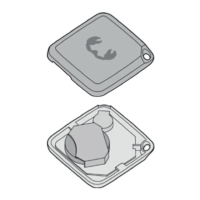
    1. Carefully open the battery cover groove using two hands, a small tool, or by separating the top and bottom parts at the top right corner (where the speaker is located) with nails.
    2. Replace the battery with a new CR2032, ensuring the positive side (+) is facing up.
    3. Replace the cover, pressing the bottom and top together on each side to close. Caution: The battery cover and battery can be choking hazards; keep away from small children.
  • Resetting the Smart Finder:
    • Before Setup: Press the function button four times rapidly, then hold it a fifth time until a ringing chime is heard.
    • After Setup: First, remove the Smart Finder from your Apple ID:
      1. Open the Apple Find My app, select the "Items" tab.
      2. Tap on your Smart Finder from the list.
      3. Ensure "Lost Mode" is disabled.
      4. Scroll down and tap "Remove Item," then confirm "Remove."
      5. Then, press the function button four times rapidly and hold it a fifth time until a ringing chime is heard.
  • Troubleshooting Setup Issues:
    • Verify all requirements (iOS/iPadOS version, Apple ID, Find My, Bluetooth, Location Services).
    • If setting up multiple Smart Finders, ensure only one is near the device at a time.
    • Always select "Add Other Item," not "Add AirTag."
    • Check if the Smart Finder is powered on (press function button once for a chime).
    • If the setup animation disappears, put the iPhone/iPad to sleep, then wake and unlock it; wait up to 15 seconds for the animation to reappear.
    • If issues persist, remove and replace the battery. If still unsuccessful, reset the Smart Finder.
  • Troubleshooting Disappearance After iOS Update:
    • Power off and restart your iPhone.
    • Sign out and then sign in to your Apple ID.

Fresh 'N Rebel 6ATAG3 Specifications

General IconGeneral
BrandFresh 'N Rebel
Model6ATAG3
CategoryFish Finder
LanguageEnglish

Related product manuals