Wireless networks in
Windows10 and 8
Wireless network icons
in Windows10, 8 and 7
Entering a network
key
Establishing a
connection by
pressing the button
on the router
Establishing a Connection
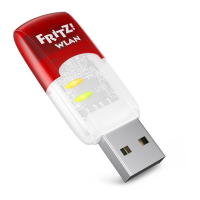
1. Insert the FRITZ!WLANUSB
StickAC430 in your computer.
2. Click AVM FRITZ!WLANUSB
StickAC430 Installation and
confi rm the subsequent queries.
The FRITZ!WLANUSB StickAC430
will be installed.
3. Click the wireless network icon
in the notifi cation area of the
Windows task bar.
A list appears on the screen, show-
ing all wireless networks found in
the vicinity of the FRITZ!WLANUSB
StickAC430.
If the list does not appear, click
Connect to a network.
Establishing a Wireless Connection Using WPS Quick Connection
The FRITZ!WLANUSB StickAC430 can establish wireless connections to wireless
access points with WPS. If a participating wireless LAN device does not support WPS,
the connection can be established manually.
4. Select the wireless network of a
wireless access point and click
Connect.
The window for entering the network
key appears.
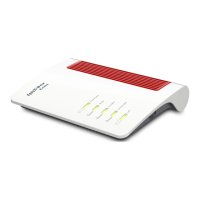
The network key of a FRITZ!Box is
printed on the base of the device
housing.
If the wireless connection can be
established using WPS, the WPS
symbol appears as well.
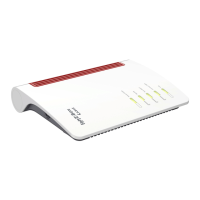
If you are using a FRITZ!Box, press
the “WLAN/WPS” button until the
“WLAN” LED starts fl ashing.
The wireless LAN connection will be
established.
8 9
English
English


 To Next Page