4 5
Wi-Fi SETUP CONT.
3. Open the menu ( ) in the Frontpoint mobile app.
• Select “Add Device”
• Select “Video Camera”
• Select “ADC-V724”
4. Follow the on-screen instructions until the installation
completes successfully.
During the setup, you will be asked to connect to a
temporary network that resembles ADC-V724
(XX:XX:XX).
The Xs are representative of the last six digits of the camera’s MAC
address, located on the bottom of the camera body. When firmware
updates are available, the installation can take up to 15 minutes.
When the Status LED turns solid green, the camera is successfully
connected to your Wi-Fi.
5. Tap “Next” to begin configuration for your camera’s
recording behavior.
6. When prompted to “place” your camera, follow the
mounting instructions on the next page before
completing the “Additional Set Up”.
Wi-Fi SETUP
To complete the setup, you will need a smartphone and a
2.4 GHz or 5 GHz Wi-Fi connection.
To add the Outdoor Camera to your Frontpoint account,
follow the steps below:
1. Connect your camera to the AC power adapter and
plug it into an indoor outlet near your router, if
possible.
You will move and mount the camera after Wi-Fi Setup is complete.
2. Log in to the Frontpoint mobile app on your
smartphone.
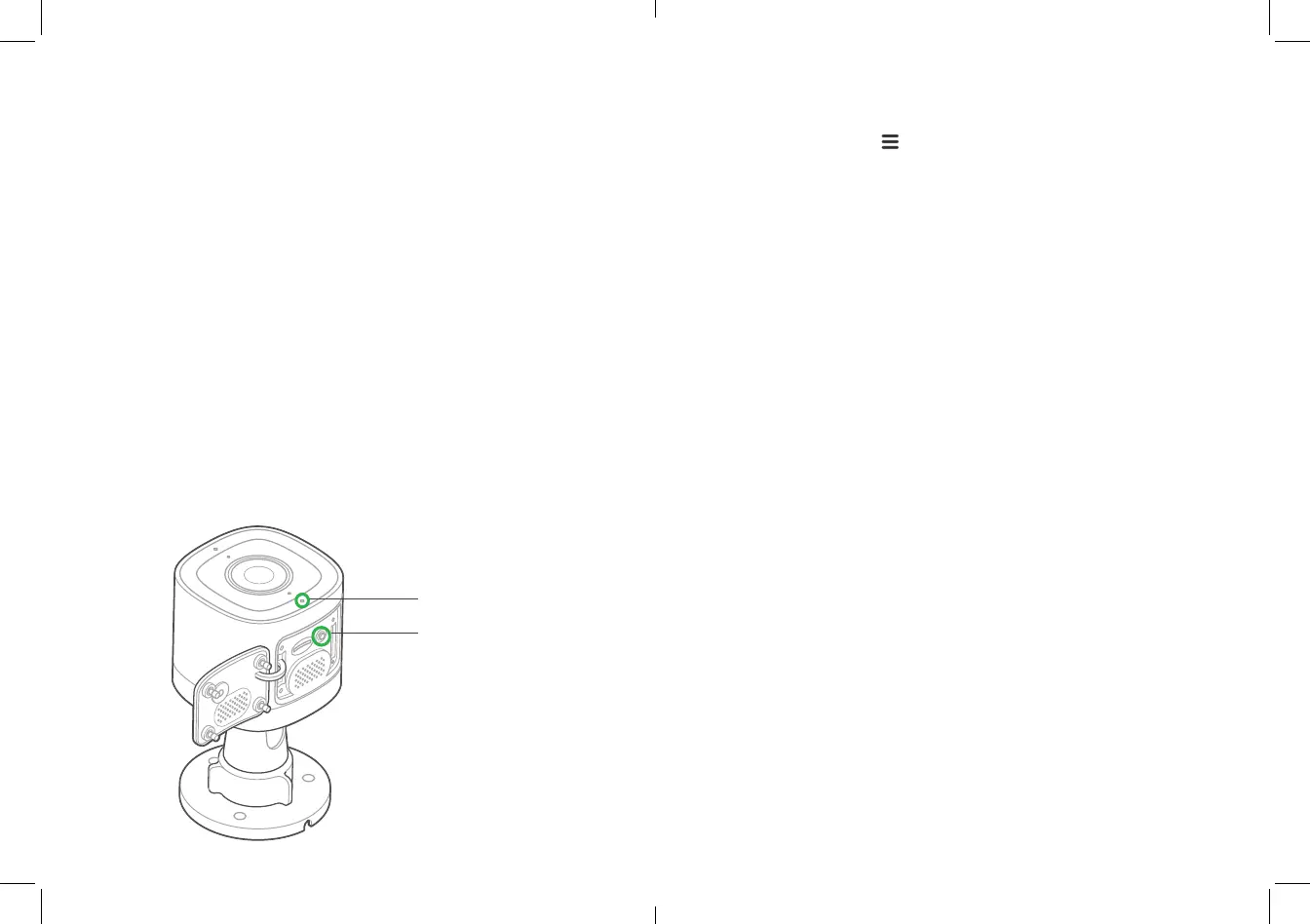
The camera boot-up takes about 25 seconds. When the Status LED is
blinking white, the camera is ready to continue.
If the Status LED is not blinking white after boot up, press and hold the
Reset button for about 6 seconds or until the Status LED begins to
blink white.
Status LED
Reset Button



 To Next Page
 Loading...