EasyManua.ls Logo

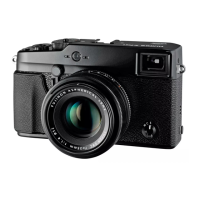
FujiFilm X-Pro1 - User Manual

FujiFilm X-Pro1
136 pages
Print Icon
To Next Page IconTo Next Page
Loading...
DIGITAL CAMERA
X-Pro1
Owner’s Manual
Thank you for your purchase of this product. This
manual describes how to use your FUJIFILM X-Pro1
digital camera and install the supplied software. Be
sure that you have read and understood its contents
before using the camera.
For information on related products, visit our website at
http://www.fujifilm.com/products/digital_cameras/index.html
For more information on the X-Pro1, visit
http://fujifilm-x.com/x-pro1/
Before You Begin
First Steps
Taking Photographs
More on Photography
Viewing Pictures
Menus
Connections
Technical Notes
Troubleshooting
Appendix
EN
BL01619-201

Table of Contents

Other manuals for FujiFilm X-Pro1

Questions and Answers

  • B
    Bobby PatelJul 26, 2025
    What to do if my FujiFilm X-Pro1 does not turn on?
    • L
      lanelaurenJul 26, 2025
      If your FujiFilm Digital Camera isn't turning on, the battery may be the issue. First, ensure the battery is charged or try a fully-charged spare. Also, check that the battery is correctly inserted. Finally, confirm that the battery-chamber cover is securely latched.
  • M
    Maria ValenzuelaJul 31, 2025
    Why does my FujiFilm X-Pro1 Digital Camera battery run down quickly?
    • J
      Jason DrakeAug 1, 2025
      Several factors can cause your FujiFilm Digital Camera battery to drain rapidly. It could be due to a cold battery; try warming it in a pocket before reinserting it just before use. Dirt on the battery terminals can also be a culprit, so clean them with a soft, dry cloth. Additionally, using 'C' focus mode consumes more power, so consider selecting a different focus mode. Finally, if the battery has been charged many times, it may be time to purchase a new one.
  • A
    Amber HebertAug 5, 2025
    What to do if my FujiFilm X-Pro1 turns off suddenly?
    • D
      Diane HullAug 5, 2025
      If your FujiFilm Digital Camera suddenly turns off, the most likely cause is an exhausted battery. Try charging the battery or inserting a fully-charged spare battery.
  • E
    Erika StarkAug 10, 2025
    Why is charging slow on my FujiFilm X-Pro1?
    • R
      Rita VelezAug 11, 2025
      If charging is slow on your FujiFilm Digital Camera, try charging the battery at room temperature.
  • M
    Matthew SanchezAug 15, 2025
    What to do if charging does not start on my FujiFilm X-Pro1 Digital Camera?
    • A
      Ashley AndersonAug 15, 2025
      If charging doesn't start on your FujiFilm Digital Camera, reinsert the battery in the correct orientation and ensure the charger is properly plugged in.
  • K
    Karen BakerAug 20, 2025
    What to do if the charging lamp lights, but the battery does not charge in my FujiFilm X-Pro1?
    • K
      khuffAug 20, 2025
      If the charging lamp lights up, but your FujiFilm Digital Camera battery isn't charging, start by cleaning the battery terminals with a soft, dry cloth. If that doesn't work, the battery may have reached the end of its lifespan, and you might need to purchase a new one. If the battery still fails to charge, contact your FUJIFILM dealer.

Summary

Before You Begin

First Steps

Attaching and Detaching Camera Lenses

Detailed guide on how to attach and remove lenses, including dust prevention.

Charging the Camera Battery

Instructions on placing the battery in the charger and the charging process.

Inserting Battery and Memory Card

Steps for opening the cover and inserting the battery correctly.

Inserting the Memory Card

Guide on inserting the memory card into its slot and closing the cover.

Powering Camera On and Off

Instructions for turning the camera on, off, and checking battery level.

Initial Camera Setup

Guide for selecting language and setting the date and time upon first use.

Taking Photographs

Program AE (P) Mode

How to use Program AE mode for automatic exposure adjustment.

Shutter-Priority AE (S) Mode

How to manually set shutter speed while camera adjusts aperture.

Aperture-Priority AE (A) Mode

How to manually set aperture while camera adjusts shutter speed.

Manual Exposure (M) Mode

Guide to manually controlling shutter speed and aperture for exposure.

Exposure Compensation Adjustment

How to adjust exposure compensation for bright, dark, or high-contrast subjects.

Focusing and Capturing Images

Steps for focusing, shooting, and using silent mode.

More on Photography

White Balance Settings

Adjusting white balance for natural colors under different lighting conditions.

Focus and Exposure Lock

How to lock focus and exposure for off-center subjects.

Camera Focus Modes

Explains Single AF, Continuous AF, and Manual Focus modes.

Exposure Metering Modes

Explains MULTI, SPOT, and AVERAGE metering modes for exposure.

Saving Custom Camera Settings

How to save and recall custom camera settings for different situations.

Viewing Pictures

Full-Frame Picture Viewing

How to view pictures in full frame, navigate, and use playback features.

Menus

Shooting Menu Options

Overview of how to navigate and use the shooting menu for adjustments.

ISO Sensitivity Settings

Control camera sensitivity to light (ISO) for optimal exposure.

Saving Custom Settings

How to save and recall custom camera settings for different situations.

Autofocus Mode Selection

Choose how the camera selects the focus area (MULTI or AREA).

Playback Menu Options

Overview of available options in the playback menu.

The Setup Menu

Setting Camera Date and Time

Set the camera clock and time difference for accurate date/time recording.

Formatting Memory Cards

Format the memory card to prepare it for use and delete all data.

Connections

Viewing Pictures on a Computer

Copy pictures to computer using supplied software for storage, viewing, and printing.

Installing MyFinePix Studio (Windows)

System requirements and installation steps for MyFinePix Studio on Windows.

Completing MyFinePix Studio Installation

Final steps for installing MyFinePix Studio and RAW File Converter.

Installing FinePixViewer (Macintosh)

System requirements and installation steps for FinePixViewer on Macintosh.

Completing FinePixViewer Installation

Steps to install FinePixViewer and RAW File Converter on Macintosh.

Connecting Camera to Computer

Steps to connect the camera to a computer for picture transfer.

Transferring Pictures to Computer

Turn on camera and follow software instructions to copy pictures.

Troubleshooting

Power and Battery Issues

Solutions for camera not turning on, battery drain, and charging problems.

Troubleshooting Shooting Problems

Solutions for no picture, mottling, focus issues, and flash problems.

Troubleshooting Shooting Issues

Solutions for flash light issues, blurred pictures, and mottled images.

Troubleshooting Connections and Miscellaneous

Solutions for connection errors, printing issues, and unresponsive camera.

Warning Messages and Displays

Battery Level Warnings

Explains warnings for low battery, battery exhaustion, and slow shutter speed.

Focus and Exposure Warnings

Interpret warnings related to focus errors, aperture/shutter speed, and camera malfunction.

Memory Card Warnings

Interpret warnings for card errors, full memory, write errors, and read errors.

General Camera Warnings

Interpret warnings for protected pictures, cropping, execution errors, and printing.

Appendix

Camera System Specifications

Technical details of the camera system, including sensor, file format, and exposure control.

Camera Operating Specifications

Details on continuous shooting, focus, white balance, self-timer, flash, and hybrid viewfinder.

Camera Power and Size Specifications

Specifications for power supply, battery life, camera size, weight, and operating conditions.

Restrictions on Camera Settings

Shooting Mode Restrictions

Shows available settings for Macro, Flash, WB, Bracketing, Metering, Focus, Exposure Comp.

Shooting Mode Settings Details

Details restrictions for Dynamic Range, Film Sim, Self-Timer, Color, Sharpness, AF Mode, Display settings.

Shooting Mode Function Restrictions

Shows restrictions for Flash Mode, Flash, AF Illuminator, AE/AF Lock, Focus Ring, Power Save, Quick Start, Color Space.

FujiFilm X-Pro1 Specifications

General IconGeneral
Megapixel16.3 MP
Camera typeCompact camera
Sensor typeCMOS
Image stabilizerYes
Image sensor size- \
Supported aspect ratios3:2, 16:9
Maximum image resolution4896 x 3264 pixels
Image sensor size (W x H)23.6 x 15.6 mm
Still image resolution(s)2304 x 2304, 3456 x 1944, 3456 x 2304
Optical zoom- x
Focal length range- mm
Minimum aperture number-
FocusTTL
Auto focusing (AF) modesContinuous Auto Focus, Single Auto Focus
Light meteringSpot
ISO sensitivity200, 400, 800, 1600, 3200, 6400
Light exposure modesAuto
ISO sensitivity (max)6400
ISO sensitivity (min)200
Light exposure controlProgram AE
Light exposure correction± 2EV (1/3EV step)
Fastest camera shutter speed1/4000 s
Slowest camera shutter speed30 s
Flash modesAuto, Forced off, Forced on, Red-eye reduction, Second curtain synchro, Slow synchronization, Suppressed
Power source typeBattery
White balanceAuto, Fine, Fluorescent H, Incandescent, Shade, Underwater
Self-timer delay2, 10 s
Camera file systemDPOF 1.1, Exif 2.3
Video resolutions1280 x 720 pixels
Motion JPEG frame rate24 fps
Video formats supportedH.264
Maximum video resolution1920 x 1080 pixels
Internal memory0 MB
Compatible memory cardsSD, SDHC, SDXC
Field of view100 %
Display diagonal3 \
Display resolution (numeric)1230000 pixels
Magnification0.6 x
Viewfinder typeOptical
Viewfinder screen size0.47 \
USB version2.0
Product colorBlack
Battery typeNP-W126
Cables includedUSB
Weight and Dimensions IconWeight and Dimensions
Depth42.5 mm
Width139.5 mm
Height81.8 mm
Weight400 g
Weight (including battery)450 g

Related product manuals