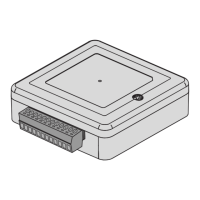
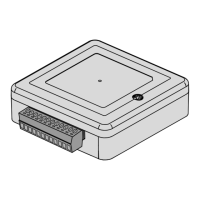
This document is an instruction manual for the AIRSTAGE Remo Set, a system designed to facilitate the installation and maintenance of Fujitsu General air conditioners by specialists. The core function of the AIRSTAGE Remo Set is to enable the configuration and management of remote controllers and air conditioners via a smartphone application. This application allows installers and maintenance specialists to change settings of remote controllers and connected indoor units, display logo images on remote controllers, and send various data to the remote controllers.
Function Description
The AIRSTAGE Remo Set primarily functions through a smartphone application that interacts with Fujitsu General wired remote controllers (UTY-RVRU) and Fujitsu General air conditioners connected to UTY-RVRU. The application offers three main categories of settings: RC Setting, Logo Data, and Function Setting.
-
RC Setting: This feature enables the editing, creation, loading, copying, and deletion of setting files for the remote controller. These settings collectively define the temperature unit and language displayed on the remote controller. Users can create new setting files by configuring various parameters such as:
- Temp. Unit Setting: Changes the temperature unit between Celsius (°C) and Fahrenheit (°F).
- Language Setting: Allows selection of the display language (English, French, Spanish).
- Time: Synchronizes the time of the smartphone with the remote controller. Users can choose to send or not send the clock information.
- R.C. Group Name Setting: Sets the group name of the remote controller, up to 12 characters.
- Display Item Setting: Configures which items (e.g., Room Temp., Filter Sign, On/Off, Mode, Fan, Air Flow Direction) are displayed on the remote controller.
- R.C. Sensor Setting: Enables or disables the remote controller sensor.
- Deadband Setting: Sets the deadband value.
- Service Contact: Allows entry of service contact information (Name, Phone, Email) up to 50 characters for Name and Email, and 20 characters for Phone.
- Backlight Setting: Adjusts backlight settings including Brightness Level, SensorControl, AfterLightTimePass, and Light Time.
- Summer Time Setting: Advances the clock setting of the remote controller by one hour.
- Admin Password: Sets a 4-digit administrator password.
- Installer Password: Sets a 4-digit installer password.
- Date Format: Selects the date format (Day/Month/Year, Month/Day/Year, Year/Month/Day).
- Time Format: Selects the time format (12:00-11:59AMPM, 00:00-11:59AMPM, 00:00-23:59).
- Set Temp. Range: Sets upper and lower limits for Auto, Upper Limit, Lower Limit, Cool/Dry, Heat temperature ranges, with an option to restrict or not restrict the temperature range.
Up to 20 setting files can be saved.
-
Logo Data: This function allows users to import a logo image from their smartphone and send it to the remote controller for display. It also supports deleting imported images.
- Importing an image: Images must be 480px × 480px or less, 450 KB or less, and in JPG or PNG format.
- Up to 10 logo images can be saved.
-
Function Setting: This feature enables the creation, editing, loading, copying, and deletion of setting files for the air conditioner's field settings. These settings are then sent to the remote controller, which in turn configures the air conditioner. The manual refers to the air conditioner's installation manual for supported Function numbers and Setting numbers.
- Users can enter a 2-digit number for each Function No., Setting No., and Response.
- The application allows loading and copying of current setting values.
- Up to 10 setting files can be saved.
Important Technical Specifications
- Remote controller: Fujitsu General wired remote controller UTY-RVRU.
- Air conditioner: Fujitsu General air conditioner connected to UTY-RVRU.
- Smartphone OS: Android or iOS. Requires checking the latest version of OS supported on GooglePlay or AppStore.
- Smartphone RAM: 4 GB or more (recommended). If RAM capacity is insufficient, screen transition may take time.
- Smartphone Recommended resolution: 1334×750 pixels or more. If the resolution is less than the above, texts may not be completely displayed.
- Bluetooth®: Bluetooth 4.2 or more.
- Manuals: UTY-RVRU Operation Manual and UTY-RVRU Installation Manual are referenced for detailed information.
- Radio Wave Receivable Distance: Approximately 10 m. If the radio waves are shielded by an obstacle, the receivable distance will be shorter. It is recommended to remove obstacles or bring the smartphone closer to the remote controller.
- Bluetooth Devices: Multiple Bluetooth devices present around the remote controller or smartphone can cause communication issues.
- Application Usage: Intended for indoor use.
- Screen Display: The application screen may differ depending on the OS version, smartphone screen size, etc.
- Transmission Progress: If the application screen shows transmission is in progress, do not exit the application or turn off the smartphone to avoid errors.
- Installer Password: Setting an Installer Password (P.21) is recommended to prevent operational mistakes by the smartphone.
- Pre-use Check: Before using the application, confirm that the air conditioner and the remote controller are turned on.
- Wireless LAN and Other Wireless Devices: Do not use around wireless LAN and other wireless devices, around equipment such as a microwave that emits radio waves, at places with many obstacles, and in other environments under a poor radio wave condition. Connection may be frequently interrupted, communication speed may become extremely slow, or an error may occur.
- 2.4 GHz Band: When using near equipment that use 2.4 GHz band or similar zones, such as wireless LAN devices with IEEE802.11b/g, radio wave interference may occur mutually, communication speed may become slower, or connection may fail. In this case, turn off devices that are not used.
Usage Features
- Intuitive Interface: The application features a clear, menu-driven interface for data setting, RC setting, logo data, function setting, and connection management.
- Data Setting Screen: Provides an overview of the current status of RC Setting, Logo Data, and Function Setting, indicating "No Data" if no file is selected.
- Menu Options: Includes "Environmental setting / Help" for application version information, licensing, and terms of use.
- Connecting to RC: The application guides the user through the process of connecting the smartphone to the remote controller via Bluetooth. It displays a list of available remote controllers and confirms the connection.
- Sending Data: After selecting the desired RC Setting, Logo Data, and Function Setting files, users can send them to the connected remote controller. A progress screen shows the sending status.
- Disconnecting from RC: Users can disconnect from the remote controller via the "Send Data" screen or by stopping the Bluetooth connection from the smartphone's Bluetooth settings. The information of the connected remote controller is stored on the smartphone for convenience.
- Troubleshooting: The manual includes a troubleshooting section for common issues such as:
- Connection failure: Check distance (within 10m), Bluetooth enablement, remote controller connection function, authorization of the application, and ensure the remote controller and air conditioner are on.
- Sending/loading data failure: Check distance (within 10m).
- Field settings not overwritten: Refer to the air conditioner's installation manual for supported field settings.
- Setting files or logo images cannot be newly created: Check the number of saved files or images. The limits are 20 for RC setting files, 10 for Function setting files, and 10 for logo images. If the upper limit is reached, unnecessary files or images must be deleted.
- Language Support: The application is available only in English. If another language is set on the smartphone's language setting, English is displayed.
- Updates: When the application is updated, a notification is sent from Google Play or App Store. Users are advised to always keep the application in the latest state to enhance security, improve performance, correct failures, etc.
Maintenance Features
- Setting File Management: Users can save, load, copy, and delete RC Setting and Function Setting files, allowing for easy backup and restoration of configurations. This is particularly useful for maintaining consistent settings across multiple units or for reverting to previous configurations.
- Logo Image Management: The ability to import and delete logo images allows for customization and branding of remote controllers, while also providing a way to manage storage space by removing unused images.
- Password Protection: Admin and Installer Passwords provide a layer of security, preventing unauthorized changes to critical settings.
- Service Contact Information: The "Service Contact" setting allows installers to embed their contact details directly into the remote controller's settings, facilitating future maintenance and support.
- Firmware/Software Updates: The manual emphasizes keeping the application updated to ensure optimal performance, security, and bug fixes, which is a key aspect of software maintenance.
- Error Handling: The troubleshooting section serves as a maintenance guide, helping users diagnose and resolve common issues without requiring external support.
- Data Storage: The application stores information about connected remote controllers, streamlining the reconnection process for future maintenance tasks.

 Need help?
 General

 To Next Page