EasyManua.ls Logo

FUNAI F100DB - Display Settings

FUNAI F100DB
32 pages
Print Icon
To Next Page IconTo Next Page
To Previous Page IconTo Previous Page
Loading...
4
Press the
K/L
buttons to select a desired
item, and then press the ENTER button.
5 Press the SETUP button.
¡The setup mode will be canceled and the ordinary
screen will appear.
22
EN
9F21
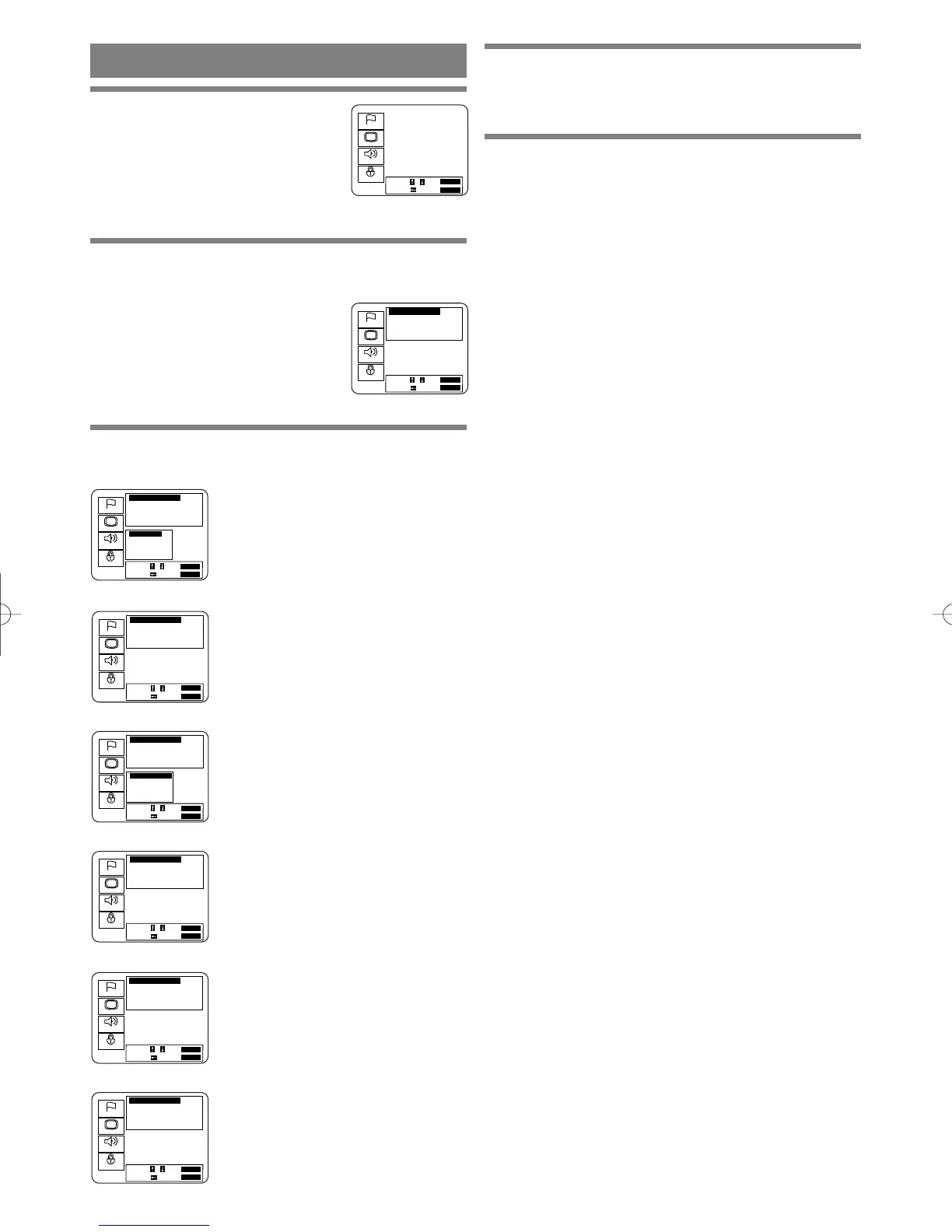
1
Press the SETUP button.
¡The setup screen will appear.
2 Press the K/L buttons to select Display and
then press the ENTER button.
3 Press the K/L buttons to select an item, and
then press the ENTER button.
TV Aspect
(Default : 4:3 Pan & Scan)
4:3 Pan & Scan : Full height picture,
trimmed both sides
4:3 Letter Box : Wide screen with
black bars on top and bottom
16:9 wide : If wide screen TV is con-
nected
On Screen Info (Default : On)
Display or not display the disc status
(Example PLAYB).
Panel Display (Default : Bright)
Adjust the brightness of the display of
the unit.
* Auto: Stays dim only during play-
back.
Angle Icon (Default : On)
Display or not display the Angle icon
on the screen.
Background Color (Default : Blue)
Select blue or gray.
Auto Power Off (Default : On)
Set or not set to turn off after the
screen saver is started and no keys are
pressed for 30 minutes.
DISPLAY SETTINGS

Language
Display
Audio
Parental
Select : / Set : ENTER
Cancel : Exit : SETUP
Display Controls
TV Aspect 4:3 Pan & Scan
On Screen Info
On
Panel Display Bright
Angle Icon On
p
Language
Display
Audio
Parental
Select : / Set : ENTER
Cancel : Exit : SETUP
Display Controls
TV Aspect 4:3 Pan & Scan
On Screen Info
On
Panel Display Bright
Angle Icon On
p
TV Aspect
16:9 Wide
4:3 Letterbox
4:3 Pan & Scan
Language
Display
Audio
Parental
Select : / Set : ENTER
Cancel : Exit : SETUP
Display Controls
TV Aspect 4:3 Pan & Scan
On Screen Info
On
Panel Display Bright
Angle Icon On
p
Language
Display
Audio
Parental
Select : / Set : ENTER
Cancel : Exit : SETUP
Display Controls
TV Aspect 4:3 Pan & Scan
On Screen Info
On
Panel Display Bright
Angle Icon On
p
Panel Display
Bright
Dim
Auto
Language
Display
Audio
Parental
Select : / Set : ENTER
Cancel : Exit : SETUP
Display Controls
TV Aspect 4:3 Pan & Scan
On Screen Info
On
Panel Display Bright
Angle Icon On
p
Language
Display
Audio
Parental
Select : / Set : ENTER
Cancel : Exit : SETUP
Display Controls
Panel display Bright
Angle Icon On
Background Color Blue
Auto Power Off On
o
Language
Display
Audio
Parental
Select : / Set : ENTER
Cancel : Exit : SETUP
Display Controls
Panel Display Bright
Angle Icon On
Background Color Blue
Auto Power Off On
o
Language
Display
Audio
Parental
Select : / Set : ENTER
Cancel : Exit : SETUP
E5505UD 01.3.30 1:13 PM Page 22

Related product manuals