9
EN
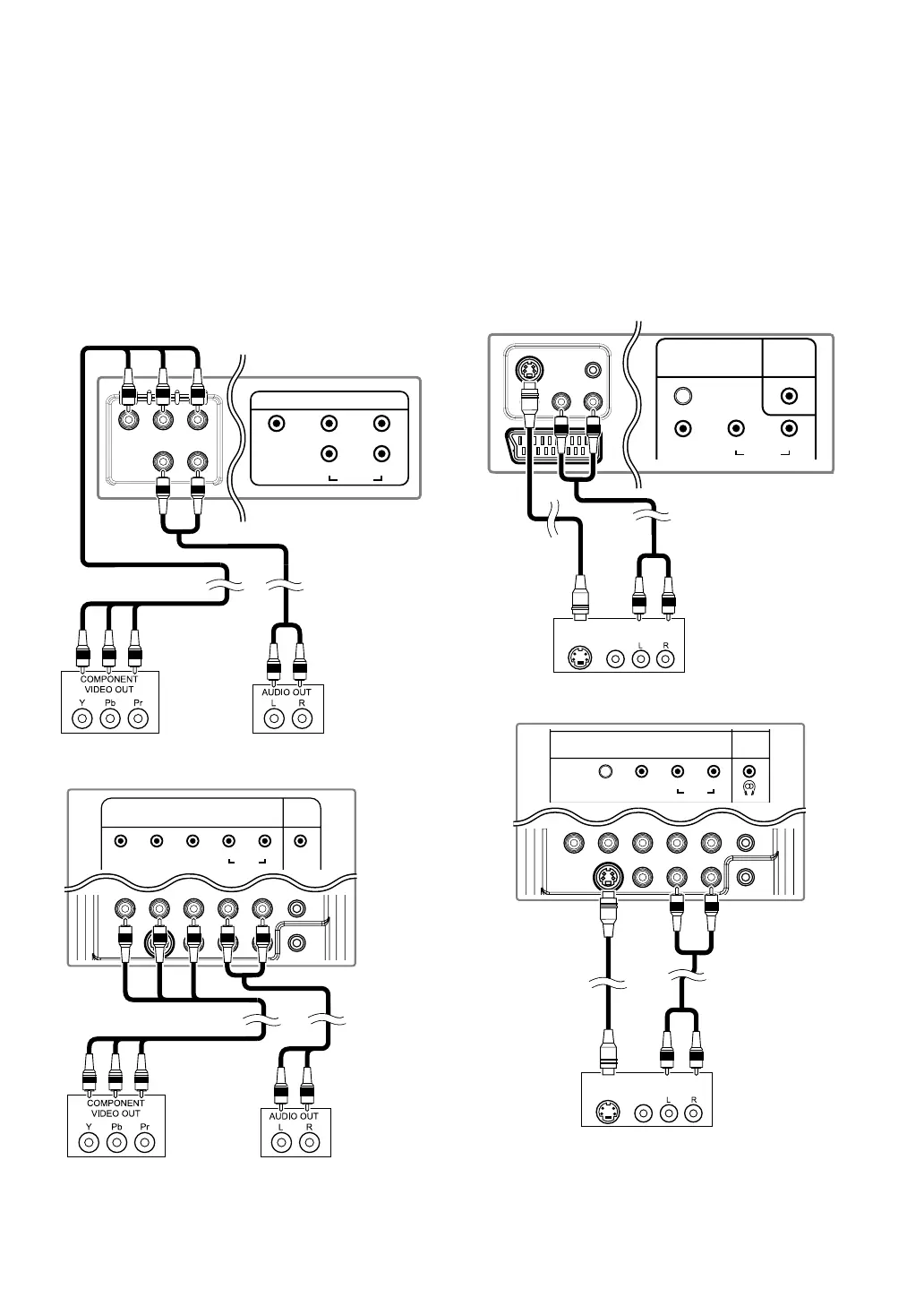
[COMPONENT CONNECTION]
RCA component video connection offers better picture quality.
1) Connect the component video output jack (Y, Pb, Pr) of your
video device and the COMPONENT video (Y, Pb, Pr) input
jack of this unit. Use an RCA component video cable (not
supplied).
2) Connect the audio output jack of your device and the
AUDIO (L/R) input jack of this unit. Use an RCA audio
cable (not supplied).
[S-VIDEO CONNECTION]
S-Video connection offers good picture quality.
1) Connect the S-Video output jack of your video device and
the S-VIDEO input jack of this unit. Use an S-Video cable
(not supplied).
2) Connect the audio output jack of your device and the
AUDIO (L/R) input jack of this unit. Use an RCA audio
cable (not supplied).
Note:
This unit accepts 480i / 480p / 576i / 576p / 720p /
1080i video signals.
YPbPr
COMPONENT
AUDIO
LR
Rear of this unit
RCA component video cable
(not supplied)
RCA audio cable
(not supplied)
<LT7-M22BB / LT7-M22WB>
COMPONENT
PC-IN
AUDIO
Y Pb
L R
Pr
AUD IO
Rear of this unit
RCA component video cable
(not supplied)
RCA audio cable
(not supplied)
<LT7-M19BB / LT7-M19WB>
Note:
If you connect to the S-VIDEO jack and the VIDEO
jack at the same time, S-Video connection will have
priority.
AUDIO
OUT
VIDEO
OUT
S-VIDEO
OUT
S-VIDEO
VIDEO
AUD IO
LR
VIDEO
PC-IN
AUDIO
Rear of this unit
RCA audio cable
(not supplied)
S-Video cable
(not supplied)
<LT7-M22BB / LT7-M22WB>
HEAD
PHONE
VIDEO
L R
VIDEO
AUDIO
S-VIDEO
AUDIO
OUT
VIDEO
OUT
S-VIDEO
OUT
Rear of this unit
RCA audio cable
(not supplied)
S-Video cable
(not supplied)
<LT7-M19BB / LT7-M19WB>


 To Next Page