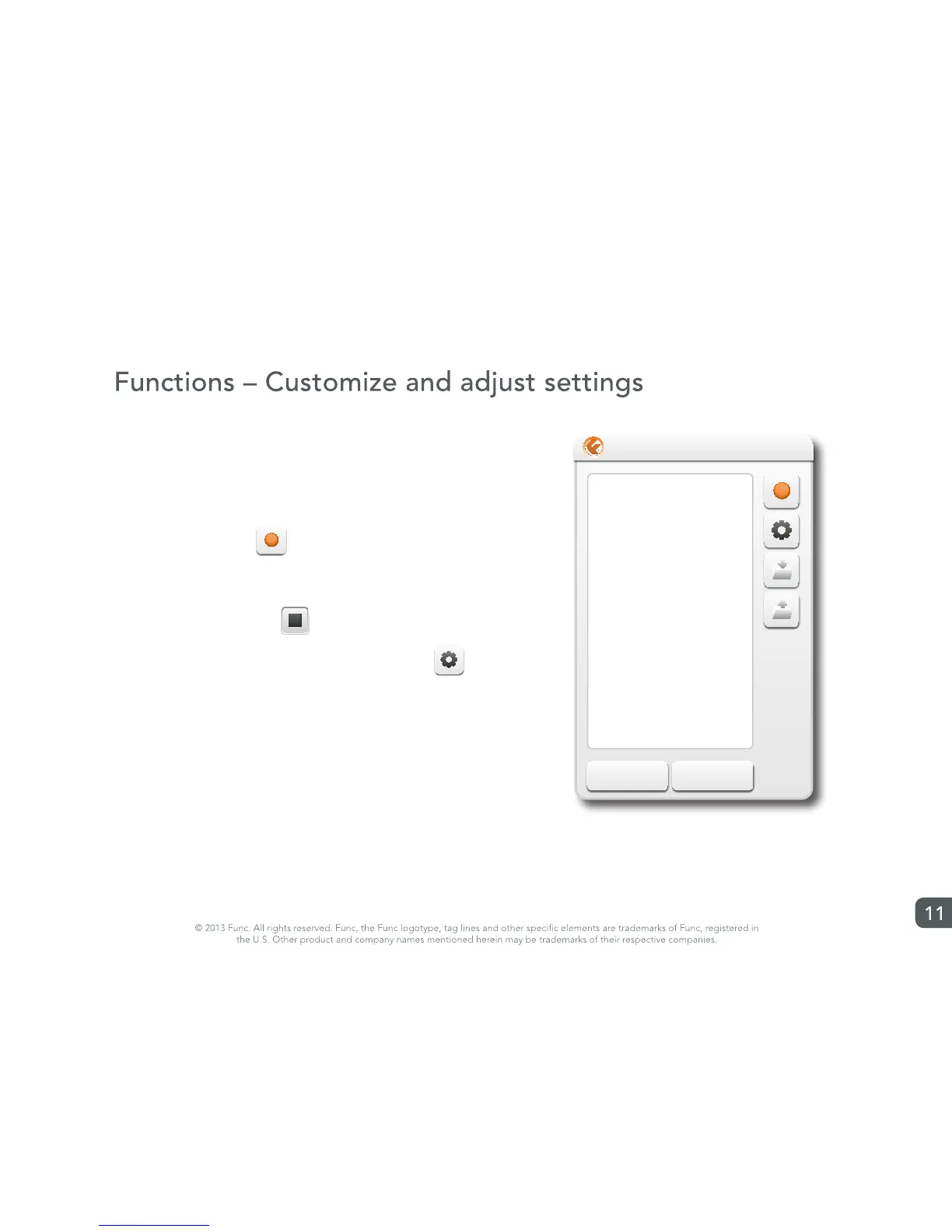
Macro recording
1. Select “Macro” within the dropdown menu when assigning a
function to a key.
2. The macro recorder pop-up is displayed.
3. To start, press down
4. Type in the desired macro.
5. To stop recording, press
6. To configur the repeat options for the macro, press
7. Press the Save button to save a macro to the computer.
8. Press the Load button to load a already saved macro from the
computer.
9. Press Ok to save the macro to the desired key.
M1
Func KB-460 Settings software
Esc F1 F2 F3 F4
1` 2 3 4 5 6 7 8 9 0 – =
F5 F6 F7 F8 F9 F10 F11 F12
Print
Screen
Scroll
Lock
Pause
Break
QTab W E R T Y U I O P [ ] \
A
Caps
Lock
S D F G H J K L ; ‘
Z
Shift X C V B N M , . / Shift
Insert Home Page
Up
Num
Lock
Delete End Page
Down
/ * –
7 8 9
+
4 5 6
1 2 3
Enter
M1
M2
M3
M4
M5
Restore to default Cancel Apply Ok
M6
M7
M8
M9
M10
AltCtrl Alt Fn Ctrl 0 .
Profile 5Profile 4Profile 3Profile 2Profile 1
SupportRestore
Backup
X
_
Unassgined
Macro
Cut
Copy
Paste
Undo
All
Find
New
Print
Save
Launch
Disabled
Unassigned



 To Next Page