Need help?
Do you have a question about the Funsnap CAPTURE PI and is the answer not in the manual?
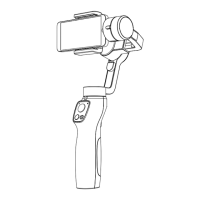
Designed for smartphones, Capture π is a 3-axis gimbal with enhanced stabilization and portability.
Lists and illustrates the different parts of the Capture π gimbal with numbered labels.
Instructions on how to fold and unfold the Capture π gimbal, with emphasis on safety.
Details on how to charge the Capture π, including charging time and operating time.
Steps to properly unfold, secure phone, and power on the Capture π gimbal.
Details the functions of the power button for checking battery, switching modes, and powering off.
Explains how to use the shutter button for photos, video, switching cameras, and modes.
Describes how the battery level indicator displays the remaining battery charge.
Explains the meaning of different light colors and patterns for gimbal modes.
How to use the joystick to control the gimbal's pitch and yaw movements.
Describes the standard operation mode where the capture is used in an upright position.
How to enter underslung mode by holding the gimbal upside down for low-angle shots.
How to trigger inception mode and use the joystick to control roll.
The camera follows pitch and yaw smoothly; roll is locked.
Camera follows yaw smoothly; pitch is locked. Used for running scenarios.
Switches between portrait and landscape modes by tapping the power button.
Camera follows pitch and yaw rapidly; used for sports filming.
Camera is locked in roll, pitch, and yaw; joystick controls pitch/yaw. Used for linear movements.
Camera is locked in roll, pitch, and yaw; joystick controls pitch/roll. For FPV-like shots.
Camera follows roll, pitch, and yaw movement for first-person-view shots.
Connects Capture π to phone via Bluetooth for wireless control and smart features.
Button to navigate back to the main page of the app.
Indicates the current status of the Bluetooth connection.
Displays the current operating mode of the gimbal.
Shows the current battery level of the gimbal.
Indicates face or object tracking status, including frame color changes.
Enables photo capture or mode switching via scissor or palm gestures.
Allows selection of various modes like Panorama, Photo, Video, Slow-motion, Timelapse.
Function related to capturing photos or starting/stopping video recording.
Allows switching between the front and rear cameras.
Access to stored photos and videos.
Enables switching the slider's function between zoom and focus.
Configure camera settings like flashlights, grids, and image aspect ratios.
Set the gimbal's default operating mode (Follow or Semi-follow).
Adjust joystick sensitivity and control direction.
View parameters like panorama resolution, calibration status, and version numbers.
Calibrate sensors if the gimbal starts to drift.
Calibrate the gimbal's horizon to ensure a level view.
Enable live face tracking when using other streaming apps.
Upgrade the gimbal's firmware. A blue dot indicates an update is available.
Step 1: Install the phone and power up the gimbal.
Step 2: Enable Bluetooth, connect to 'Capture Pi', and sign up for an account.
Instructions for connecting the gimbal to control the phone's native camera.
Procedure to upgrade firmware via the Capture 2 App, including prerequisites and steps.
Important safety instructions for using the Capture π gimbal, covering water resistance, temperature, and handling.
Section for recording maintenance dates and repair conditions.
Lists conditions under which the product warranty is voided.
Compliance statement regarding FCC rules for digital devices and radio frequency energy.
Compliance with RF radiation exposure limits for uncontrolled environments.
The Capture π is a 3-axis smartphone gimbal designed to enhance the stability and quality of smartphone videography and photography. It offers advanced stabilization, a highly portable foldable design, and a non-orthogonal structural design for seamless transitions between portrait and landscape modes. The gimbal also integrates live tracking features to improve live streaming experiences.
The Capture π is primarily used to stabilize a smartphone during filming, reducing shakes and jitters to produce smooth, professional-looking footage. Its high-precision motors and aerospace-grade aluminum arms contribute to superior stabilization. The gimbal connects to a smartphone via Bluetooth, allowing users to control camera functions and access smart features through the dedicated Capture 2 App.
Power and Mode Control: The power button serves multiple functions. When the gimbal is off, a single tap checks the battery level. When on, a single tap switches between portrait and landscape modes, a double tap toggles between Follow and FPV modes, and a triple tap activates Inception Mode. Holding the button for 3 seconds powers the device off.
Camera Shutter Control: The shutter button allows users to take photos or start/stop video recording with a single tap. A double tap switches between the front and rear cameras when using the app, and holding the button switches between photo and video modes.
Battery Level Indication: A dedicated indicator displays the current battery level, ensuring users are aware of the remaining power.
Mode Indication: A mode indicator light (green, blue, or red, solid or flashing) clearly shows the current gimbal operating mode, such as Follow, PhoneGo, FPV, Inception, Lock, or Gimbal Motor Protection.
Joystick Control: The joystick provides intuitive control over the gimbal's pitch (up and down) and yaw (left and right) movements, allowing for precise camera adjustments.
Zoom/Focus Slider: This slider can be configured via the app to control either zoom or focus. In zoom mode, sliding towards 'T' zooms in and towards 'W' zooms out. In focus mode, it controls the camera's focus. The app also supports auto-tracking focus.
Trigger Button: Pressing and holding the trigger button activates Lock Mode, where the gimbal's roll, pitch, and yaw are locked. Releasing it returns to Follow Mode. A double press returns the gimbal to its neutral position. Pressing and holding also activates PhoneGo Mode, which provides faster gimbal movements for sports filming.
Lanyard Hole: This feature allows users to attach a lanyard for added security during use.
1/4 Inch Threaded Hole: Located at the bottom, this threaded hole enables mounting the gimbal on a tripod, extension rod, or other accessories.
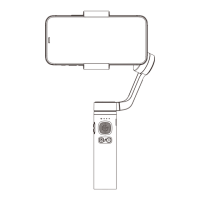
Folding/Unfolding: The Capture π features a foldable design for portability. To unfold, hold the handle and rotate the gimbal arm 180 degrees until a click is heard. To fold, rotate the arm back 180 degrees until it clicks. It is crucial to ensure the stabilizer is off when folding or unfolding.
Charging: The gimbal is charged via a USB Type-C port. The battery level indicator displays white lights during charging. A full charge takes approximately 3 hours with a 5V 2A power adapter, providing up to 12 hours of operating time under ideal conditions.
Startup Procedure: After unfolding, secure the smartphone in the clamp, ensuring it is balanced (approximately 5mm off-center from the phone's center, with the camera lens on the left). Then, press and hold the power button for 3 seconds to boot up.
Default Mode (Follow Mode): By default, the Capture π starts in Follow Mode (indicated by a solid green light), where the camera smoothly follows the gimbal's pitch and yaw movements, with the roll axis locked. The joystick can also be used for pitch and yaw control.
Operation Modes:
Capture 2 App Integration: The Capture 2 App (available on iOS 11.0+ and Android 7.0+) unlocks advanced features.
Controlling Original Phone Camera: After connecting via Bluetooth, the gimbal can control the phone's native camera app. Pressing and holding the shutter button opens the original camera. A single press switches between video/photo modes or starts/stops recording. The zoom/focus slider controls zoom/focus in the original camera app.
Firmware Upgrade: The gimbal's firmware can be updated via the Capture 2 App. Users should ensure the battery has at least two indicator lights before upgrading. The process takes about 3 minutes, during which the app should not be closed or minimized. After a successful upgrade, the gimbal powers off automatically and needs to be manually powered on. If an upgrade fails, users should reboot the gimbal and retry.
Settings in Capture 2 App:
Safety Guidelines:
 General
| Compatibility | Smartphones |
|---|---|
| Max Load | 250g |
| Axis | 3-axis |
| Rolling Angle | 180° |
| Connection | Bluetooth |
| Color | Black |
| Type | Gimbal |
| Features | Face Tracking, Object Tracking |

 To Next Page