®
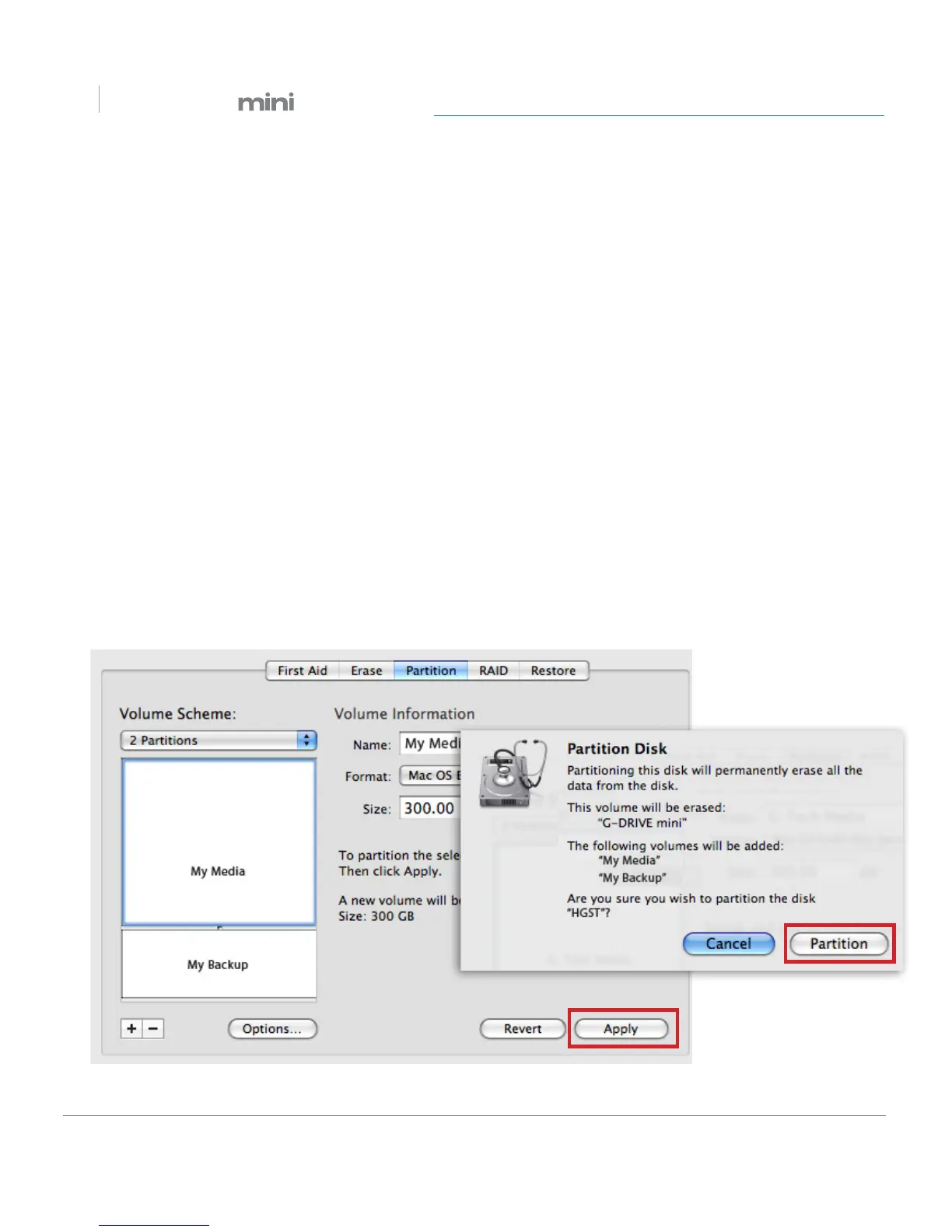
5. Click on the rst partition in the Volume Scheme area. Your partition will be highlighted
by a blue bounding box.
• In the Name eld, type a name for the partition.
• From the Format menu, choose your desired disk format. If you will use your drive
primarily on Mac OS, it is recommended to use Mac OS Extended or Mac OS Extended
(Journaled). For info about formats, go here.
• In the Size eld, type in a size for the partition. Alternately, you can drag the bar in
between each partition to quickly change the size.
6. Repeat this process for each partition you have created.
7. Click the Apply button in the lower right corner of the window. A dialog box will appear
asking if you want to erase the G-Technology drive partition.
WARNING: THIS NEXT STEP WILL ERASE ALL DATA ON YOUR DRIVE.












 To Next Page